
Getting started
The Console is the administration interface for the payment infrastructure.
It enables teams to configure, monitor, and operate their payment environment from a unified interface, including routing, risk controls, merchant configuration, and operational workflows.
This documentation explains how to use the Console consistently across all modules.
Access and scope
- The Console operates on a hierarchical structure that defines how objects such as companies, merchant accounts, and configurations are organized. To understand how environments are structured and how objects relate to each other, see Structure.
- Objects (Lists, Contracts, Routing rules, etc.) always belong to a Company.
- When you open an object, the header shows the current scope context and, when available, the navigation path used to reach the object through breadcrumbs.
Navigation structure
The Console interface relies on two main navigation components:
- a left sidebar for global navigation across modules
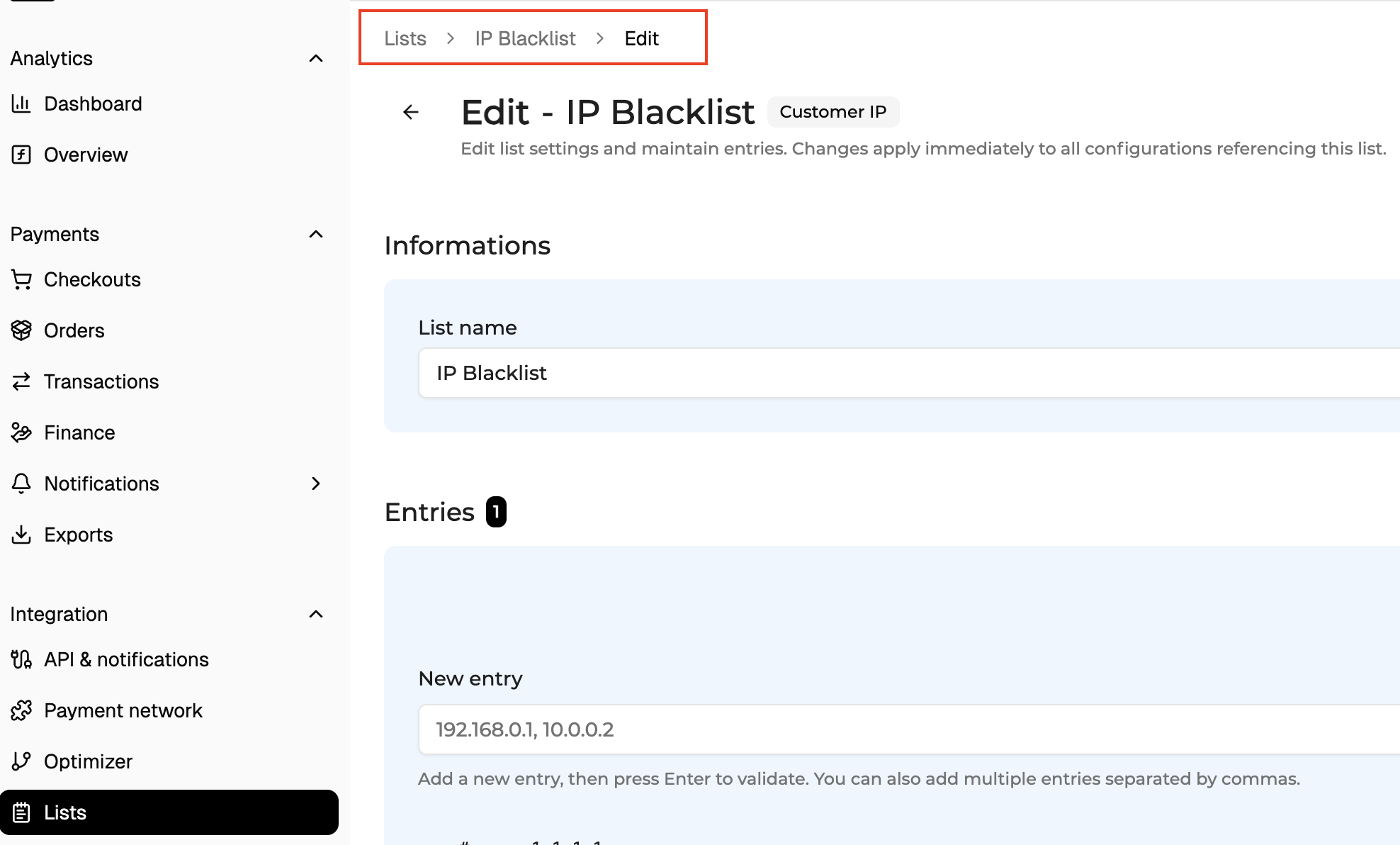
- breadcrumbs for local navigation within a module and between objects
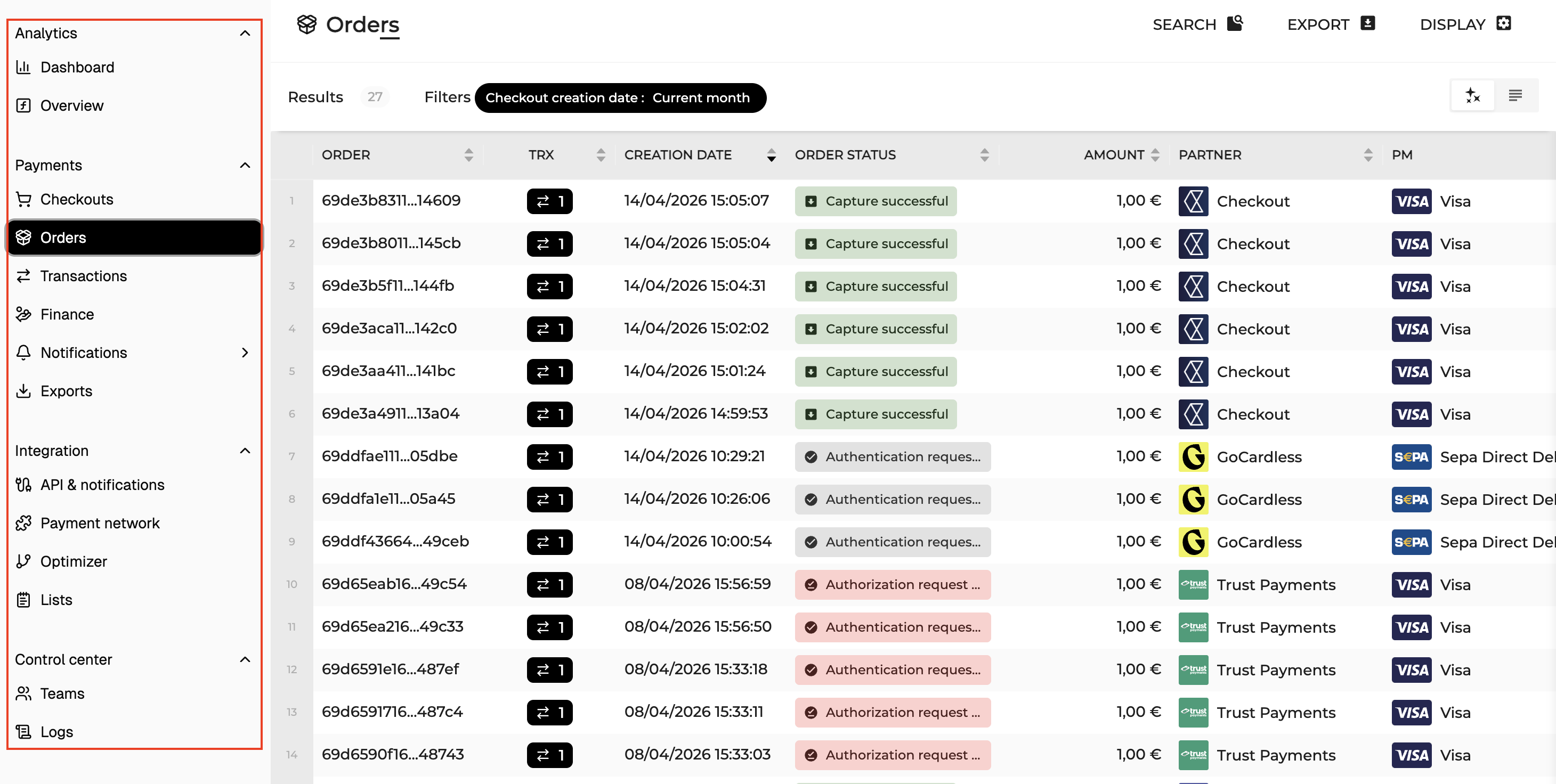
The sidebar allows users to switch between major Console sections such as Payments, Analytics, Payment Network, and Company settings.
Breadcrumbs show the local navigation path used to reach the current page. They help users understand the path they followed and return to previous levels when available.
In most modules:
- table pages display collections of objects or records
- clicking a row opens the object detail page
- detail pages allow users to inspect an object safely
- edit mode allows users to modify the object configuration
This navigation model is consistent across the Console.
Permissions
Actions shown in the UI are permission-aware.
Depending on your role, you may or may not see:
- Create
- Edit
- Delete
- Import
- Delete all
- Save / Reset
If an action is not available to your role, it is not displayed.
Advanced Search
Advanced Search is available on selected Console tables. It allows users to build multi-condition queries using any available column as a filter field.
The search panel opens directly above the table results, keeping the data in view while building a query. Click Advanced Search in the table toolbar or press F to open the panel.
Each filter row is built from three elements: a field, an operator, and a value. Multiple conditions can be stacked using + Add filter. All conditions use AND logic. Click Search to apply. Searches can be saved and reapplied.
Operators are field-type aware
Operators are organised by field type. Within each type, operators follow a consistent order: equality operators first, then type-specific operators, then null checks.
Text (partial)
Operators: is · is not · contains (default) · does not contain · starts with · ends with
Behavior: Minimum 5 characters required for partial operators (contains, does not contain, starts with, ends with).
Example: Webhook name contains "paymen" → all endpoints whose name includes that string.
Text (exact) / ID
Operators: is (default) · is not
Behavior: Supports multi-value input — paste comma-separated values, rendered as badges.
Example: Transaction ID is "trx_8f2a1c, trx_9d4b7e" → exact match on one or multiple IDs.
Enum
Operators: is (default) · is not · contains · does not contain · contains any of · contains all of · contains none of
Behavior: Single-value or multi-value selection. The Active Filters Bar chip adapts automatically: displays "Is one of" / "Is not one of" when 2+ values are entered.
Date
Operators: is (default) · is not · is before · is on or before · is after · is on or after · is between
Number / Amount
Operators: is (default) · is not · is greater than · is greater than or equal to · is less than · is less than or equal to · is between · is positive (no value field) · is negative (no value field)
Examples :
- Invoice amount is greater than 500 → high-value invoices
- Invoice amount is between 10 and 99.99 → mid-range billing tier
- Triggers count is greater than or equal to 10 → heavily instrumented webhook endpoints
Boolean
Operators: is (default)
Object reference
Operators: is (default) · is not
Behavior: The Active Filters Bar chip adapts automatically: displays "Is one of" / "Is not one of" when 2+ values are entered.
IP
Operators: is (default) · is not · is in range · is not in range
Examples :
- IP address is "203.0.113.42" → one specific subscriber session
- IP address is in range "192.168.1.0/24" → all IPs within a known corporate subnet
- IP address is not in range "10.0.0.0/8" → subscribers not originating from private network ranges
Active Filters
Once a search is applied, active filters are displayed as chips in the Active Filters Bar, between the toolbar and the table. Each chip shows the field, operator, and value.
Clicking a chip opens an inline edit menu directly on that filter, no need to reopen the full panel. Available actions:
- Update the operator and/or value, then click Apply change
- Disable filter, temporarily suspends the condition without removing it; useful for quick before/after comparisons before re-enabling
- Delete filter, removes the filter permanently
When several active filters cannot fit on one line, additional filters collapse into a +N chip. All filters can be removed at once using Delete all filters.
Updated about 1 month ago