
Finby (Trustpay)
This guide will walk you through the process of integrating Finby (TrustPay) with NORBr.

Step 1: Contract signature
Sign a contract with Finby (Trustpay) and receive access to their backend
Step 2: Retrieve the API credentials
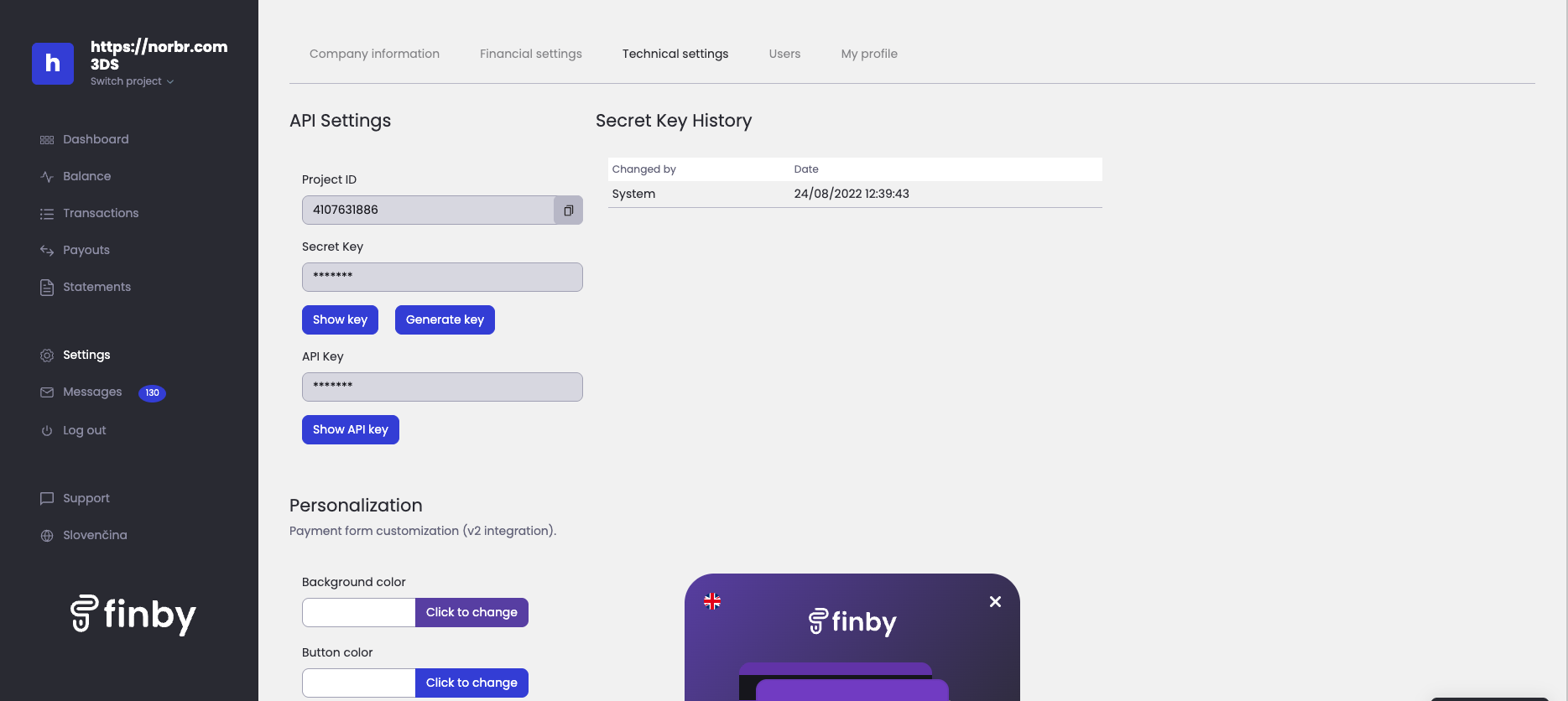
Once logged in - navigate to Settings from the left side menu and choose Technical settings from the top.
Find the API key and press show API Key. keep this value at hand for the next step.
Step 3: Add a Contract to your Merchant Account
-
Log into your Merchant Account.
-
Navigate to Contracts in the left navigation. Select + Create to add a new contract.
-
Select the Merchant Account you want to link to the contract
-
From the provider drop-down list, select Trustpay.
-
Settlement currency: select from the drop-down menu. You will only see the available ones.
-
Give your contract a name for easier identification: eg. PSP name.
-
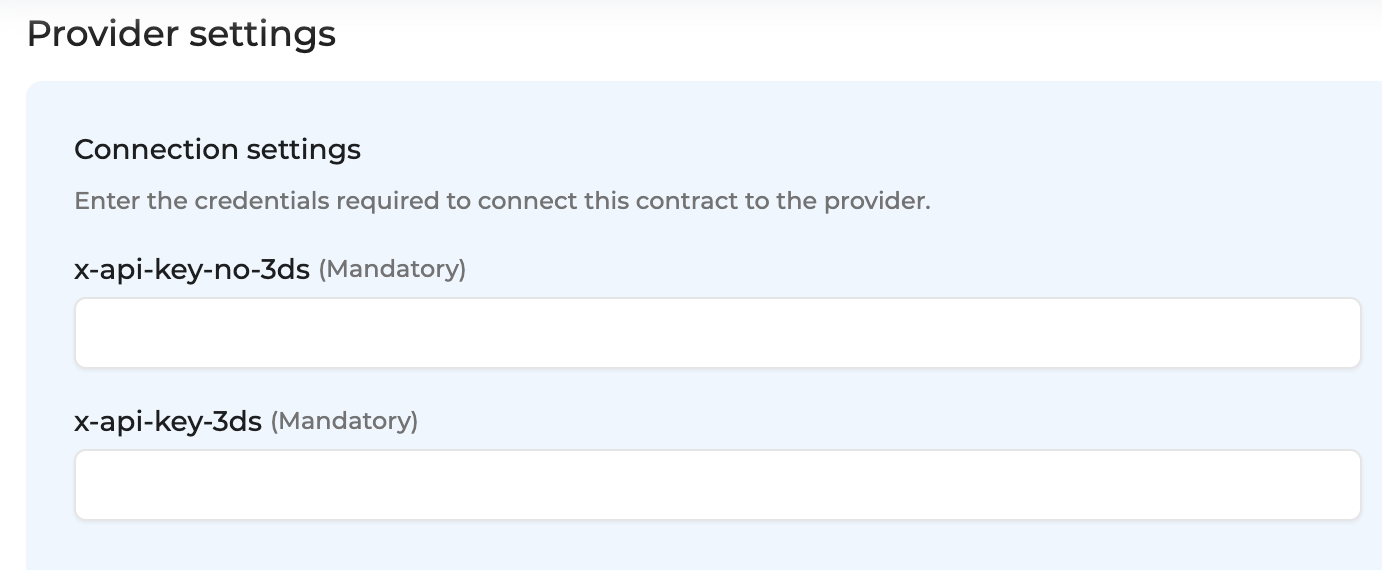
Setup provider settings and fill in the credentials you earlier retrieved.
-
Operational configuration (authentication, risk assessment, network tokenization) : leave without changes
-
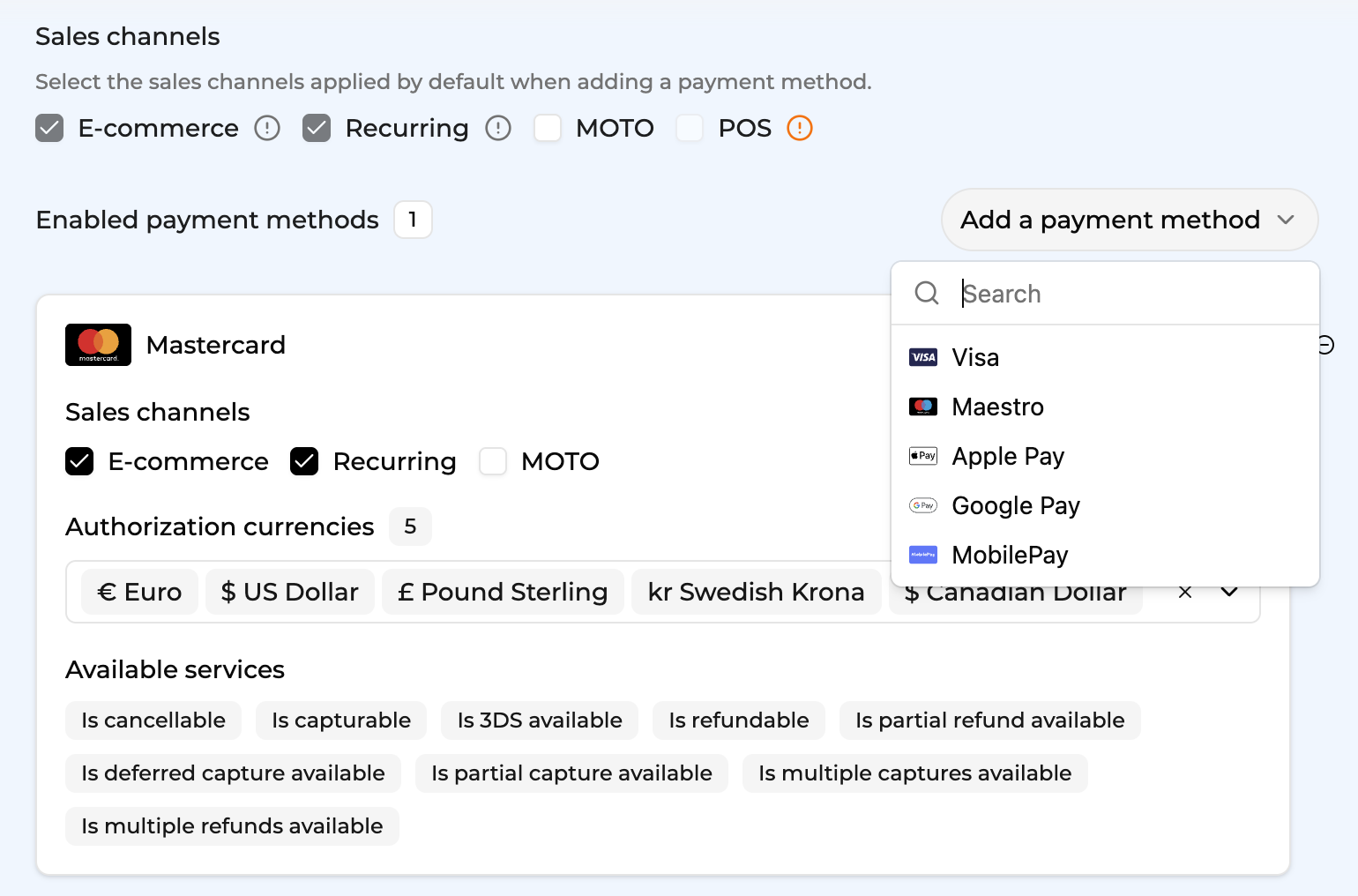
Select your sales channels and add payment methods. Once added, you can specify the authorization currency and the sales channels for each payment method.
-
Exclusion rule : Set up your exclusion rule if you have one. This section lets you define a condition under which this contract will not be used for routing.
-
Once you have filled in the credentials, select Save, then select Publish to make the contract operational.
Test cards
You can test a successful flow by using one of the following cards
5454 5454 5454 5454
4111 1111 1111 1111
4200 0000 0000 0000
You can use any CVC value and any date in the future for expiry date
Updated about 1 month ago