
ACI worldwide (Payon)
This guide will walk you through the process of integrating ACI worldwide with NORBr.

Step 1: Contract signature
Sign a contract with ACI Worldwide, and get access to the back office.
Step 2 : Retrieve your credentials from ACI Worldwide
Make note of the credentials communicated by ACI worldwide for your account.
You will need to make note of your access token and your entityID
Step 3: Add a Contract to your Merchant Account
-
Log into your Merchant Account.
-
Navigate to Contracts in the left navigation. Select + Create to add a new contract.
-
Select the Merchant Account you want to link to the contract
-
From the provider drop-down list, select Payon.
-
Settlement currency: select from the drop-down menu. You will only see the available ones.
-
Give your contract a name for easier identification: eg. PSP name.
-
Operational configuration (authentication, risk assessment, network tokenization) : leave without changes
-
Select your sales channels and add payment methods. Once added, you can specify the authorization currency and the sales channels for each payment method.
To activate a payment method with Payon, you will need your access-token and entityID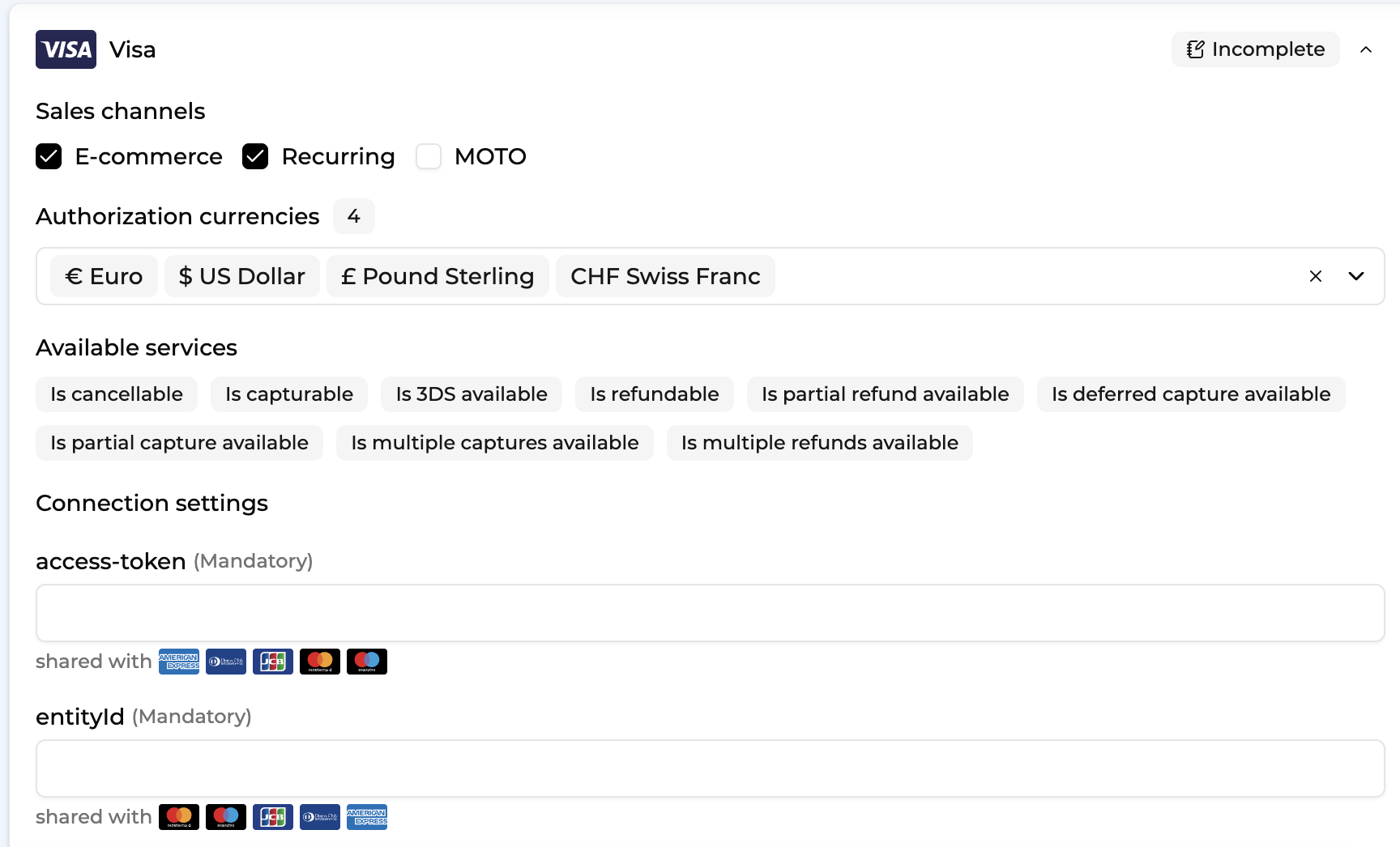
-
Exclusion rule : Set up your exclusion rule if you have one. This section lets you define a condition under which this contract will not be used for routing.
-
Once you have filled in the credentials, select Save, then select Publish to make the contract operational.
Test cards
Visa: 4200000000000000 (no 3D) 4711100000000000 (3D enrolled)
Mastercard: 5454545454545454 (no 3D) 5212345678901234 (3D enrolled)
Amex 377777777777770 (no 3D) 375987000000005 (3D enrolled)
CVV: any 3 (4 for amex) digits — Expiry date: any date after today
Updated about 1 month ago