
Save card
What is Save Card functionality
No matter of your integration type, we offer Save Card functionality that allows your customers to securely store their card details for future transactions. This feature enhances the checkout experience by eliminating the need for customers to re-enter their card information on their next purchases, making future checkouts faster, smoother, and more convenient.
When a customer chooses to save their card during a transaction, the card is securely tokenized and the payment credentials are stored. It is a unique token that represents the card, which can be safely reused for future payments.
During future purchases, the customer can simply select their previously saved card and confirm the transaction. For security reasons, the card’s CVV (Card Verification Value) is not stored and must be entered manually each time. This ensures both compliance with card-scheme regulations and an added layer of security for the cardholder.
How it works
- When on the payment page, the customer fills in card details during their initial purchase.
- Save Card select option is presented on the payment page.
- If selected, the card is tokenized with a recurring token and is safely stored for the future purchases.
- For the next payments, the same customer is presented their saved card to only fill in the CVV or they can select other available payment method instead.
- The token previously created is being updated and reused to process the payment.
Technical setup
Hosted Payment Page
If your integration type is Hosted Payment Page, you only need to make sure the Save Card option is activated in your Hosted Payment Page settings and you pass customer_id in the create checkout request.
Activate Save Card
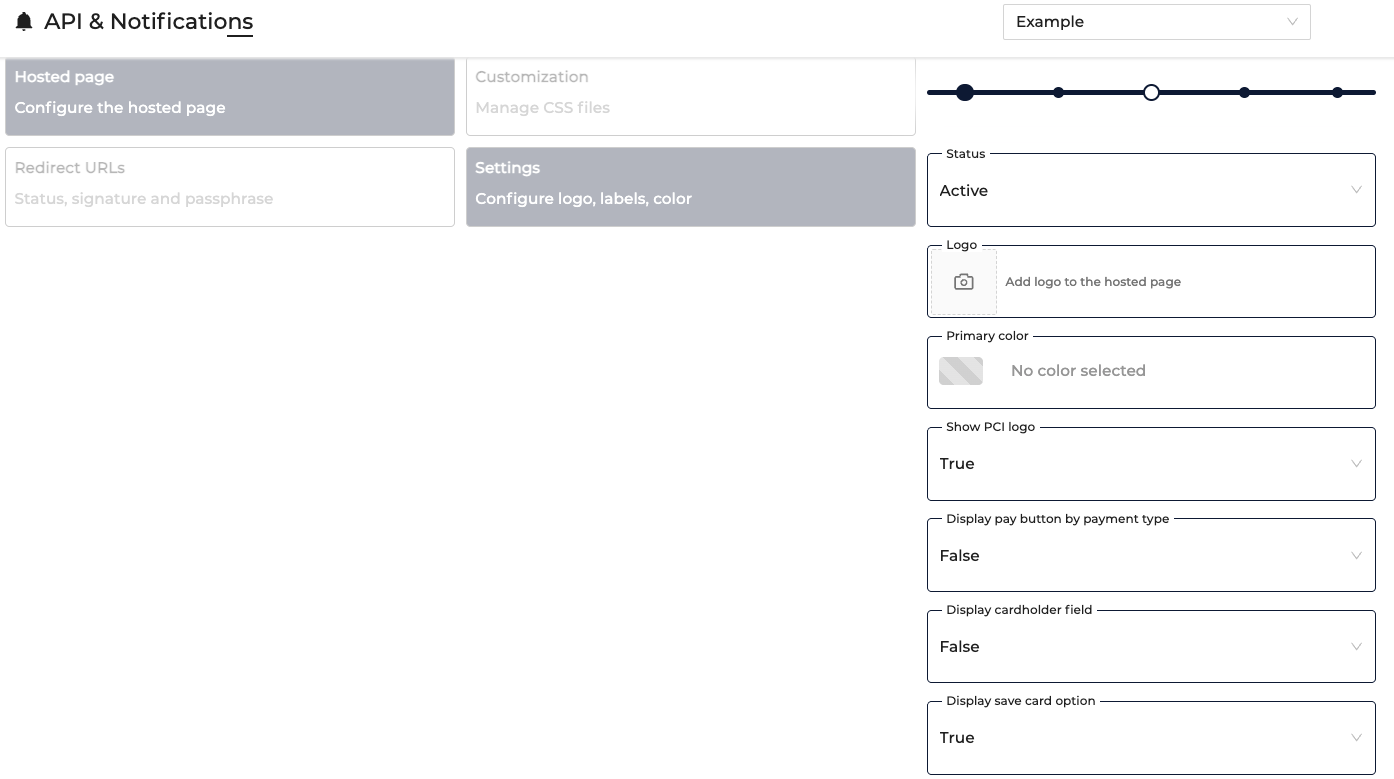
- Log into your merchant account
- Navigate to API & Notifications in the Integration section
- Select the merchant account at the top if you have more than one
- Go to Hosted Page - Settings
- In the Display save card option field, select True
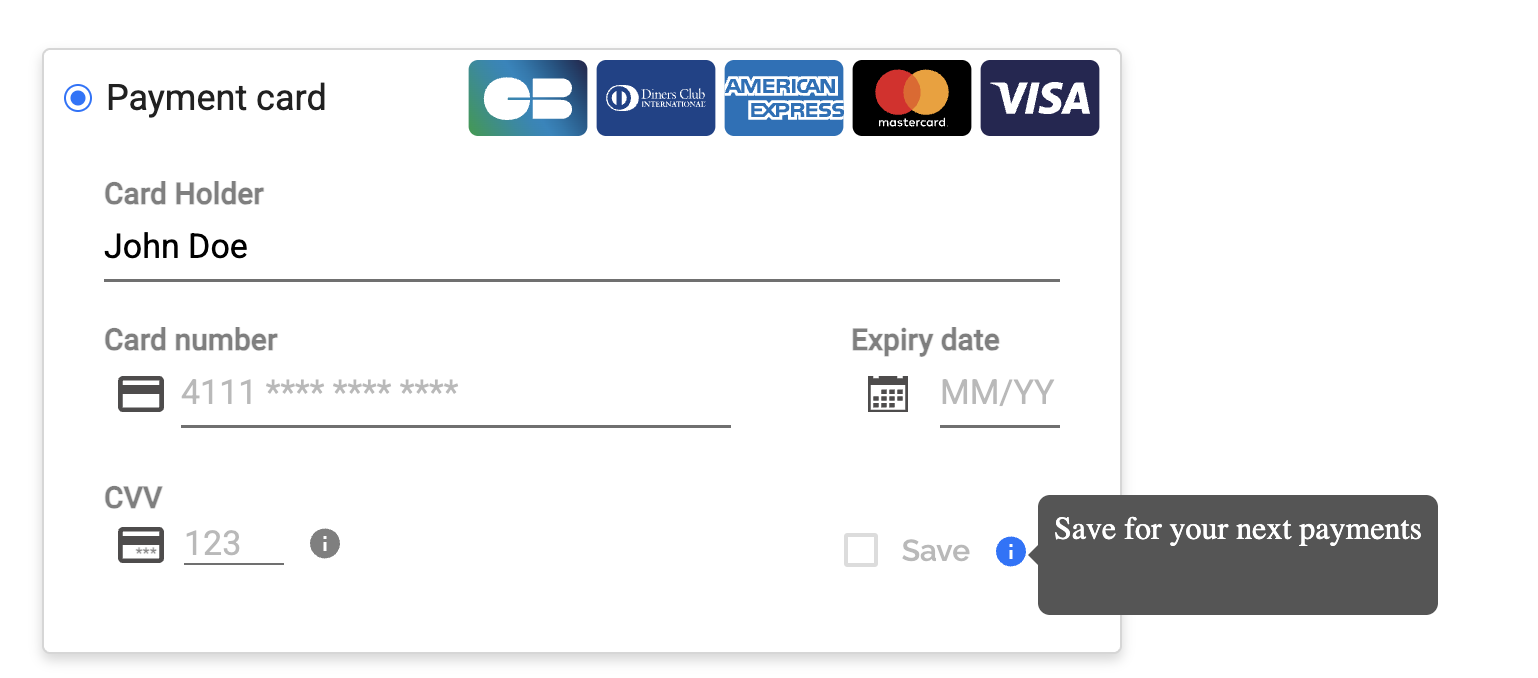
Once it has been set, your customers will see the save card option on the Hosted Payment Page.
Hosted Elements
If your integration type is Hosted Elements and you want to display the customer the Save Card option, please make sure that in your JS configuration you include displaySave: true. For more information, please visit Hosted Elements section.
    const configuration = {
        publicapikey:"your_public_key",
        locale:"en_US",
        environment:"sandbox",
        tokentype:"oneshot",
        displayButtons: true,
        displayCardHolder: true,
        displaySave: true,
        CardHolderValue: "",
        ...
}
In your request, if the customer selects to save card, please make sure that in your order creation request, you pass the following:
token_type: recurringpayment_channel: e-commerce
The token type is recurring as it allows to store the card details so that the customer does not have to fill them in every time. They only need to fill cvv as this is not stored. The payment itself is considered as a one-time charge, that is why the payment_channel is e-commerce, not recurring. There is also no subscription_id being created, as it is in the recurring payments.
Remove saved card
If there is a need to remove the card that has been previously saved, you can do so by using our API endpoint that serves this purpose. You can find it here.
curl --request DELETE \
     --url https://api-sandbox.norbr.io/payment/information/id \
     --header 'accept: application/json' \
     --header 'content-type: application/json' \
     --header 'version: 1.0.0' \
     --data '
{
  "customer_id": "2d1f48d3-8982-4c3b-96a4-4c07f0fd4739"
}
'
{
"result": {
"code": "9111111",
"description": "customer updated"
},
"_id": "6914a2bf6edebfabcad1bff9",
"merchant_account": "615f3066c67357000ad556e1",
"customer_id": "2d1f48d3-8982-4c3b-96a4-4c07f0fd4739",
"__v": 2,
"browser_info_accept_header": "*/*",
"browser_info_color_depth": "24",
"browser_info_js_enabled": true,
"browser_info_language": "en-US",
"browser_info_screen_height": 1080,
"browser_info_screen_width": 2560,
"browser_info_time_zone": "Europe/Amsterdam",
"browser_info_user_agent": "Mozilla/5.0 (Macintosh; Intel Mac OS X 10_15_7) AppleWebKit/537.36 (KHTML, like Gecko) Chrome/142.0.0.0 Safari/537.36",
"createdAt": "2025-11-12T15:07:43.035Z",
"ip": "2a09:bac5:4e22:146e::209:a1",
"payment_methods_saved": [],
"payment_methods_used": [
{
"name": "visa",
"date_last_use": "2025-11-12T15:09:08.394Z",
"nb_use": 2
}
],
"pm_merchant_accounts": [],
"updatedAt": "2025-11-12T15:11:51.163Z",
"ip_country": "XX"
}Updated 8 months ago