Lists
The Lists enable you to define and manage sets of values (customer email addresses, card unique IDs, BINs, customer ID, customer IP, customer zip code, product SKU) that can be used as criteria within your Routing Matrix or in the PSP Exclusion Rule. By referencing a list in your rules, you can quickly block, allow, or exclude specific users or transactions without rewriting complex conditions each time.
What Lists Are Used For
Lists act as reusable building blocks across your payment rules. Typical use cases include:
- Blocking users or transactions – for example, decline payments from a specific email address, card ID, or IP range.
- Excluding providers – e.g., prevent transactions from certain BINs or customers from being routed to a specific PSP.
- Fraud prevention – maintain blacklists that automatically trigger stricter rules in your Routing Matrix.
Key Features
- Flexible criteria - a list can include one of the following criteria: customer email addresses, card unique IDs, BINs, customer ID, customer IP, customer zip code, product SKU.
- Reusability – create a list once, reference it across multiple routing or blocking rules.
- Dynamic updates – changes to a list take effect immediately across all rules using it.
- Granularity – apply lists globally, at the merchant account level, or within specific PSP exclusion rules.
Getting Started with Lists
-
Access Lists
- Log in to your merchant account.
- Navigate to Integration → Lists.
-
Create a List
-
Click Create List.
-
Give the list a clear name (e.g. Blocked Emails).
-
Define the type of value (e.g. Customer Emails).
-
Add entries manually in the displayed text block or via upload.
Later, when the list is already in use, you can update with entries being added or removed by re-uploading the most recent file, or manually.
File format: please use a csv file with entries are placed one row under another in one column with no header.
-
-
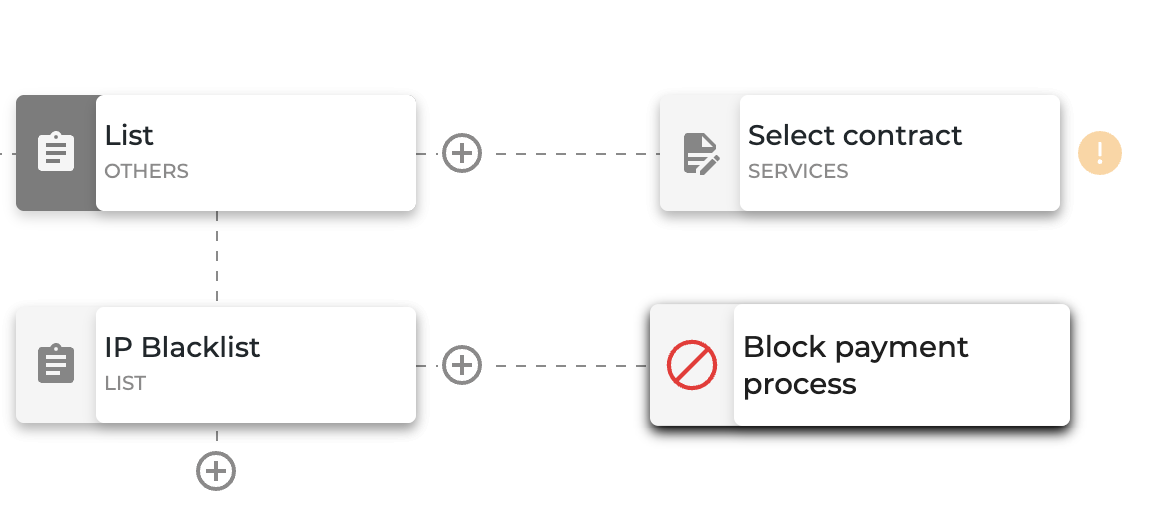
Use a List in Routing Rules
-
Navigate to the Routing Matrix.
-
When defining a condition, select List as the parameter.
-
Choose the relevant list (e.g., Blocked Emails) and assign the action.
-
-
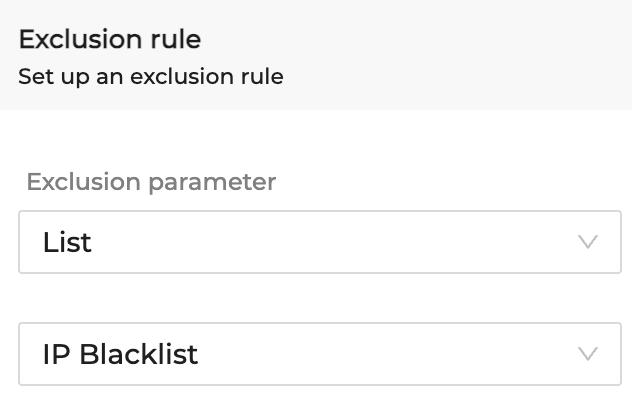
Use a List in PSP Exclusion Rule
-
Navigate to Integration → Payment Network → Service Providers → Payment Providers → Select a Merchant Contract (PSP).
-
At the bottom of the setup tab go to Exclusion Rule.
-
In the drop-down menu, select List and add a desired list.
-
It will result in all entries from the list being excluded for the certain PSP.
-
Best Practices
- Keep lists organized – use clear naming conventions (e.g., Blacklist Emails Q1 2025) to avoid confusion.
- Review regularly – monitor and update lists to reflect the latest fraud trends or business requirements.
- Use exclusion lists strategically – avoid over-restricting routing logic, which may impact acceptance rates.
Updated 20 days ago