
Payplug
This guide will walk you through the process of integrating Payplug with NORBr.

Step 1: Contract Signature
Sign a contract with Payplug and get access to their back office
Step 2: Collect your credentials
You will receive an email from Payplug with an apiKey, and an identifier. Note them for the following step
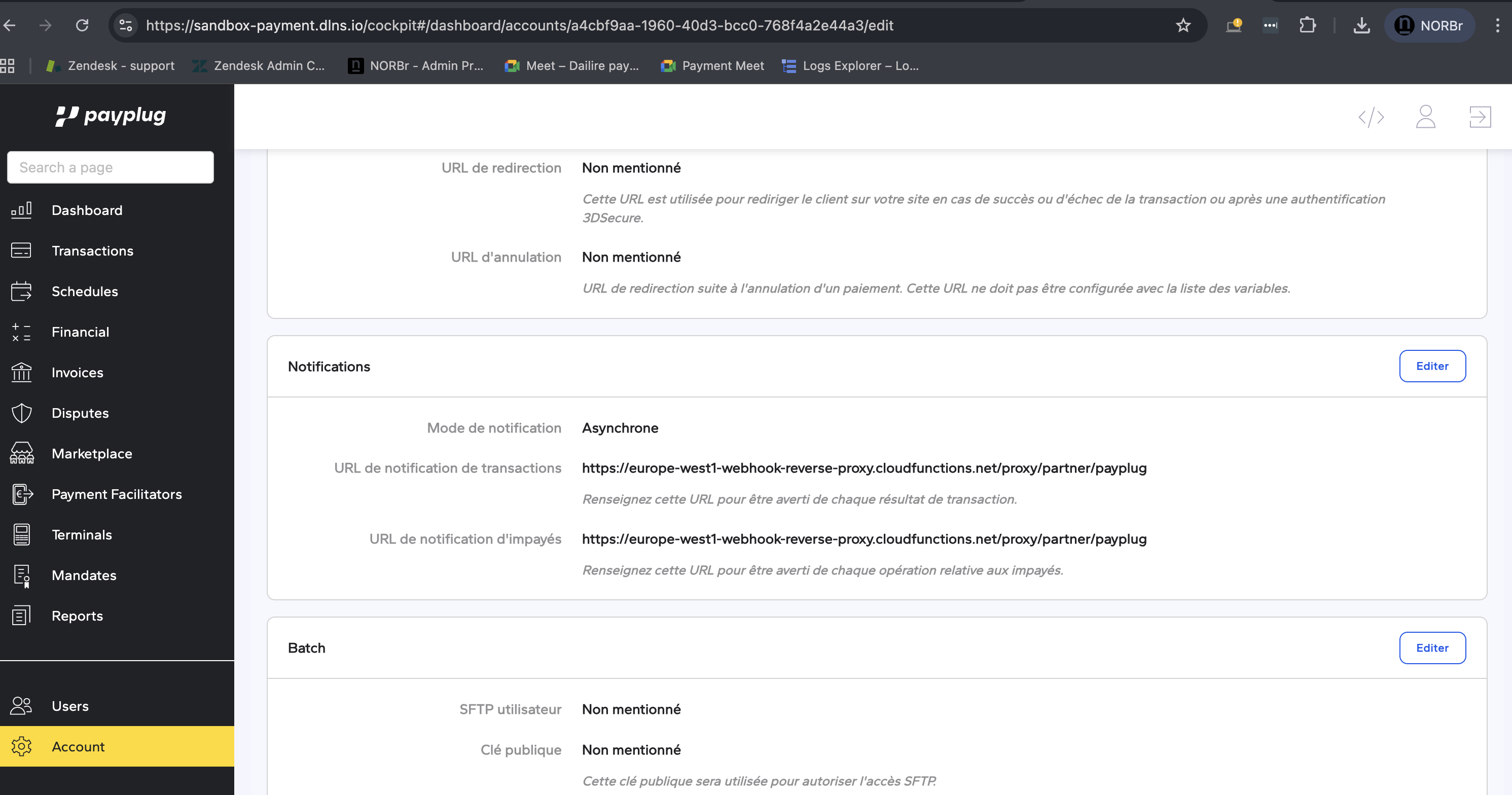
Step 3: Setup your Notifications webhook
from the left side bar, select Account and scroll down to Notifications section. Press edit
-
Notification Mode: Asynchronys
-
fill in this webhook in both fields:
- For Sandbox: https://webhook-sandbox.norbr.io/partner/payplug
- For production: https://webhook.norbr.io/partner/payplug
Step 4: Add a Contract to your Merchant Account
-
Log into your Merchant Account.
-
Navigate to Contracts in the left navigation. Select + Create to add a new contract.
-
Select the Merchant Account you want to link to the contract
-
From the provider drop-down list, select Payplug.
-
Settlement currency: select from the drop-down menu. You will only see the available ones.
-
Give your contract a name for easier identification: eg. PSP name.
-
Operational configuration (authentication, risk assessment, network tokenization) : leave without changes
-
Select your sales channels and add payment methods. Once added, you can specify the authorization currency and the sales channels for each payment method.
To activate a payment method with Payplug, you will need your apiKey and identifier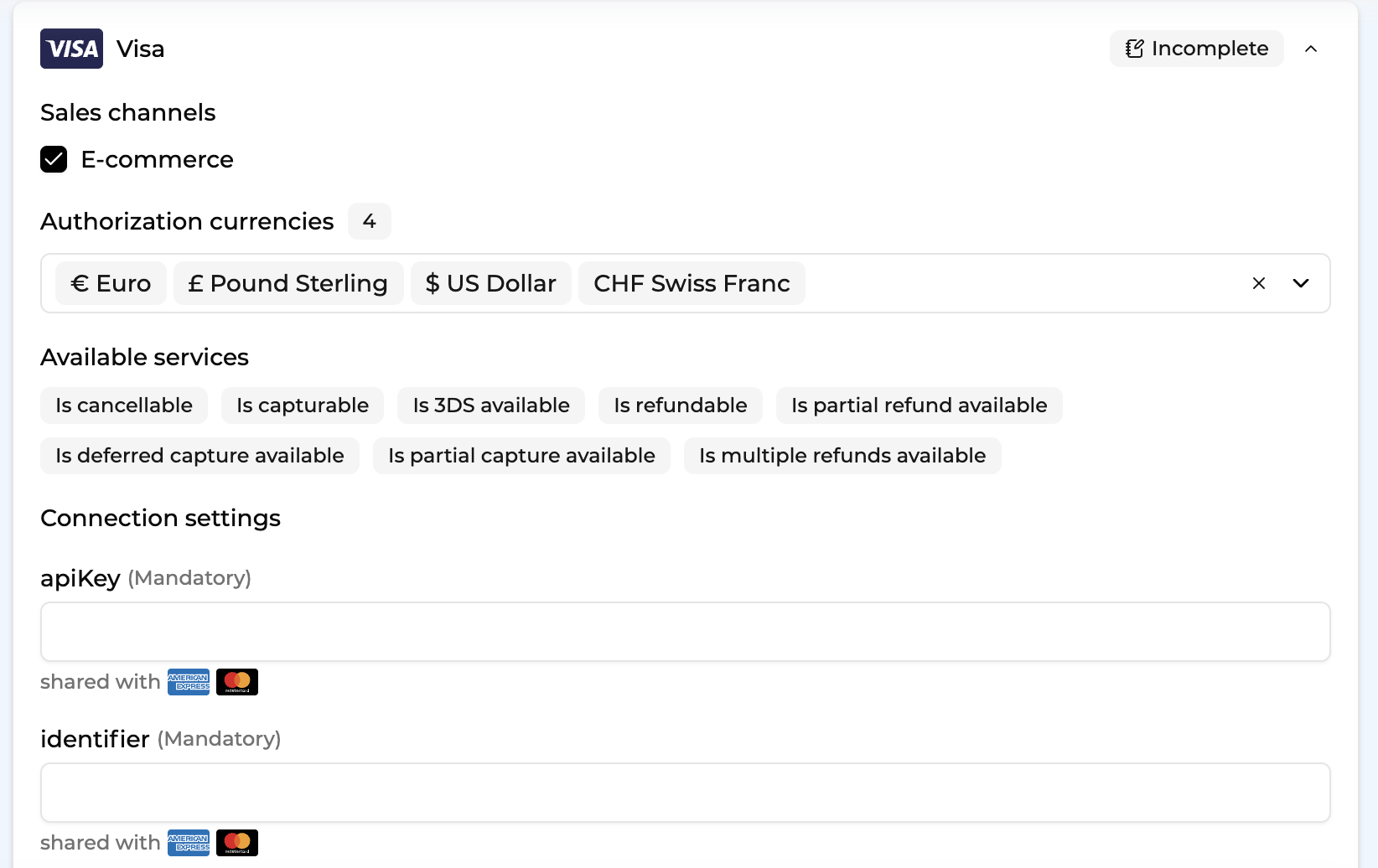
-
Exclusion rule : Set up your exclusion rule if you have one. This section lets you define a condition under which this contract will not be used for routing.
-
Once you have filled in the credentials, select Save, then select Publish to make the contract operational.
Test cards
4242 4242 4242 4242 (successful payment Visa)
5017 6700 0000 1800 (successful payment Mastercard)
you can use any value for cvc any future expiry date.
Updated about 1 month ago