
Fintecture
This guide will walk you through the process of activating Fintecture on NORBr.

Step 1: Contract signature and account activation
Sign a contract with Fintecture. Once your account is activated, visit the Fintecture console: https://console.fintecture.com/
Step 2: Access your application
Navigate to Developers > Applications.
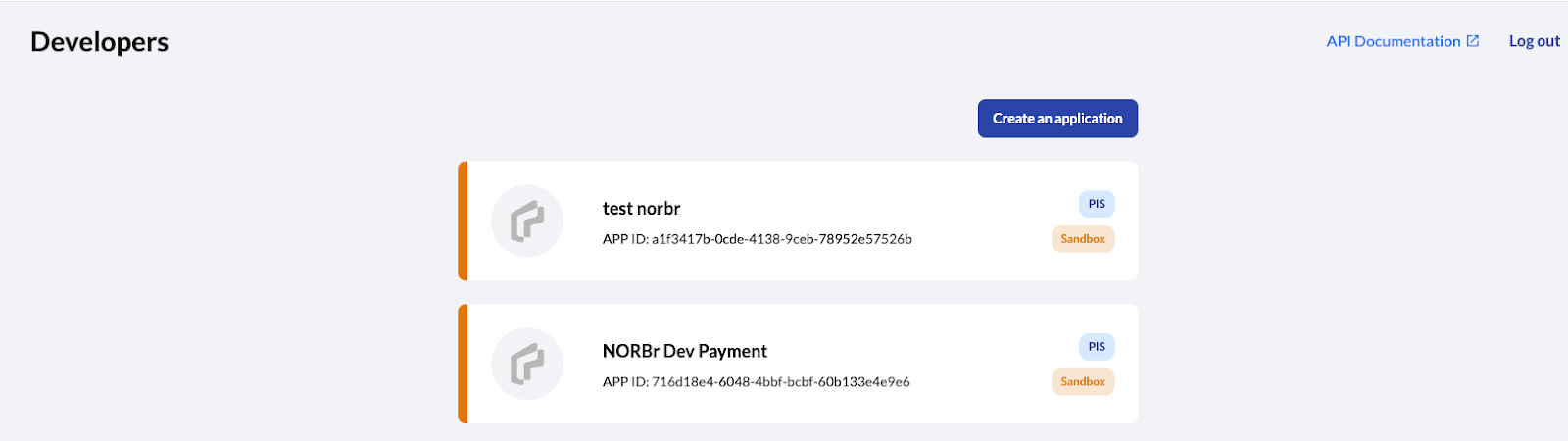
Step 3: Find your credentials
You will need your Application ID and Application Secret
There are 2 ways to find this information on the Fintecture console:
Method 1: Popup Window
When you create your application, a popup window will appear with all the relevant information.
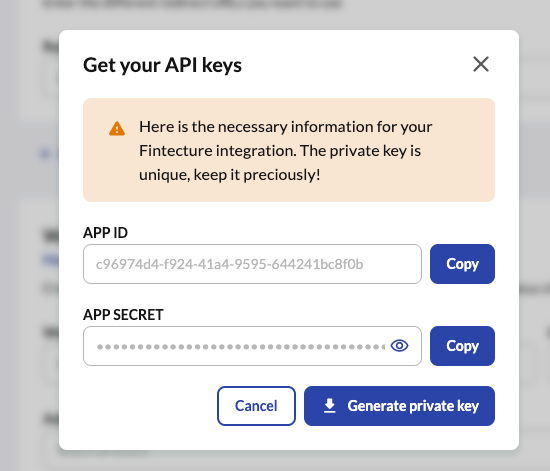
Method 2: Application Information Interface
1 - Navigate to Developers > Applications > Information.
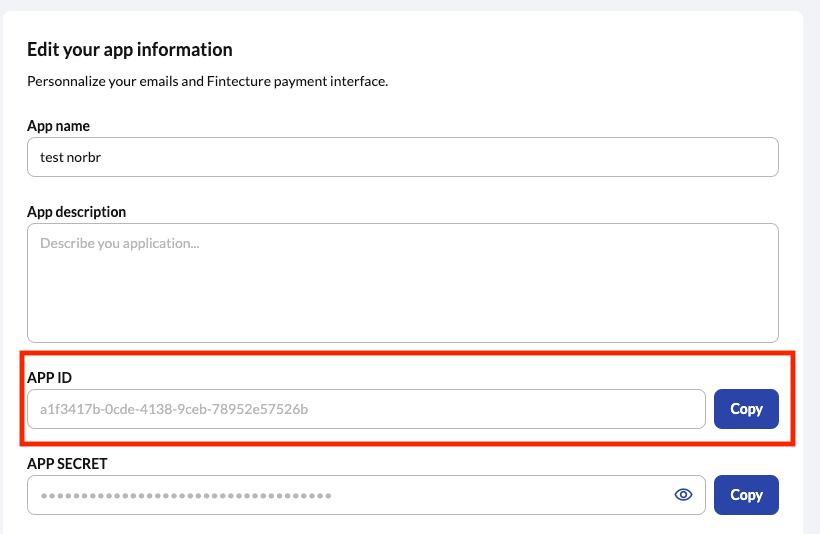
2 - Locate the Application ID, Application secret, and Private key.
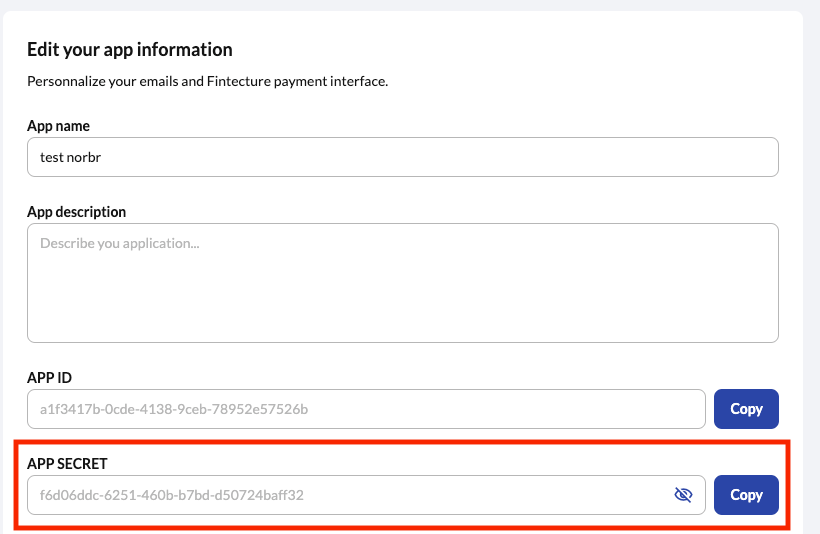
3 - The private key is generated in a file. Copy and paste the full content of the file into the box labeled Private key.
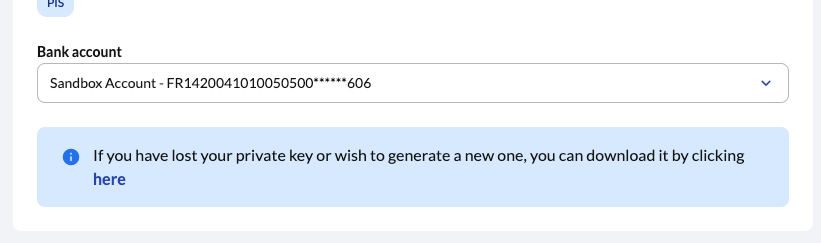
Step 4: Configure Redirect URLs
1- Navigate to Developers > Applications > URLs
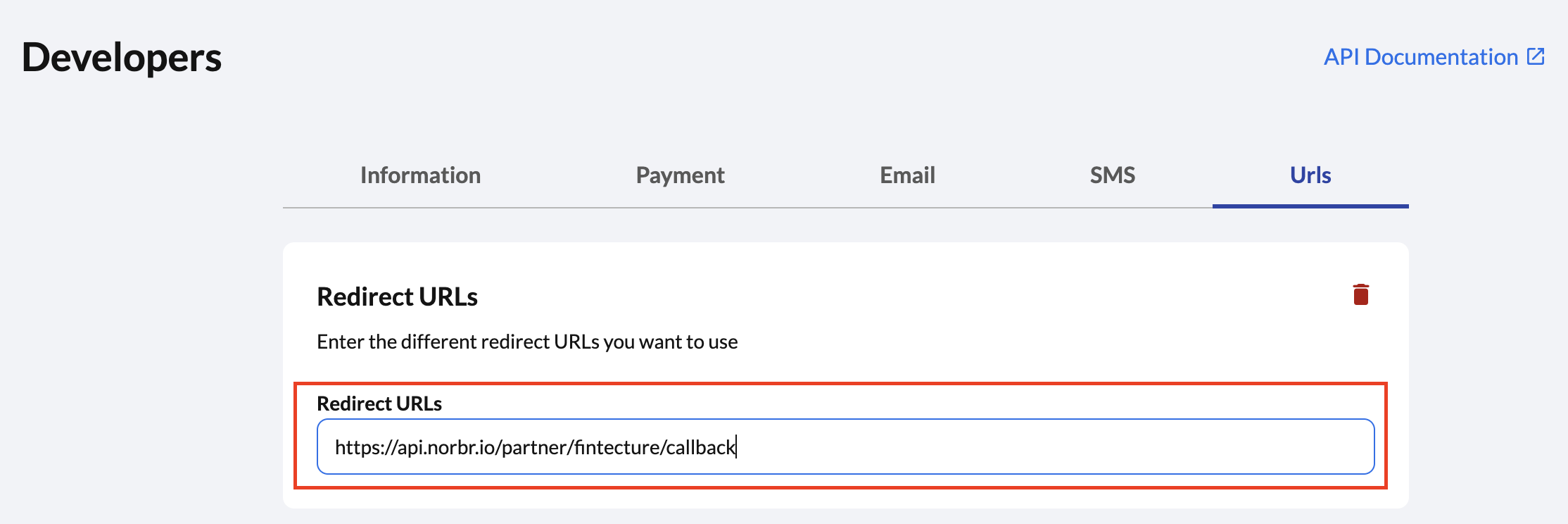
2 - Add the following URLs based on your environment :
- Sandbox : https://api-sandbox.norbr.io/partner/fintecture/callback
- Production : https://api.norbr.io/partner/fintecture/callback
Step 5: Configure Webhooks
1 - Navigate to Developers > Applications > Urls.
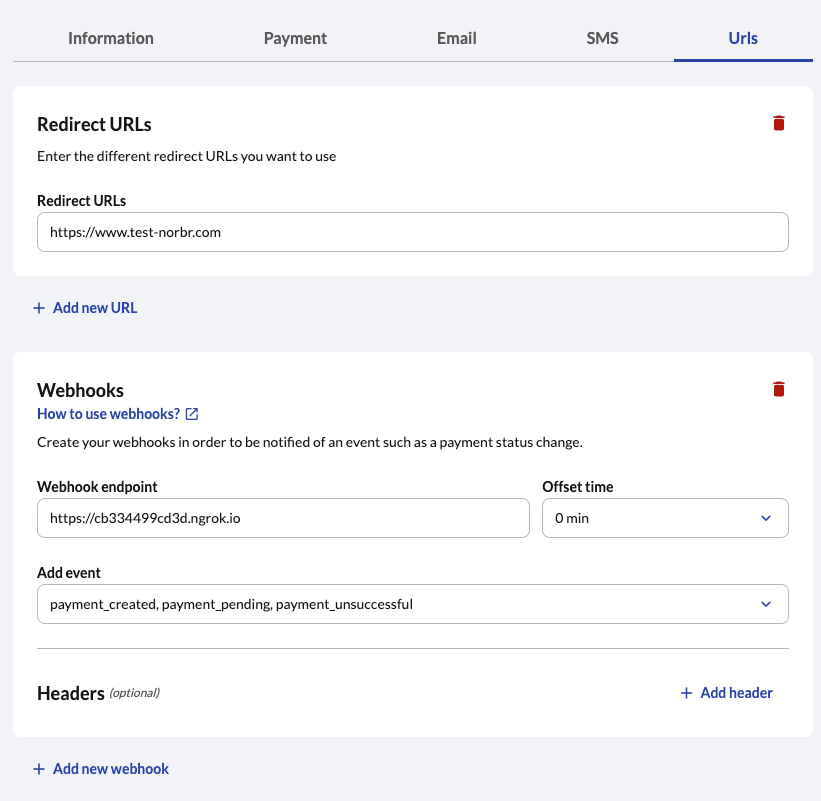
2 - Add the following webhook URL based on your environment:
- Sandbox: https://webhook-sandbox.norbr.io/partner/fintecture
- Production: https://webhook.norbr.io/partner/fintecture
3 - Set Offset Time to 0 minutes.
4 - Select all Payment Sessions Status, Payment Transfer Status, and Refund Session Status events.
5 - Add a custom header:
- Key: Content-Type
- Value: application/json
Step 6 : Add a Contract to your Merchant Account
-
Log into your Merchant Account.
-
Navigate to Contracts in the left navigation. Select + Create to add a new contract.
-
Select the Merchant Account you want to link to the contract
-
From the provider drop-down list, select Fintecture
-
Settlement currency: select from the drop-down menu. You will only see the available ones.
-
Give your contract a name for easier identification: eg. PSP name.
-
Operational configuration (authentication, risk assessment, network tokenization) : leave without changes
-
Select your sales channels and add payment methods. Once added, you can specify the authorization currency and the sales channels for each payment method.
To activate a payment method with Fintecture, you will need your app_id and app_secret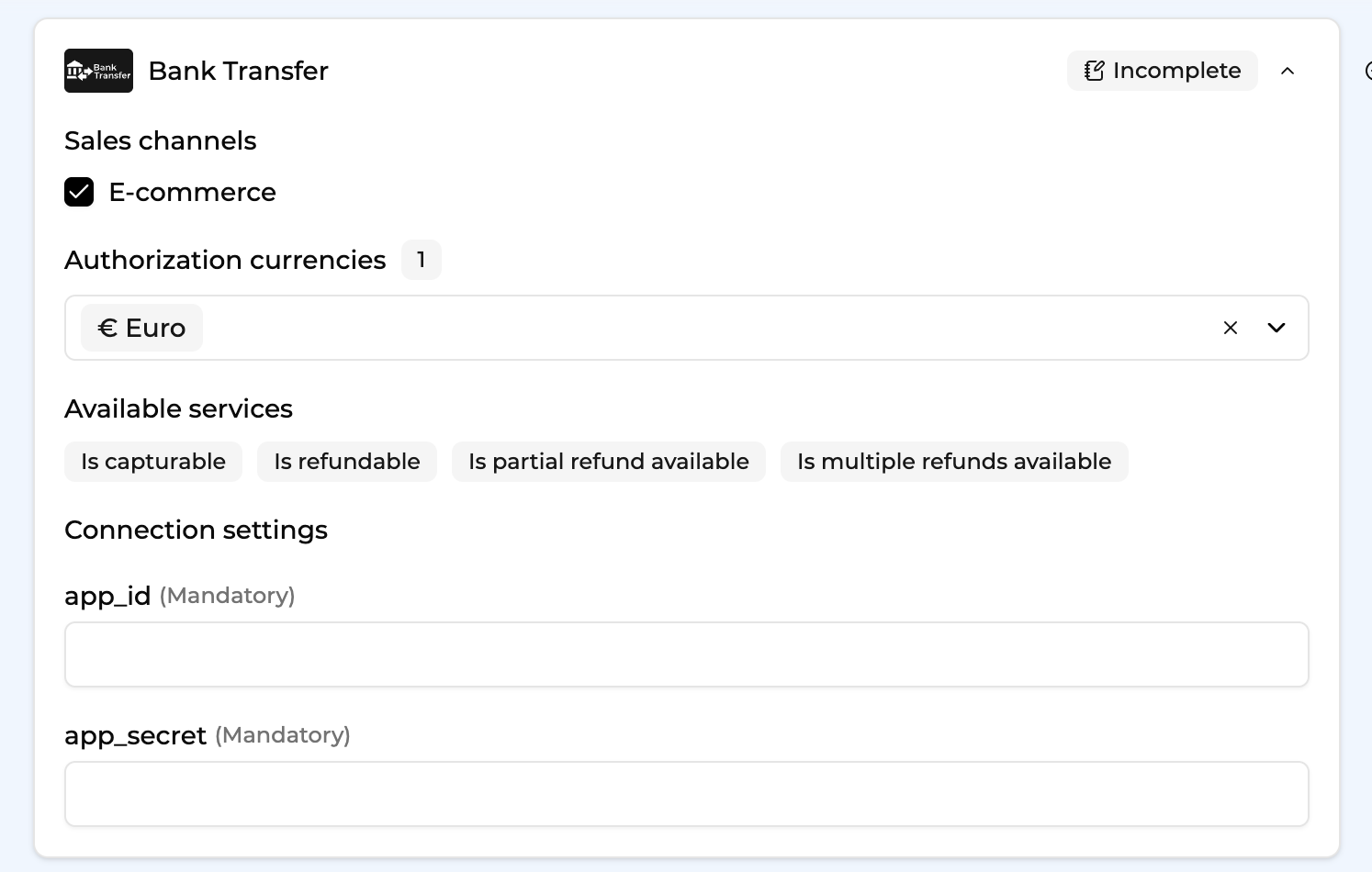
-
Exclusion rule : Set up your exclusion rule if you have one. This section lets you define a condition under which this contract will not be used for routing.
-
Once you have filled in the credentials, select Save, then select Publish to make the contract operational.
Updated about 1 month ago