
Hosted Elements
Hosted Elements offer a simple, secure way to customize your checkout experience without the burden of full PCI compliance. You’ll only need to complete the SAQ A-EP questionnaire, as all sensitive card data is securely handled by us.
Key Features
- Automatic Card Brand Detection: Instantly shows the card logo after the first digits are entered.
- Co-branded Card Support: Displays two selectable card logos when co-branded cards are used, ensuring MIF compliance.
- Smart Input Formatting: Formats card numbers and expiry dates as users type for a smoother experience.
- Custom Styling: Easily match the look and feel of the fields to your website’s design for a seamless integration.
- Real-Time Error Handling: Guides customers by highlighting and explaining input issues as they occur.
- Responsive Design: Fields automatically adapt to fit mobile and tablet screens for better usability.
Key Benefits
- Simple PCI DSS Compliance Level: SAQ-A-EP.
- Prebuilt Payment Fields: Use of secure, embeddable payment fields within your checkout page.
- Additional Secure Fields: Collect extra customer information safely to enhance the checkout experience.
- Seamless Integration: Works smoothly across desktop and mobile platforms.
- Consistent Security: Ensures safe, uniform payment acceptance and verification across all channels.
How it works?
The integration works by embedding secure input fields into your checkout page. A script captures the sensitive information and sends it directly to us, ensuring that your system remains out of scope for PCI-sensitive data. This allows you to fully focus on the design and flow of your checkout, while we manage the
security and compliance.
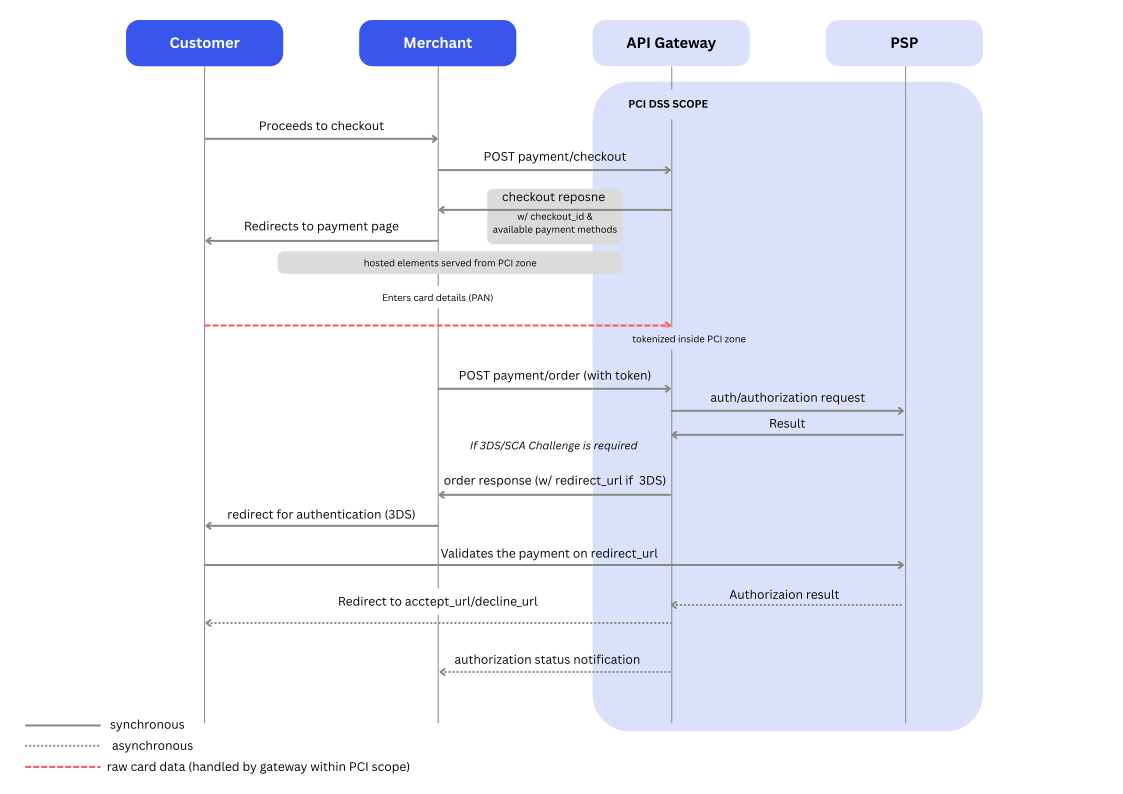
Example Hosted Elements Page
Below you can see an example of hosted elements embedded into a default payment form. When choosing this integration type, the hosted elements will be embedded into your own payment page.
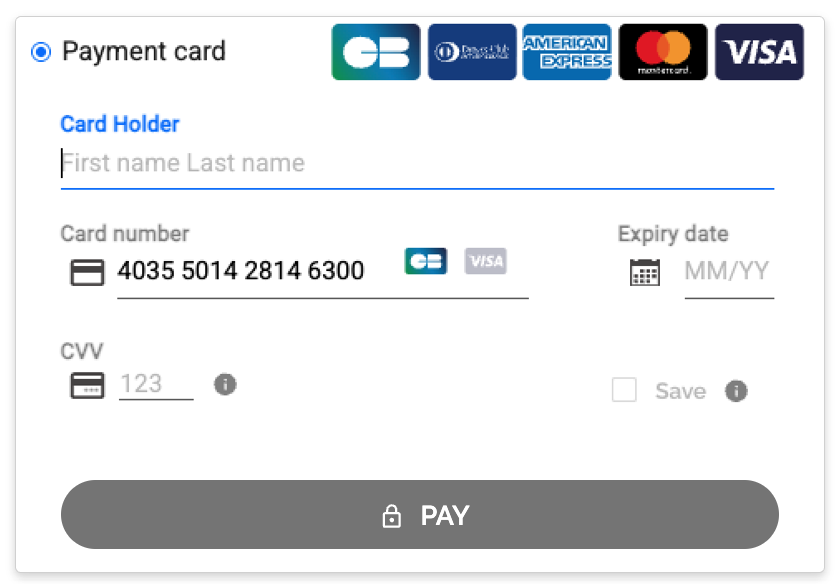
Hosted Elements example: default look
How to integrate
To use Hosted Elements Integration , you need to follow the required steps. Below you will find the steps you need to complete in order to integrate our Hosted Elements.
Pre-integration: checkout - token - order flow
The payment flow consists of 3 steps:
-
Checkout creation: a call to our checkout endpoint to create the checkout session for your customer with the order context. The checkout creation needs to come from you integration. See an example of a request below and refer to our API reference.
curl --request POST \
     --url https://api-sandbox.norbr.io/payment/checkout \
     --header 'accept: application/json' \
     --header 'content-type: application/json' \
     --header 'x-api-key: your_private_api_key' \
     --data '
{
  "operation_type": "authorize",
  "type": "hosted_fields",
  "amount": 16,
  "currency": "USD",
  "order_merchant_id": "123445-1abc1-1111-2222-34a56bbb789ccc",
  "payment_channel": "e-commerce",
  "token_type": "oneshot",
  "accept_url": "https://www.google.com/search?q=accept",
  "decline_url": "https://www.google.com/search?q=decline",
  "cancel_url": "https://www.google.com/search?q=cancel",
  "pending_url": "https://www.google.com/search?q=pending",
  "exception_url": "https://www.google.com/search?q=exception",
  "locale": "en_GB",
  "customer_id": "Customer-123",
  "customer_browser_info_java_enabled": true,
  "customer_browser_info_screen_height": 119,
  "authentication_indicator": "no_3ds",
  "customer_browser_info_language": "EN",
  "customer_country": "PT",
  "customer_gender": "male",
  "customer_browser_info_js_enabled": true,
  "customer_browser_info_screen_width": 333,
  "customer_browser_info_color_depth": 1,
  "customer_browser_info_accept_header": 2,
  "customer_browser_info_user_agent": "Mozilla---",
  "order_description": "Gym trial membership",
  "customer_browser_info_time_zone": "+01:00",
  "customer_email": "[email protected]",
  "customer_birth_date": "1995-04-13",
  "max_attempts": "200",
  "customer_last_name": "Nash",
  "customer_first_name": "Kirby",
  "customer_ip": "127.0.0.1"
}
'
{ "result": { "description": "checkout created successfully", "code": "011111" }, "checkout": { "exception_url": "https://www.google.com/search?q=exception", "locale": "en-GB", "order_description": "Gym trial membership", "token_type": "oneshot", "customer_browser_info_time_zone": "+01:00", "order_merchant_id": "123445-1abc1-1111-2222-34a56bbb789ccc", "order_tax_amount": 0, "checkout_id": "68f5e9025a282ea788f8e73c", "customer_ip": "127.0.0.1", "type": "hosted_fields", "customer_browser_info_language": "EN", "customer_last_name": "Nash", "authentication_indicator": "no_3ds", "max_attempts": 200, "expiration_date": "Mon Oct 20 2025 08:02:14 GMT+0000 (Coordinated Universal Time)", "customer_browser_info_java_enabled": true, "decline_url": "https://www.google.com/search?q=decline", "customer_email": "[email protected]", "cancel_url": "https://www.google.com/search?q=cancel", "customer_country": "PT", "status": "created", "customer_browser_info_screen_height": 119, "currency": "USD", "customer_first_name": "Kirby", "customer_browser_info_color_depth": "1", "accept_url": "https://www.google.com/search?q=accept", "merchant_data": [], "pending_url": "https://www.google.com/search?q=pending", "payment_method_name": [], "hosted_page_configuration": { "hosted_fields": {} }, "amount": 16, "customer_browser_info_js_enabled": true, "customer_id": "Customer-123", "payment_channel": "e-commerce", "customer_browser_info_accept_header": "2", "shipping_last_name": "Nash", "customer_browser_info_screen_width": 333, "customer_browser_info_user_agent": "Mozilla---", "operation_type": "authorize" }, "payment_methods": { "payment_methods_available": [ { "logo_colorbg_png": "[email protected]", "partner": "trustpay", "countries": [ "all" ], "logo_whitebg": "Mastercard_whitebg.svg", "logo_whitebg_png": "[email protected]", "logo_white_png": "[email protected]", "logo": "mastercard.svg", "logo_favicon_whitebg_png": "[email protected]", "logo_white": "Mastercard_white.svg", "component_type": "card", "logo_colorbg": "Mastercard_colorbg.svg", "form_fields": [ { "display_name": "card_number", "enum": [], "data_type": "integer", "name": "card_number", "example": "5436 xxxx xxxx xxxx", "label": "card_number" }, { "name": "cvc", "data_type": "integer", "display_name": "cvc", "enum": [], "example": "123", "label": "cvc" }, { "display_name": "card_validity", "name": "card_validity", "example": "MM/YY", "label": "card_validity", "data_type": "date", "enum": [] }, { "enum": [], "label": "cardholder_name", "name": "cardholder_name", "example": "Mickael Smith", "display_name": "cardholder_name", "data_type": "name" } ], "logo_favicon_colorbg_png": "[email protected]", "logo_favicon_whitebg": "Mastercard_favicon_whitebg.svg", "required_fields": [ "payment_method_name", "token", "amount", "currency" ], "logo_png": "mastercard.png", "name": "mastercard", "display_name": "Mastercard", "logo_favicon_colorbg": "Mastercard_favicon_colorbg.svg" }, { "logo_favicon_whitebg_png": "[email protected]", "display_name": "Visa", "form_fields": [ { "enum": [], "display_name": "card_number", "example": "4111 xxxx xxxx xxxx", "data_type": "integer", "name": "card_number", "label": "card_number" }, { "display_name": "cvc", "example": "123", "data_type": "integer", "enum": [], "name": "cvc", "label": "cvc" }, { "label": "card_validity", "data_type": "date", "name": "card_validity", "example": "MM/YY", "display_name": "card_validity", "enum": [] }, { "label": "cardholder_name", "data_type": "name", "name": "cardholder_name", "example": "Mickael Smith", "enum": [], "display_name": "cardholder_name" } ], "logo": "visa.svg", "required_fields": [ "payment_method_name", "token", "amount", "currency" ], "logo_png": "visa.png", "logo_favicon_colorbg": "Visa_favicon_colorbg.svg", "logo_white": "Visa_white.svg", "logo_white_png": "[email protected]", "component_type": "card", "logo_colorbg_png": "[email protected]", "logo_colorbg": "Visa_colorbg.svg", "logo_favicon_colorbg_png": "[email protected]", "logo_favicon_whitebg": "Visa_favicon_whitebg.svg", "logo_whitebg_png": "[email protected]", "countries": [ "all" ], "partner": "trustpay", "name": "visa", "logo_whitebg": "Visa_whitebg.svg" } ], "payment_methods_saved": [], "payment_methods_used": [ { "component_type": "card", "form_fields": [ { "example": "4111 xxxx xxxx xxxx", "name": "card_number", "enum": [], "label": "card_number", "display_name": "card_number", "data_type": "integer" }, { "enum": [], "display_name": "cvc", "label": "cvc", "example": "123", "data_type": "integer", "name": "cvc" }, { "label": "card_validity", "data_type": "date", "display_name": "card_validity", "example": "MM/YY", "name": "card_validity", "enum": [] }, { "name": "cardholder_name", "enum": [], "label": "cardholder_name", "display_name": "cardholder_name", "example": "Mickael Smith", "data_type": "name" } ], "date_last_use": "Tue Mar 11 2025 13:51:56 GMT+0000 (Coordinated Universal Time)", "partner": "trustpay", "name": "visa", "logo_colorbg": "Visa_colorbg.svg", "logo_whitebg_png": "[email protected]", "logo_favicon_colorbg_png": "[email protected]", "nb_use": 6, "display_name": "Visa", "logo_favicon_whitebg": "Visa_favicon_whitebg.svg", "logo_colorbg_png": "[email protected]", "logo_favicon_colorbg": "Visa_favicon_colorbg.svg", "logo_white": "Visa_white.svg", "required_fields": [ "payment_method_name", "token", "amount", "currency" ], "logo_whitebg": "Visa_whitebg.svg", "logo": "visa.svg", "logo_white_png": "[email protected]", "countries": [ "all" ], "logo_favicon_whitebg_png": "[email protected]", "logo_png": "visa.png" } ] } }You can either send all customer_browser data yourself or you can just send the checkout_id in the order creation request. Please make sure to include the tag script for collecting all customer_browser data fields. You will find it below. -
Tokenization: When checkout is created, the customer is presented with the payment page with the hosted elements embedded. The customer fills in the payment details and submits the form (PAY button). At this point we attempt to do the tokenization with the card details provided by the customer.
Although the tokenization is handled by us, you need to make sure to catch the token returned in the response to the create token request that we make. The way to handle it is defined in the onSubmit in the JS instance. Additionally, the payment methods displayed are the payment_methods returned in the response to your checkout creation and need to be included in you JS instance. Please refer to the Integration steps below to see the example.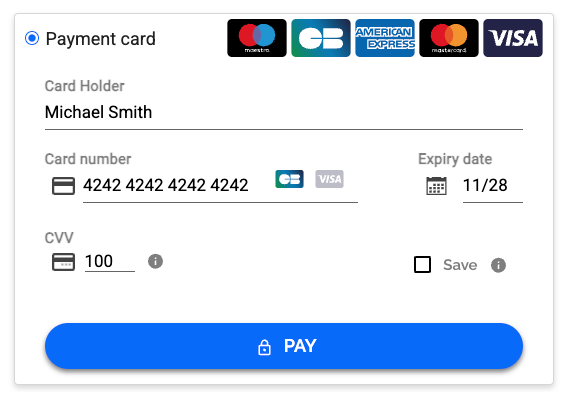
Hosted Elements Payment Page: card details
-
Order: After the successful tokenization, you will need to create the order by calling our order endpoint. This is where you need to use the
checkout_idreturned in the response to your checkout creation request and thetoken.
Integration
Step 1: Include the Hosted Elements library in your HTML page.
Example of how to add the script and stylesheet:
<script src="https://secure-assets-sandbox.norbr.io/javascript/x.x/norbr-client.min.js"></script>
<link rel="stylesheet" href="https://secure-assets-sandbox.norbr.io/stylesheet/x.x/norbr-client.min.css">
Please also make sure to include the following script in order to have the customer browser data to be sent:
<script>
const customer_browser_info_color_depth = window.screen.colorDepth;
const customer_browser_info_js_enabled = true;
const customer_browser_info_language = window.navigator.language;
const customer_browser_info_screen_height = window.screen.height;
const customer_browser_info_screen_width = window.screen.width;
const customer_browser_info_user_agent = window.navigator.userAgent;
let timezone;
try {
  timezone = Intl.DateTimeFormat().resolvedOptions().timeZone;
} catch (error) {
  console.error('Can not get timezone', error);
}
</script>Step 2: Add a div for the container to display the fields.
div for the container to display the fields.The id of the div must be: norbr-payment-container
Step 3: Create a JS instance of our component. You will do this by sending several parameters.
Parameters:
| Parameters | format | Description |
|---|---|---|
| publicapikey | NR_PUB_XXXXXX | Your public api key available on your merchant portal and has restricted privileges for a client use. |
| locale | alpha-2 | Language used to display the fields |
| environment | enum | sandbox or production |
| tokentype | enum | oneshot or recurring. refers to reusability of the token |
| checkoutId | string | id of the checkout created previously |
| paymentmethods | string | stringified version of the payment_methods returned in the response of the checkout created previously |
| displayButtons | boolean | Display or not the pay button |
| displayCardHolder | boolean | Display or not the cardholder name field |
| displaySave | boolean | Display or not the card save button |
| cardHolderValue | string | Dynamic field to display the name already filled out by your customer during his payment journey. |
| askCin | boolean | Used for specific countries to ask the customer for their Customer Identification Number |
| askZipCode | boolean | Used for specific countries to ask the customer for their ZIP code. |
Example of JS instance
const configuration = {
        publicapikey:"", // The value is your public API key, to be found in the backoffice
        locale:"en",
        environment:"sandbox",
        tokentype:"oneshot",
        checkoutId: "", // The value is the checkout_id returned in the reponse to create checkout
        paymentmethods: '{"payment_methods_available":[{"logo":"visa.svg","name":"visa"...}', // all available payment methods 						returned in response to create checkout
        displayButtons: true,
        displayCardHolder: true,
        displaySave: true,
        CardHolderValue: "mr smith",
        onSubmit: () => {
            ((place here the method to handle the data returned by the hosted elements))
        }
   };
	  const customer_browser_info_java_enabled = window.navigator.javaEnabled();
    var norbr = new Norbr (configuration);
Example of onSubmit in the JS instance
onSubmit: () => {
            let token = document.getElementById('norbr-token')!=null?document.getElementById('norbr-token').value:"";
            let payment_method_name = document.getElementById('norbr-payment_method_name')!=null?document.getElementById('norbr-payment_method_name').value:"";
            let save_payment_information = document.getElementById('norbr-save_payment_information')!=null?document.getElementById('norbr-save_payment_information').value:"false";
            let bank_name = document.getElementById('norbr-bank_name')!=null?document.getElementById('norbr-bank_name').value:"";
            let customer_identification_number = document.getElementById('norbr-customer_identification_number')!=null?document.getElementById('norbr-customer_identification_number').value:"";
            alert("payment_method_name: ".concat(payment_method_name).concat("\ntoken: ").concat(token).concat("\nsave_payment_information: ").concat(save_payment_information).concat("\nbank_name: ").concat(bank_name).concat("\ncustomer_identification_number: ").concat(customer_identification_number));

}Full example of the integrated Hosted Elements
Prior Testing
Once you have decided to use Hosted Elements as your integration, you can start testing. Before that, however, please make sure to go over out Getting Started section where you will get to know:
- Where to get your API keys
- How to set up your webhooks
- Return codes and their meaning
- You will go over our Go-live checklist
Testing
Please visit our Testing section - Hosted Elements Integration to be guided through your first test payment. In this section you will find a step by step guide to completing you first transaction.
Updated 26 days ago