
Console navigation
The Console follows a consistent navigation model
Table → Detail (read-only) → Edit
This model applies across modules.
Table pages
Table pages display collections of objects (for example Lists, Transactions, Orders, or Contracts). Clicking a row opens the corresponding object or record in the detail view.
They allow users to browse, analyze, and operate on large datasets directly from the Console.
Table pages typically provide:
- a search field
- sorting controls
- pagination
- column configuration
- an “Add a column” control
- context menus for cells and columns
Search
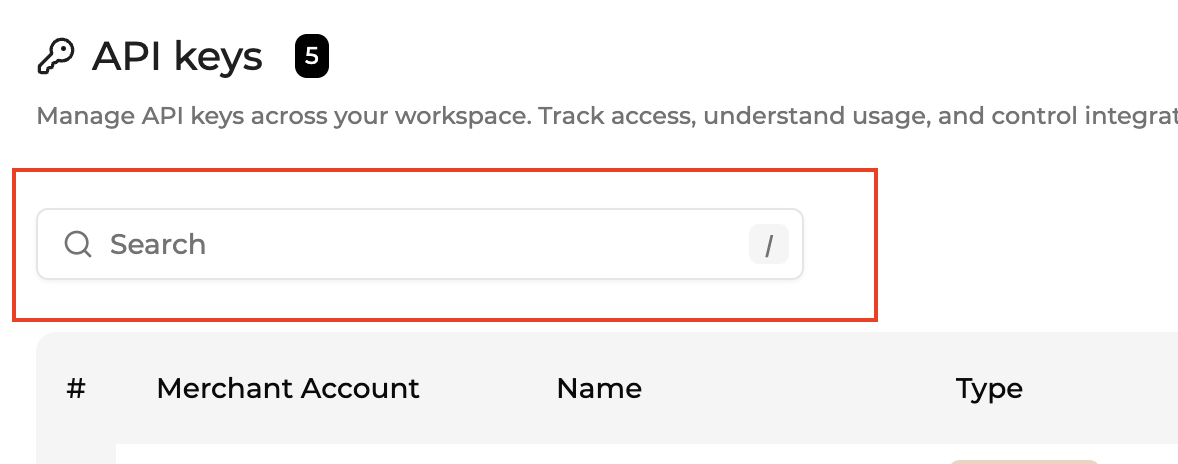
Tables include a search field that filters visible rows.
Search typically applies to:
- object names
- identifiers
- visible columns
Shortcut:
/Focuses the search field.
Sorting
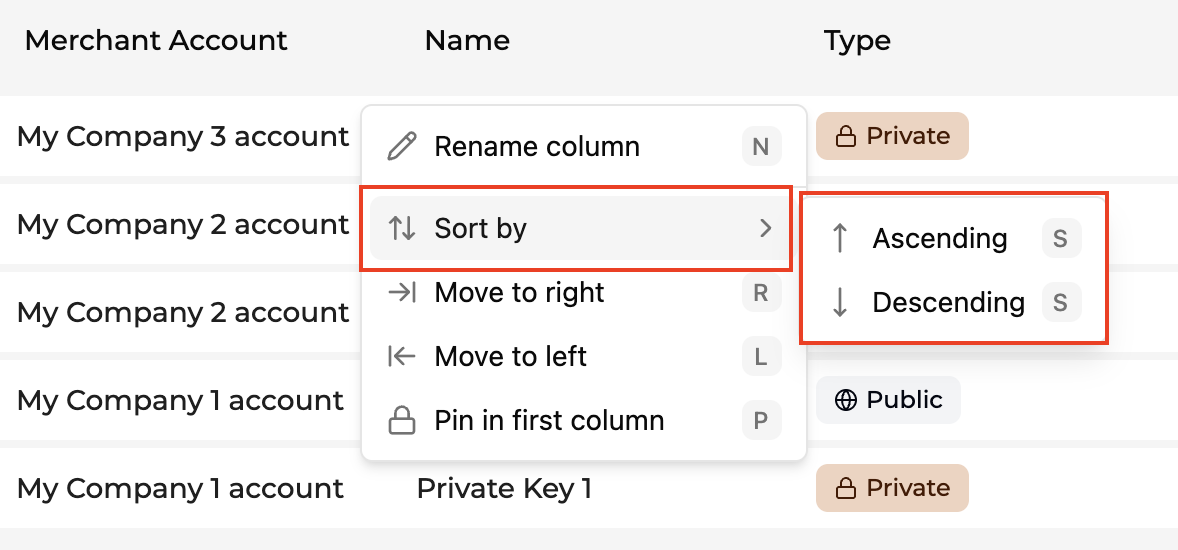
Most tables allow sorting by column.
Sorting can be applied by:
- clicking a column header
- using the column context menu
Sorting may be available:
- ascending (A → Z)
- descending (Z → A)
Column configuration
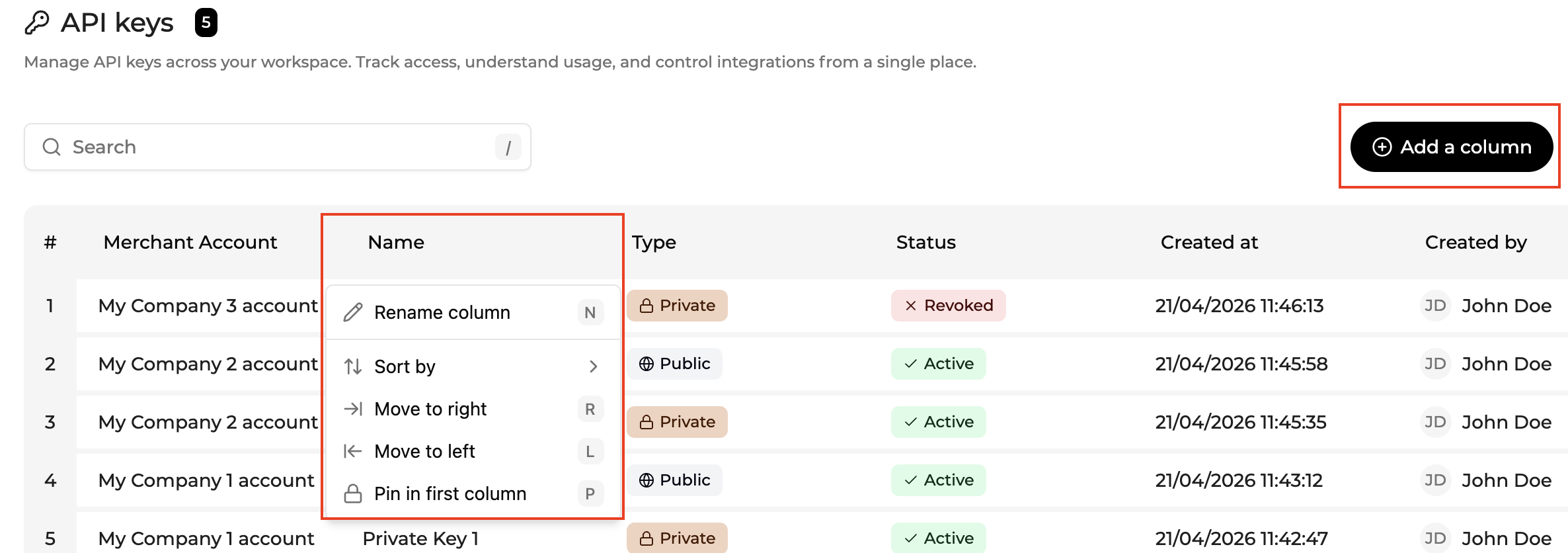
Columns can be customized to adapt the table to the user's workflow.
Column configuration can be performed in two ways:
- directly in the table (for quick actions such as sorting, moving, or formatting)
- using the “Add a column” modal (for managing column visibility and structure)
Showing or hiding columns
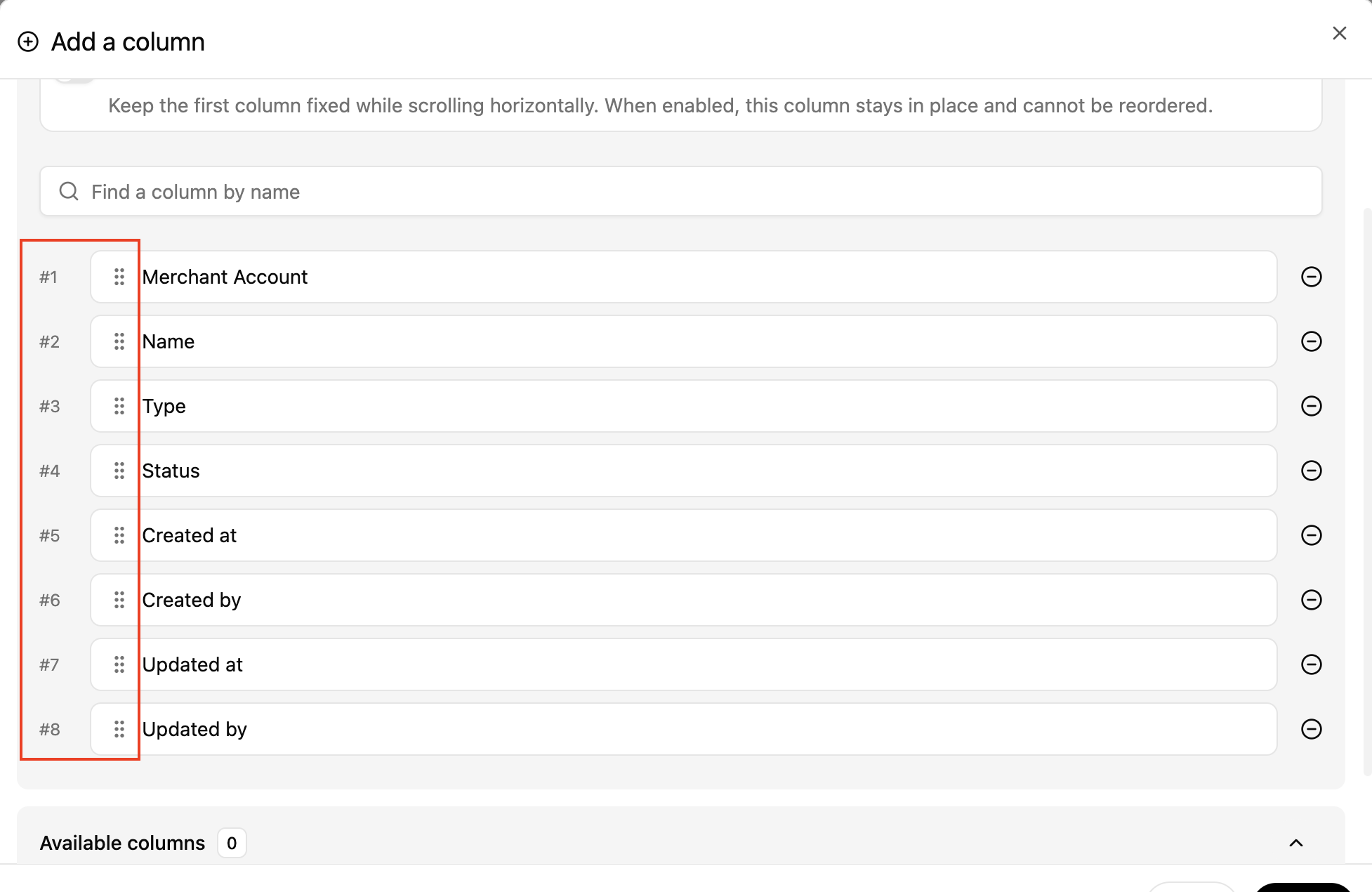
Tables can be customized using the “Add a column” feature. This allows users to control which data is displayed and how it is organized.
The “Add a column” action is available from the table toolbar (shortcut: ⇧ + L)
Users can:
- search for available columns by name
- add columns using the “+” control (changes apply on save)
- remove columns using the “–” control (changes apply on save)
- reorder columns using drag and drop (changes apply on save)
Removed columns are not deleted and can be re-added later. Changes are staged locally and are not applied immediately. The updated table configuration is only applied after clicking Save.
Column order
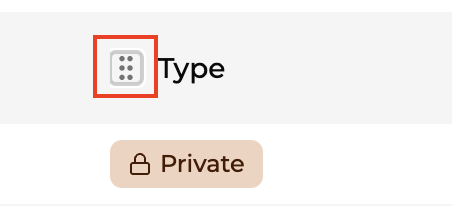
Columns can be repositioned using:
- drag and drop in column header
- Add a column modal
Column header menu
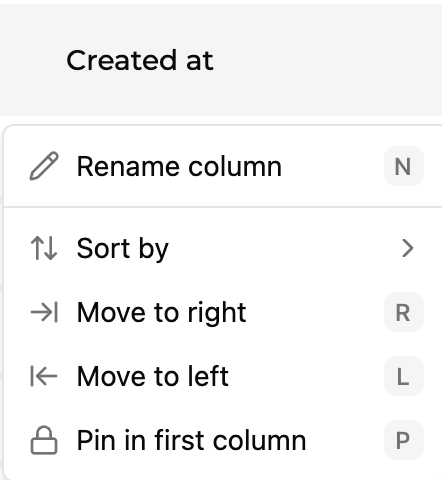
Clicking on a column header opens the column menu.
This menu provides actions that apply to the entire column:
- Rename column (Shortcut: N)
- Sort by (S)
- Ascending (s)
- Descending (s)
- Column calculations (for numeric columns) (X)
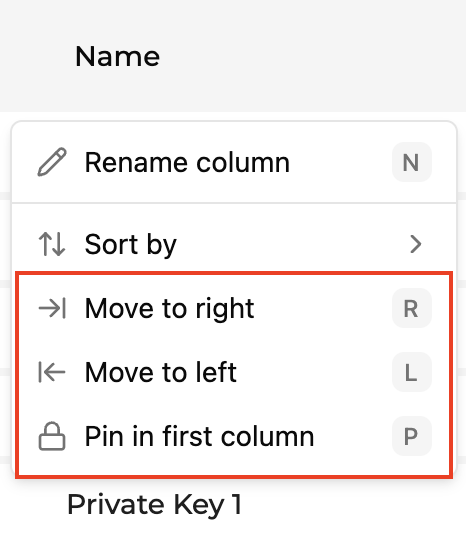
- Move to right (R)
- Move to left (L)
- Pin in first column (P)
Renaming columns
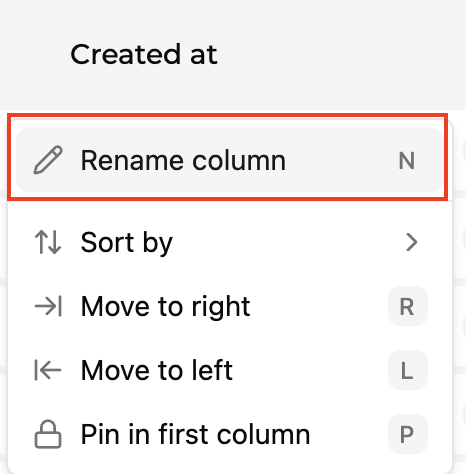
When permissions allow it, column labels can be renamed.
This helps teams adapt the interface to their terminology.
Table calculations
Some tables allow calculations for a selected column, such as:
- Sum
- Average
- Median
- Minimum
- Maximum
Use calculations for fast analysis without exporting data
Sorting
Column calculations
For numeric columns, the Console can calculate summary values such as:
- Sum
- Average
- Median
- Minimum
- Maximum
These calculations help quickly analyze datasets without exporting them.
Column formatting
When applicable, users can change how values are displayed.
Examples:
- numeric formats
- currency formats
- percentage formats
Formatting affects display only and does not change underlying data.
Column positioning
Columns can also be repositioned through the column menu.
Cell context menu
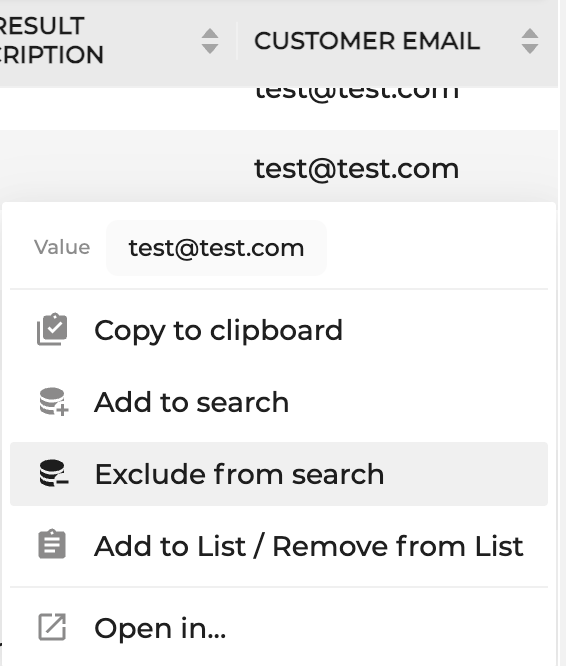
Right-clicking a cell opens a context menu.
The context menu provides actions related to the selected value.
Common actions include:
- Copy value
- Add to search
- Exclude from search
- Open in… (navigate to another table using this value as a filter)
Some cells provide type-specific actions.
Examples:
- Add to list (for compatible identifiers)
- Open related object
- Open external reference
Available actions depend on:
- the value type
- the table
- user permissions
Detail pages (read-only)
A detail page is the inspection view of a single object.
Typical elements:
- breadcrumbs showing the navigation path used to reach the current page
- structured metadata cards (for example Basic details, Creation information, or Last change)
- related content (for example: entries inside a list)
Detail pages are safe to explore: no changes are applied from the detail view.
To change an object, you must enter edit mode.
Navigating a read-only detail page
Read-only detail pages are designed for inspection. They allow users to review one object safely, move through related records, and access configuration or layout actions without applying changes.
A detail page usually includes:
- a Back action to return to the previous page or table context
- scope indicators showing the current operating context
- breadcrumbs showing the path used to reach the current page
- the object name and technical identifier
- a status badge, when relevant
- Prev / Next actions to move between objects from the same table context
- an Edit action, when the user has permission
- a Layout action, when page layout customization is available
- collapsible sections such as Overview, Metrics, Triggers, Related data, or History
Back and breadcrumbs
The Back action returns the user to the previous page, usually the table or object list that opened the detail page.
Breadcrumbs show the local navigation path used to reach the current page. They help users understand how they arrived at the object and move back to previous levels when available.
Back and breadcrumbs are not the same:
- Back follows the browser or session navigation history.
- Breadcrumbs expose the product navigation path kept by the Console for the current page.
Previous and next object
When a detail page is opened from a table, the Console keeps the current table context. This allows users to move between records without returning to the table each time.
Use:
- Prev to open the previous object in the current result set
- Next to open the next object in the current result set
This is useful when reviewing several records in sequence, such as transactions, orders, contracts, payment events, or webhook endpoints.
Keyboard shortcuts may also be available:
- Next object: Alt + → on Windows/Linux, ⌥ + → on macOS
- Previous object: Alt + ← on Windows/Linux, ⌥ + ← on macOS
Navigation context
Prev and Next follow the table context from which the object was opened.
This means they use the same:
- active view
- filters
- search query
- sorting
- result set
Example: If a user filters the Webhooks table to show only Draft endpoints, opens one webhook, then clicks Next, the Console opens the next webhook from that filtered Draft result set.
Limits
Detail navigation is intentionally limited to keep the experience predictable and efficient.
- Prev and Next are available only when the detail page was opened from a table or result set.
- If the page was opened directly from a URL, Prev and Next may not be available.
- Prev and Next do not browse the entire database. They follow the current table context.
- If the first object in the result set is open, Prev is unavailable.
- If the last available object in the result set is open, Next is unavailable.
- If an object becomes unavailable because of permissions, deletion, scope changes, or state changes, it may be skipped or navigation may stop.
- If the underlying table data changes while the detail page is open, the navigation context is not automatically rebuilt. Users should return to the table and refresh the result set.
- Detail navigation is not designed for large-scale analysis. For large datasets, users should use search, filters, exports, or the full table view.
Sections and page content
Read-only detail pages organize information into sections. Sections may include overview cards, metrics, triggers, related objects, history, or technical data.
Sections can be expanded or collapsed when supported. Collapsing a section only changes the display. It does not change the object or its configuration.
Some sections may include a Refresh action. Refresh reloads the displayed data for that page or section. It does not change the object configuration.
Edit action
The Edit action opens edit mode for the current object, when the user has permission.
Read-only pages do not apply changes. To modify configuration, users must explicitly enter Edit mode.
If the user is in Edit mode and has unsaved changes, navigation is protected. The Console asks the user to save, reset, or confirm before leaving the page.
Layout
The Layout feature allows users to customize how information is structured and displayed on detail pages. The Layout action is available from the detail page header (tooltip: Edit page layout (⇧ + L))
The layout configuration is managed through a modal.
Users can:
- reorder sections using move controls
- hide or show sections
- expand or collapse sections
- reorder cards within a section using drag and drop
- remove cards from a section using the “–” control
- add cards using the “+” control (when available)
General settings:
- Display empty fields (N/A): Show fields even if no data is available
- Display personal data (GDPR): Show sensitive data (requires permission)
Sections: Sections group related information displayed on the page.
Each section provides controls to:
- move up/move down
- hide/show
Cards: Cards define the content displayed within a section.
In the layout modal:
- Active cards: Drag to reorder or remove with “–”. Changes apply on save.
- Available cards: Add cards with “+”. Changes apply on save.
Notes:
- When only one card is present, the label may switch from “Active cards” to “Active card”
- Changes are applied only after clicking Save
- Closing the modal without saving discards all changes
Create action
Some detail pages may still display a Create action for the current object type or module.
Create is not part of detail navigation. It starts a new object creation flow and does not modify the object currently being viewed.
Edit mode
Edit mode is explicit.
In edit mode, you can:
- update object settings
- add/remove entries
- import data (when supported)
Edit pages provide controls designed to prevent accidental changes:
- Save applies pending modifications.
- Reset discards unsaved modifications and restores the last saved state.
Leaving a page with unsaved changes
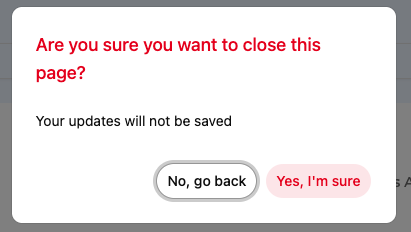
If you attempt to navigate away with pending modifications, the Console shows a confirmation modal:
- No, go back Returns to the page so you can Save or Reset.
- Yes, I'm sure Leaves the page and discards pending changes.
This warning appears whenever the page contains unsaved updates.
Updated 26 days ago