
Tonder
This guide will walk you through the process of integrating Tonder with NORBr.
Step 1: Contract signature
Sign a contract with Tonder, and get access to the back office.
Step 2: Retrieve your credentials from the back office
Connect to the interface https://app.tonder.io/accounts/login/ and go to Options section from the top bar where you find your credentials under Merchant Keys
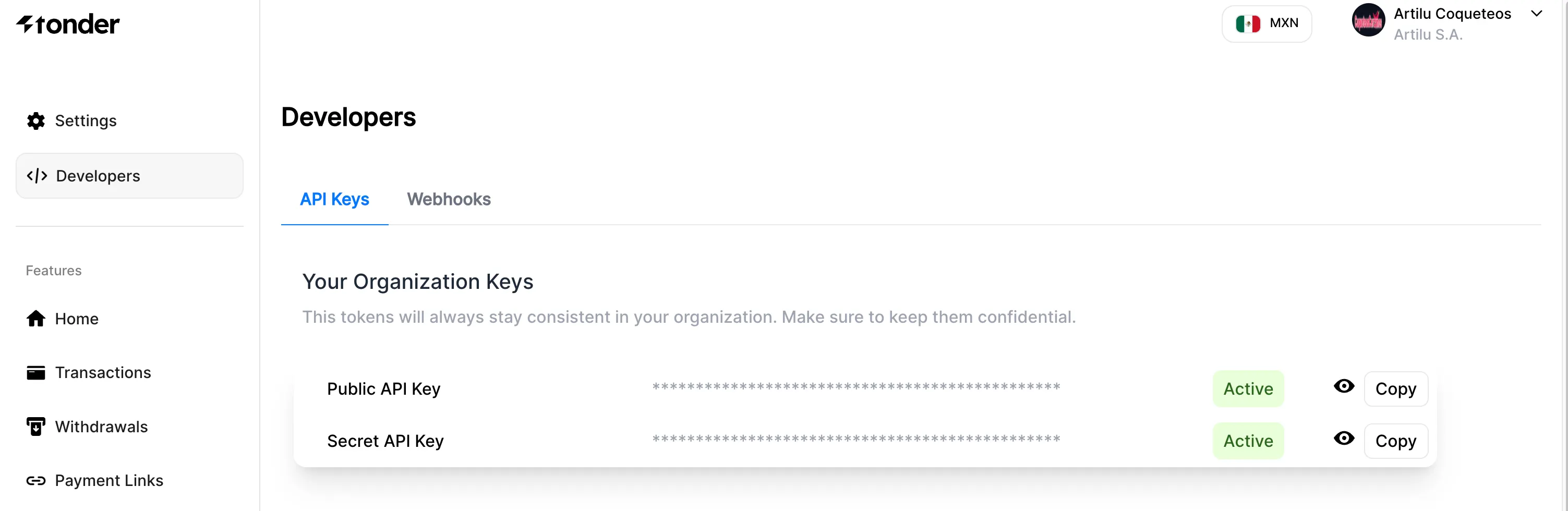
Copy the Public API Key and Secret API key by clicking on the clipboard icons. paste the values respectfully in the merchant contract in NORBr.
Step 3: Setup your webhook
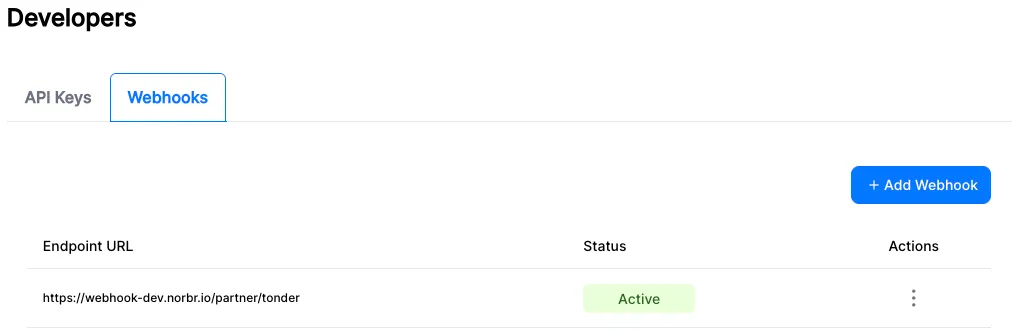
Open the Webhooks tab and press +Add Webhook
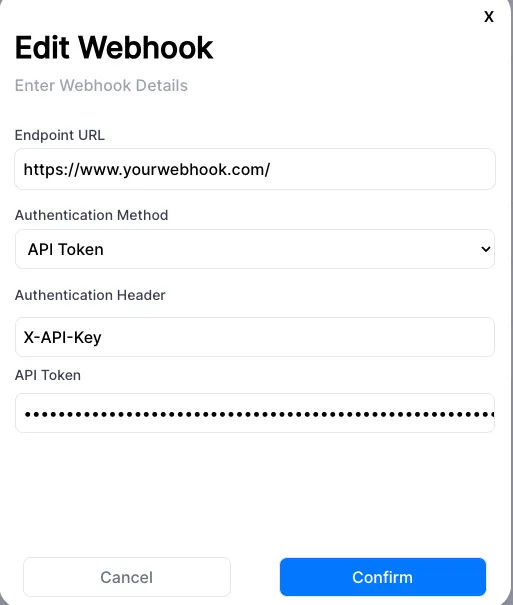
Select API Token as the Authentication Method and add X-API-Key under Authentication Header
Generate a value and add it in the API Token field - keep the value at hand for step 4
Enter the following webhook:
- For Sandbox environment:https://webhook-sandbox.norbr.io/partner/tonder
- For Production environment: https://webhook.norbr.io/partner/tonder
Step 4: Add a Contract to your Merchant Account
-
Log into your Merchant Account.
-
Navigate to Contracts in the left navigation. Select + Create to add a new contract.
-
Select the Merchant Account you want to link to the contract
-
From the provider drop-down list, select Tonder.
-
Settlement currency: select from the drop-down menu. You will only see the available ones.
-
Give your contract a name for easier identification: eg. PSP name.
-
Operational configuration (authentication, risk assessment, network tokenization) : leave without changes
-
Select your sales channels and add payment methods. Once added, you can specify the authorization currency and the sales channels for each payment method.
To activate a payment method with Tonder, you will need your notification_api_key, public_api_key and secret_api_key.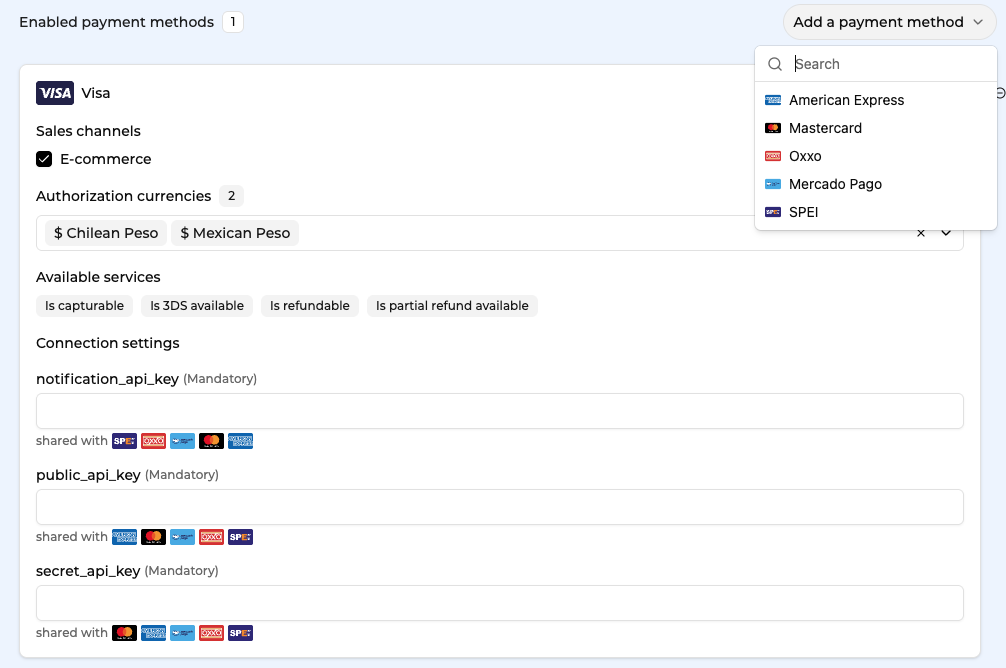
-
Exclusion rule : Set up your exclusion rule if you have one. This section lets you define a condition under which this contract will not be used for routing.
-
Once you have filled in the credentials, select Save, then select Publish to make the contract operational.
Test cards
use the below cards to test different cases for MXN currency
Test cards for 3DS
4000000000000085 → 3DS ( Success | Declined )
4444444444444455 → 3DS Failed
Test cards for non-3DS
4000000000000077 → Success
5555555555554477 → Declined
Updated about 1 month ago