
Adyen
This guide will walk you through the process of integrating Adyen.

Step 1: Contract Signature
sign a contract with Adyen and get access to their back office
Step 2: Create a merchant account
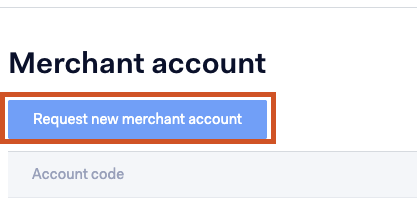
Under the company account, navigate to settings and select Merchant Account under Account
Click on Request a new merchant account and follow the steps on the page
Step 3: Setup the needed payment methods
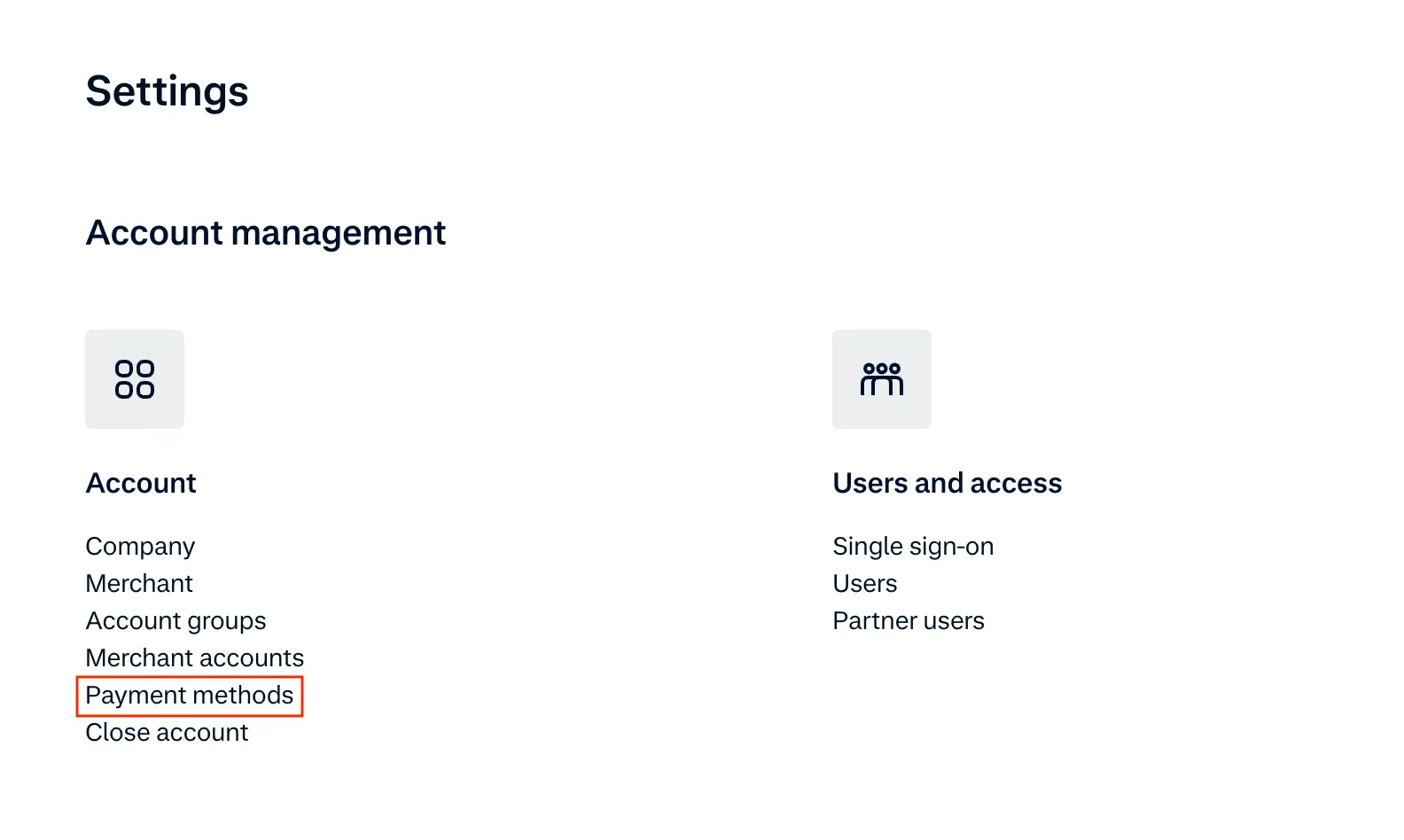
Once the merchant account is setup, select it and navigate to settings from the left side menu. Select payment methods from below Account
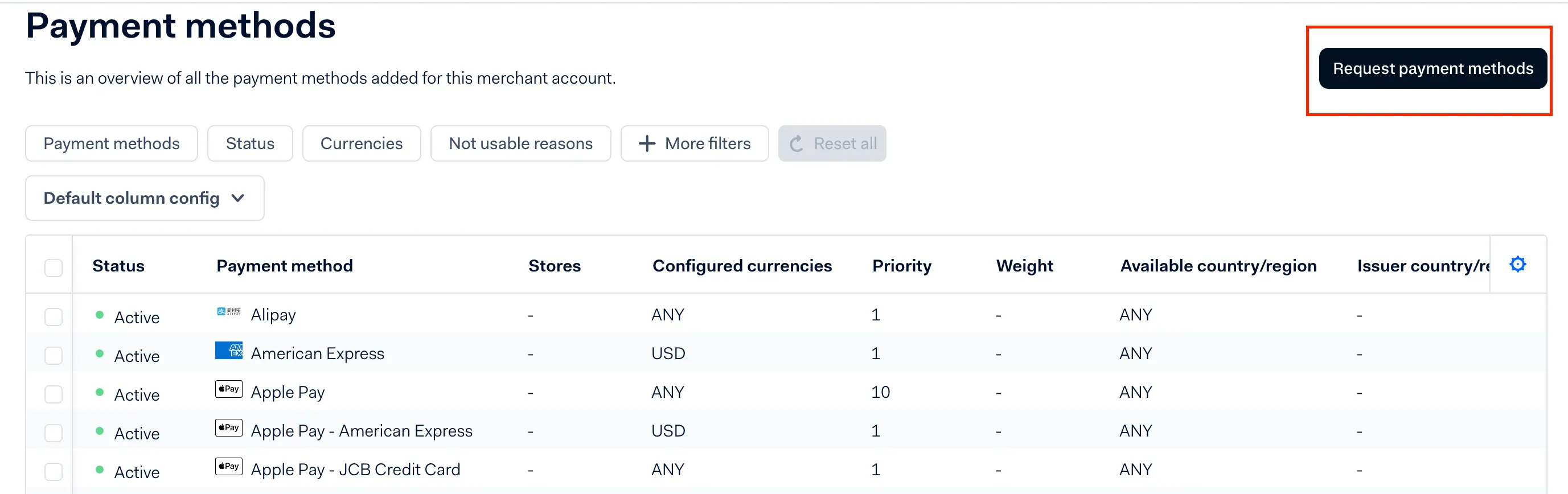
Press “request payment methods” and follow the steps needed by each payment method to complete the request.
- please note the payment methods supported by NORBr by checking this list
- Some payment methods like Wechat or Boleto might require an extra configuration by the adyen’s support team.
- for apple pay please check Adyen’s documentation on Apple Pay certificate
Step 4: Collect your credentials
Head to the back office and sign in to your account. from the left side menu, navigate to developers > API credentials
Press on the username created, if none were created already, press on “create new credentials” - select “web service user” and add a simple description for the account.
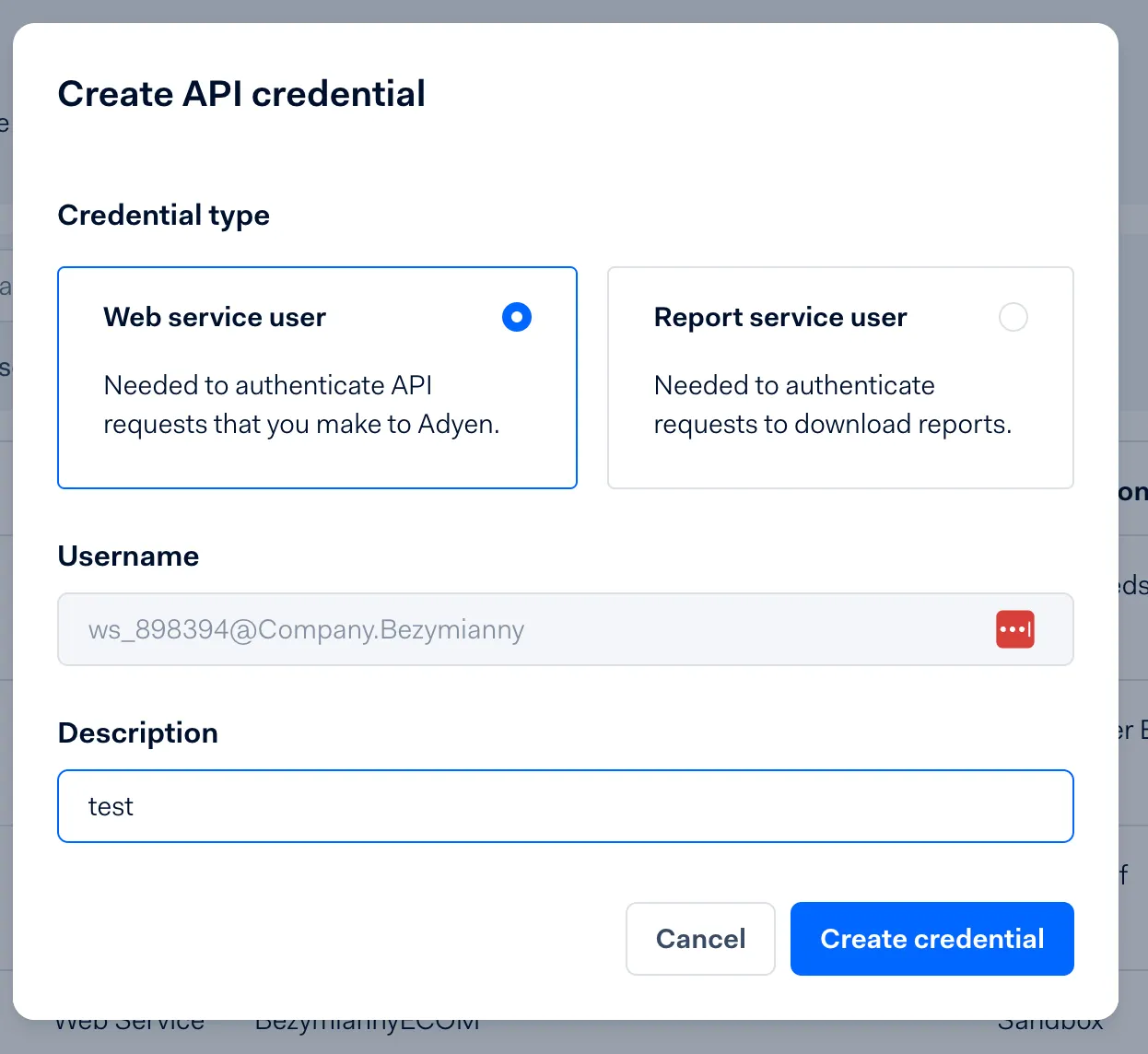
Once created, find you API Key and note it for the next step
Step 5: Add a Contract to your Merchant Account
-
Log into your Merchant Account.
-
Navigate to Contracts in the left navigation. Select + Create to add a new contract.
-
Select the Merchant Account you want to link to the contract
-
From the provider drop-down list, select Adyen.
-
Settlement currency: select from the drop-down menu. You will only see the available ones.
-
Give your contract a name for easier identification: eg. PSP name.
-
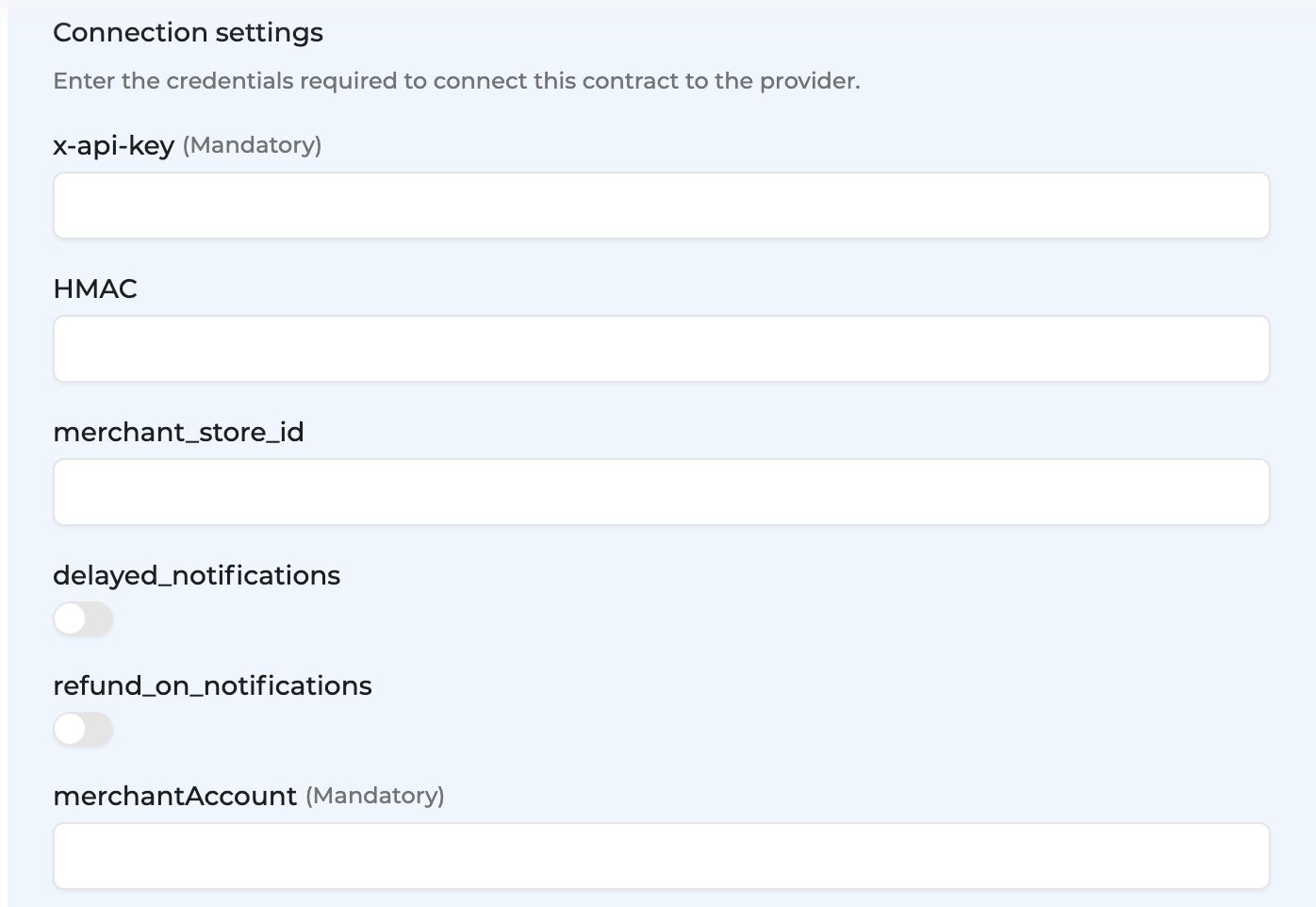
Setup provider settings and fill in the credentials you earlier retrieved.
-
Operational configuration (authentication, risk assessment, network tokenization) : leave without changes
-
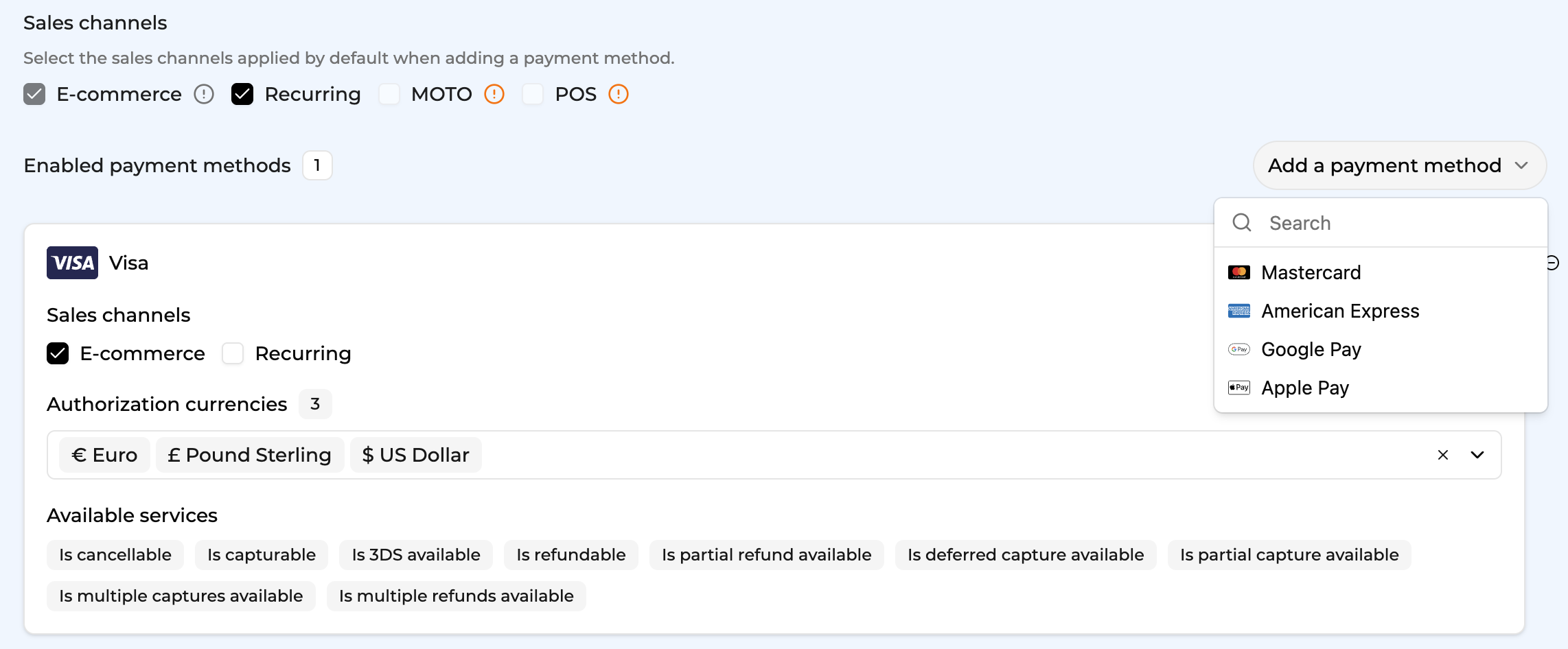
Select your sales channels and add payment methods. Once added, you can specify the authorization currency and the sales channels for each payment method.
-
Exclusion rule : Set up your exclusion rule if you have one. This section lets you define a condition under which this contract will not be used for routing.
-
Once you have filled in the credentials, select Save, then select Publish to make the contract operational.
How to configure GooglePay
1 - Onboard your website on GooglePay and get your merchant ID
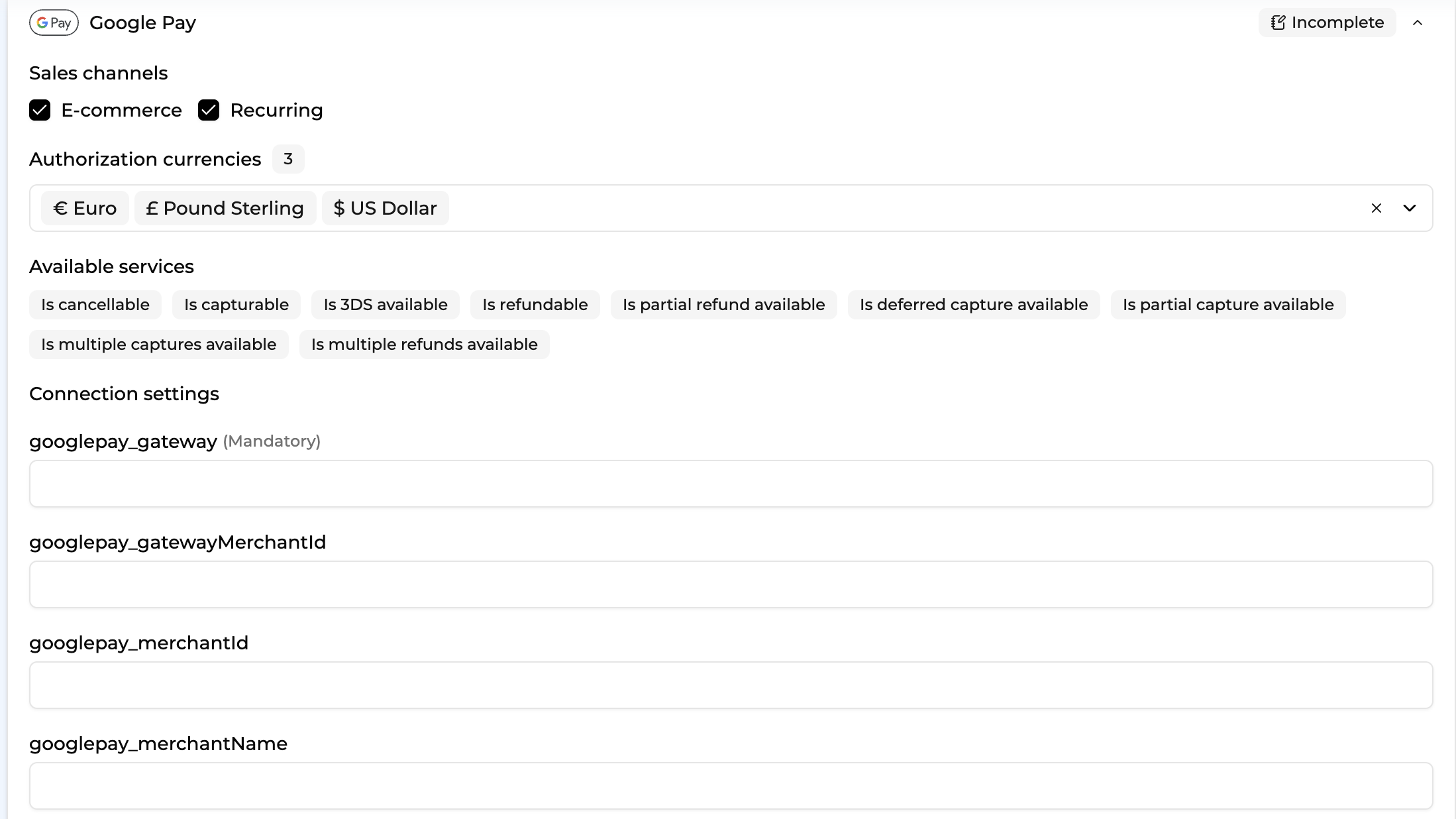
2 - Fill out your credentials in your merchant contract as described below :
-
googlepay_gatewayMerchantId = your adyen merchant store id
-
googlepay_gateway = adyen
-
googlepay_merchantId = your GooglePay merchant account ID (step 1). For the sandbox environment, you can put a random string.
-
googlepay_merchantName = the name display in the GooglePay pop up when the customer pays
Test cards
Visa: 4871049999999910 (3DS)
Mastercard: 2222 4000 7000 0005 (no 3D) 2222 4107 0000 0002 (corporate card)
5555 4444 3333 1111 (consumer card)
CVV: 737 — Expiry date: 03/30
Updated about 1 month ago