
TrustPayments
This guide will walk you through the process of integrating Trust Payments with NORBr.

Step 1: Contract signature
Sign a contract with Trustpayments, and get access to the back office.
Step 2: Get your site references
When you get your access to Trustpayments backoffice, you will get two site references assigned - you should receive them by email or otherwise you can find them in you Trustpayments backoffice.
- One site reference is for authorization
- The other one is for 3D Secure
- Log into your Trustpayments backoffice
- Navigate to sites
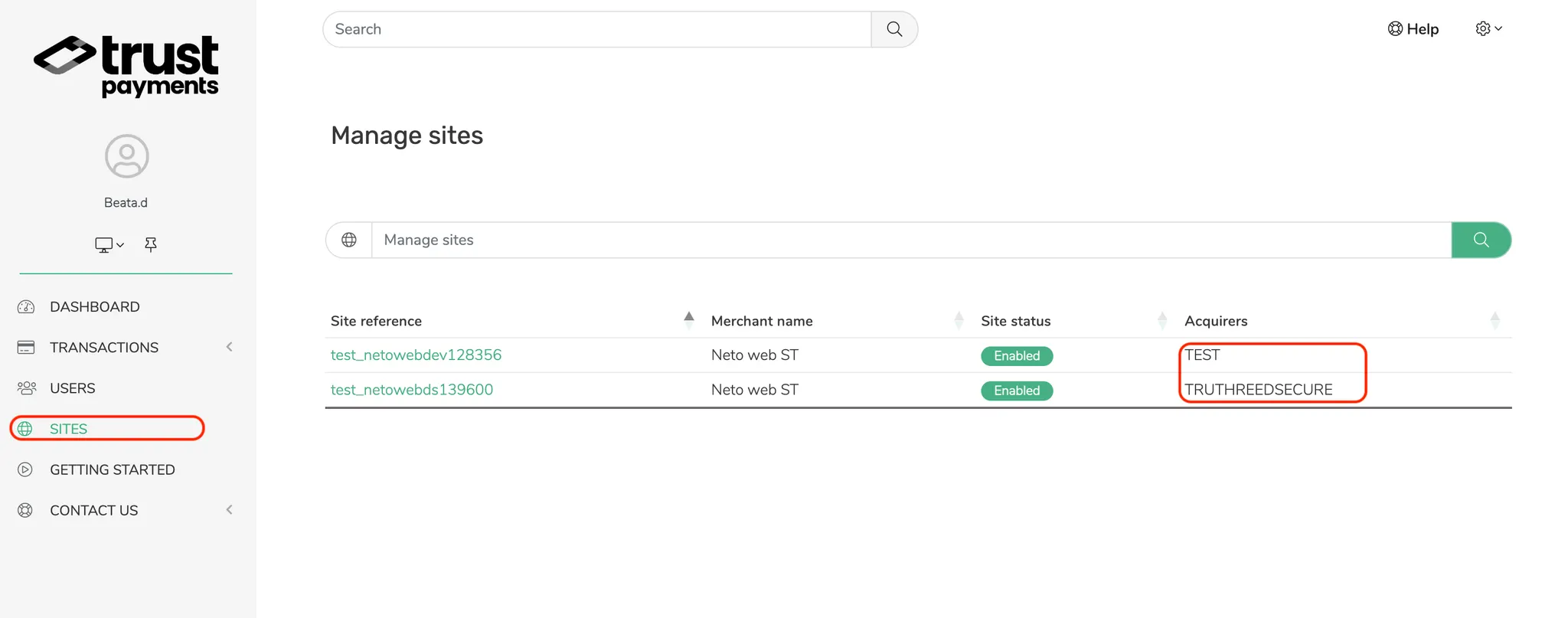
- Find your site reference - for authorization (TEST on the above screenshot) and for 3DS (TRUTHREEDSECURE on the above screenshot).
Step 3: Create a Webservice user
After checking your site references, you need to create a Webservice user and assign those site references to the user.
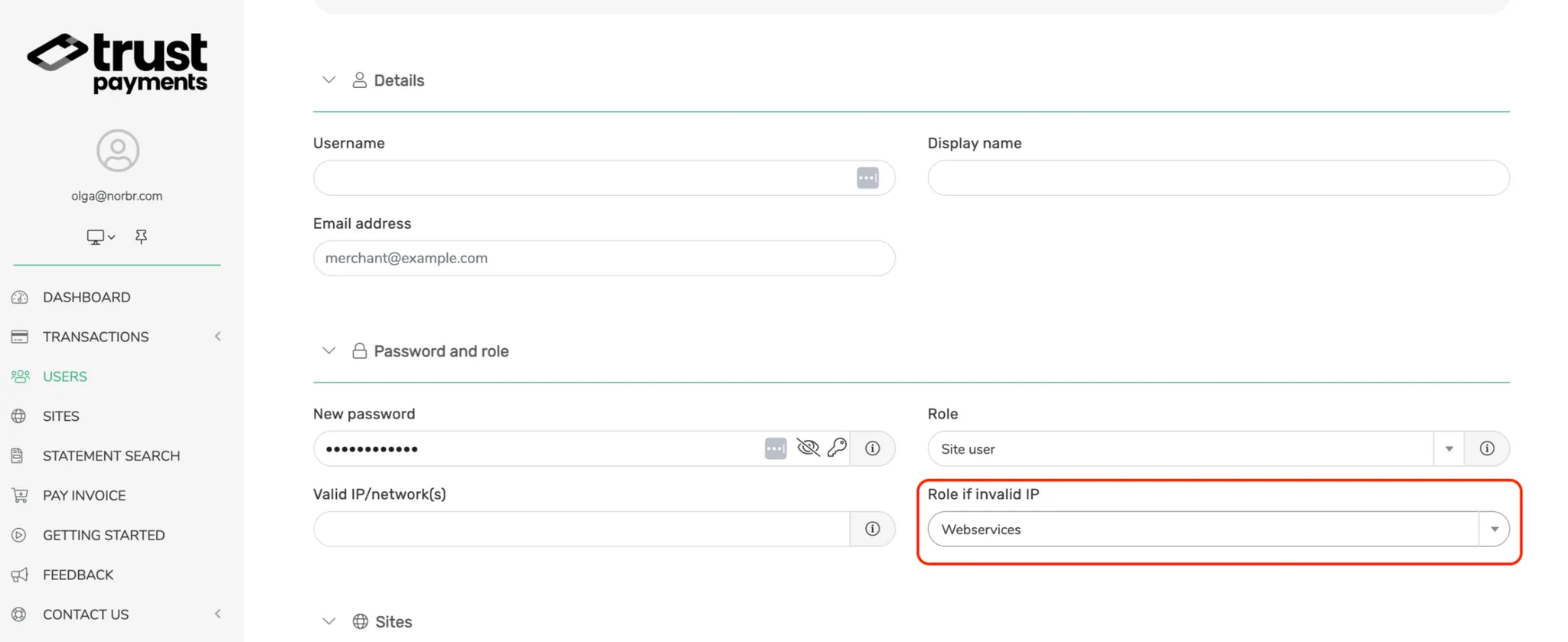
- In your Trustpayments backoffice, navigate to Users → Add a new user
- Make sure to select Webservices option in the Role if invalid IP section
- When adding records to Valid IP/network(s), divide each record by semicolon
- The username value you fill in, will be used later as a site alias
- Assign sites references to you user
After filling in al the above credentials, you need to assign the existing site references to your user.
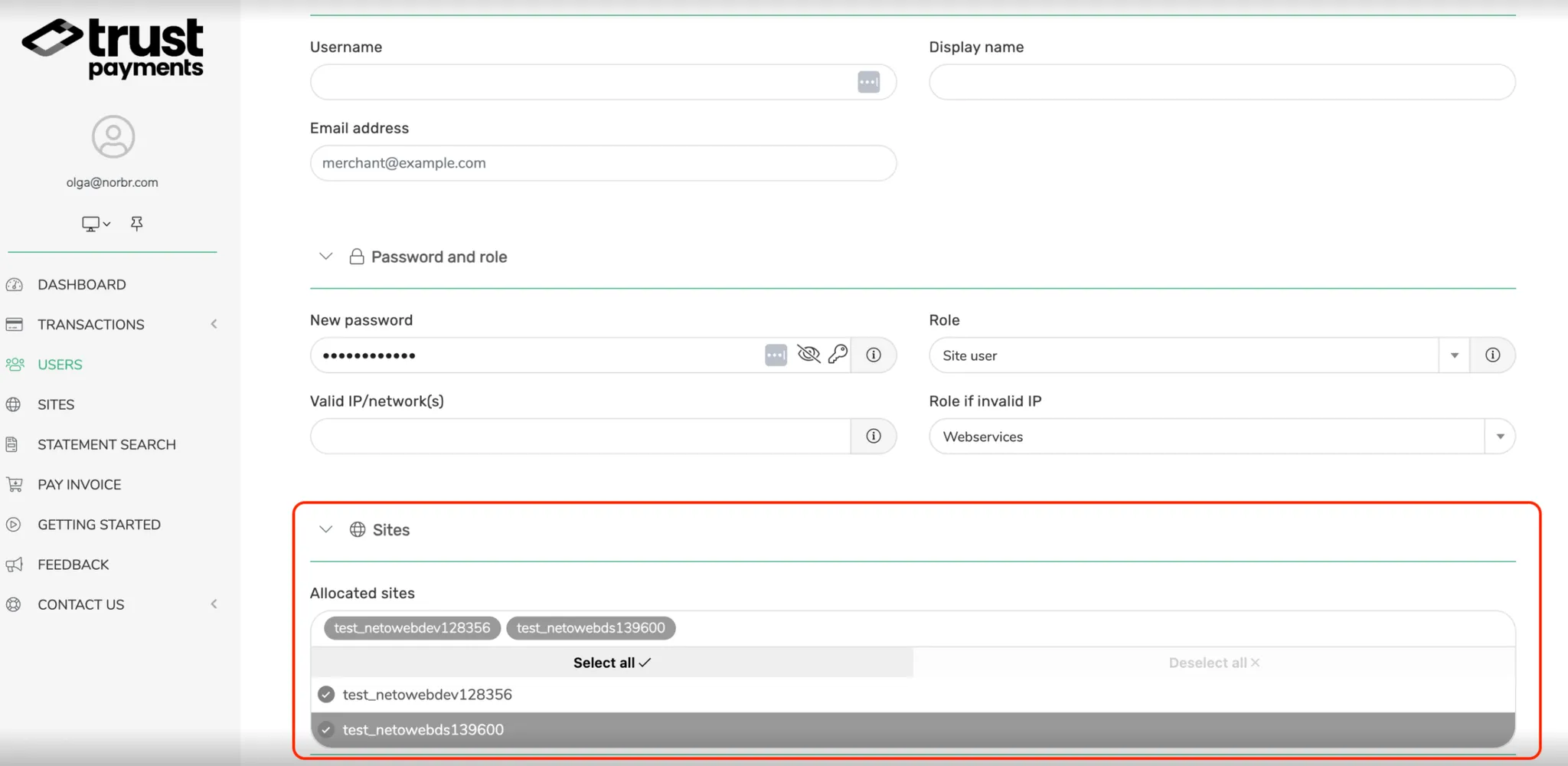
Step 4 : Whitelist our production IPs :
Go to the Valid IP/networks and add the following IPs seprated by a “;” :
34.105.249.51
35.205.16.245
35.246.139.210
34.65.84.106
Sandbox IPs :
34.89.124.165
34.107.126.251
34.65.230.239
34.78.205.229
Step 5: Add a Contract to your Merchant Account
Once you created the Webservice user(s), you will need to create a merchant contract to activate this Partner.
-
Log into your Merchant Account.
-
Navigate to Contracts in the left navigation. Select + Create to add a new contract.
-
Select the Merchant Account you want to link to the contract
-
From the provider drop-down list, select Trust Payments.
-
Settlement currency: select from the drop-down menu. You will only see the available ones.
-
Give your contract a name for easier identification: eg. PSP name.
-
Operational configuration (authentication, risk assessment, network tokenization) : leave without changes
-
Select your sales channels and add payment methods. Once added, you can specify the authorization currency and the sales channels for each payment method.
To activate a payment method with Trust Payments, you will need your alias, sitereference_authorization, password and sitereference_3ds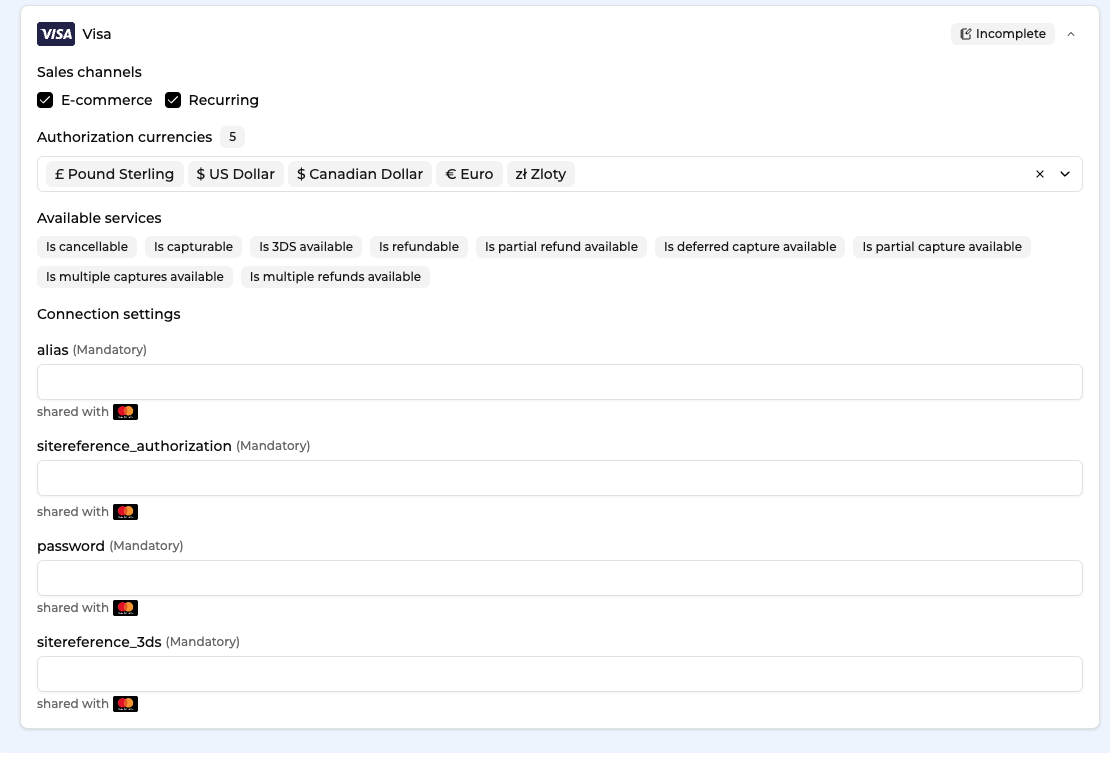
-
Exclusion rule : Set up your exclusion rule if you have one. This section lets you define a condition under which this contract will not be used for routing.
-
Once you have filled in the credentials, select Save, then select Publish to make the contract operational.
Note: 3DS Testing details
When testing 3D-Secure flow, please make sure to use the following test cards:
- Challenge flow: 4900490000000667
- No 3DS: 4111111111111111
- Declined with authentication_indicator: ask_3ds: 4111111111111111
Updated about 1 month ago