
Managing contracts
Create a contract
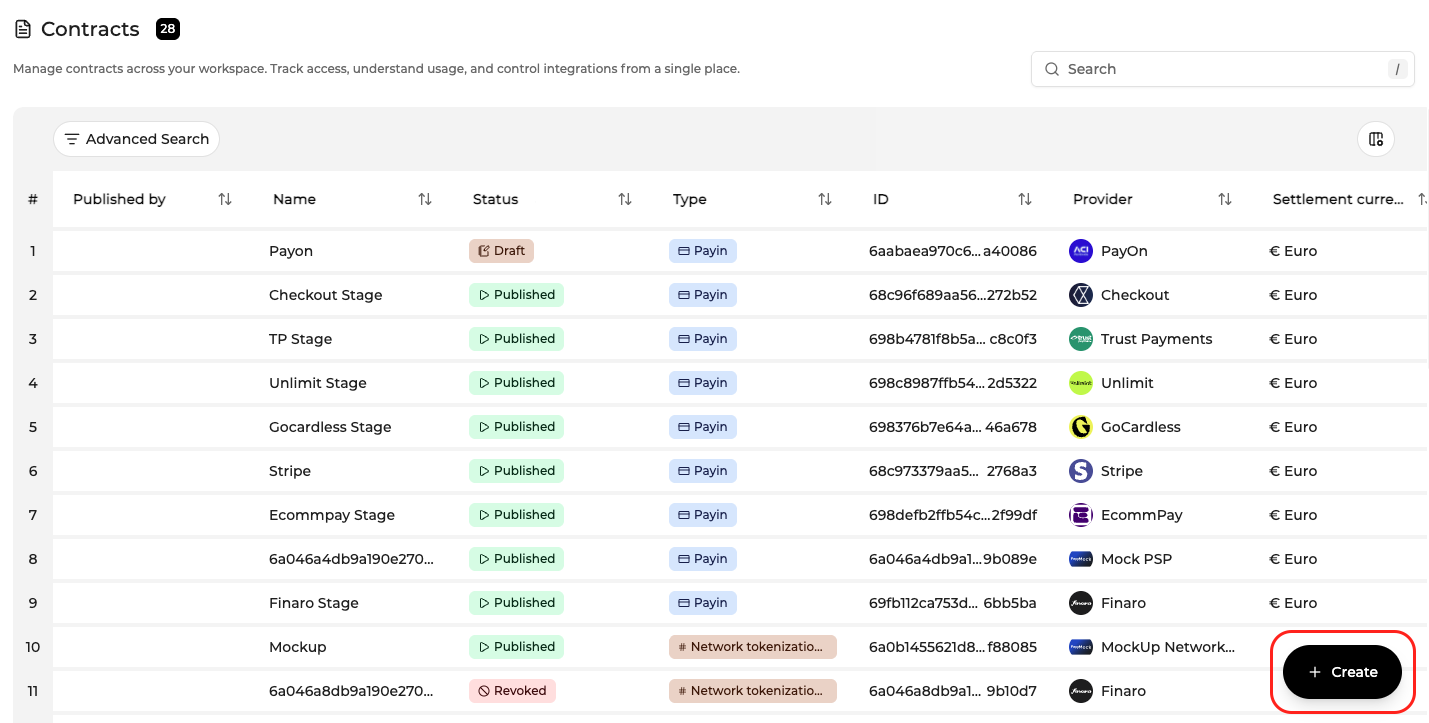
- Log into your Merchant Account
- Navigate to Contracts in the left navigation
- Select + Create.
- Set the contract scope (Merchant, Company, or Program Manager level). Scope cannot be changed after creation.
- Select a partner from the available partner list.
- Configure General settings, Connection settings, and Payment methods (see sections below).
- Select Save. The contract is created in Draft state.
- Select Publish to make the contract operational.
There is a Mock PSP added to your Sandbox account by default — if not, reach out to Support to have it added.
Configure a contract
General settings
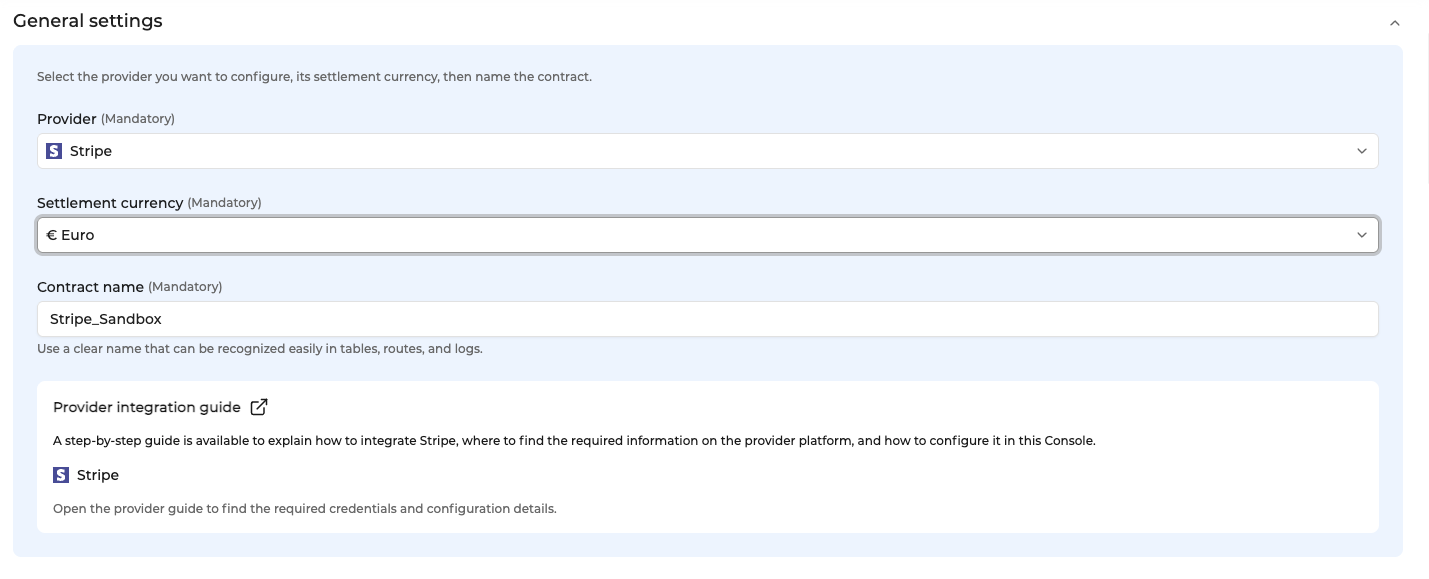
- Contract name: A user-defined label to identify the contract. Choose a name that makes it easy to distinguish from other contracts with the same provider.
- Contract ID: Generated automatically when the contract is created. Useful when testing your integration with a specific provider or with the Mock PSP.
- Settlement currency: The currency in which payments processed through this provider will be settled. Payments made in a different currency will be converted to the settlement currency.
- Sales channels: Active channels for this contract: E-commerce, Recurring, MOTO, POS. Not all channels are available for every provider.
- Authentication: Where authentication is managed. Default: Managed by PSP.
- Risk assessment: Where risk assessment is managed. Default: Managed by PSP.
Connection settings
Credential fields depend on the provider. Refer to the partner-specific integration guide for the exact fields to fill in. Common fields include a Secret Key and Public Key, a Google Pay merchant ID, or other account identifiers.
If your Program Manager has enabled credential management for this contract, all connection fields are read-only. Contact your Program Manager to update credentials.
Payment methods
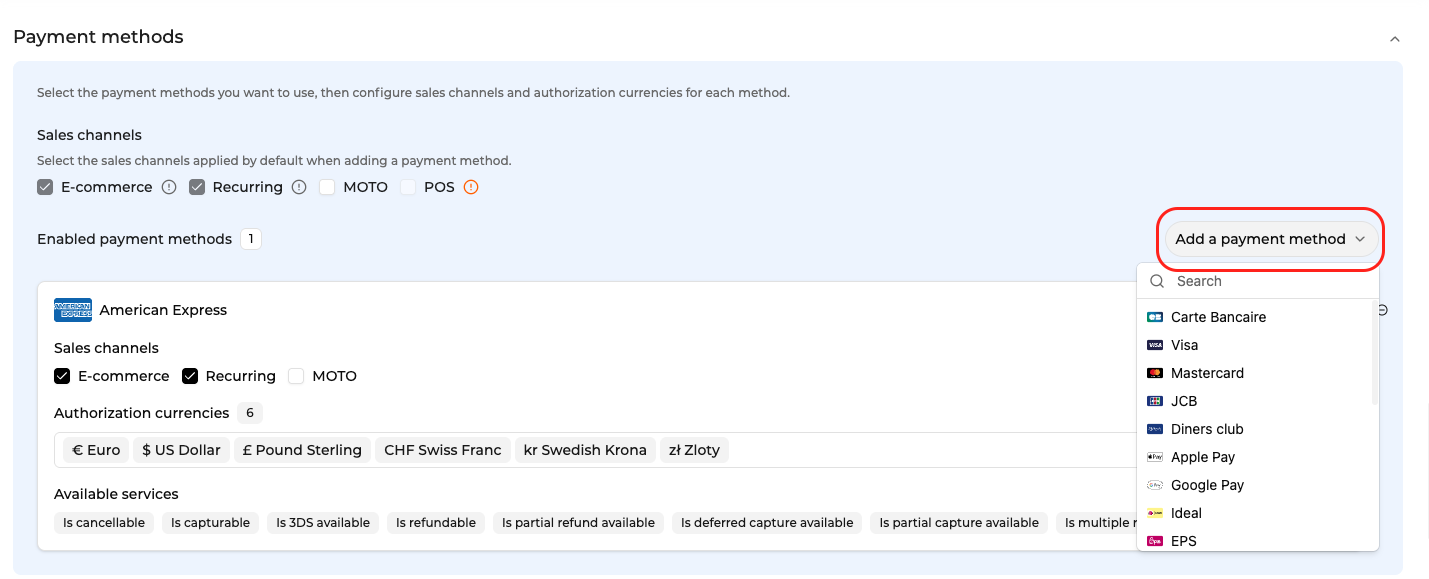
The Payment methods section shows all payment methods configured for this contract, with their active sales channels, supported currencies, and available services.
Services are displayed as badges. Click a badge to see an inline definition of that service.
Some payment methods require additional steps before they can be activated, for example, uploading an ApplePay certificate. Visit Manage payment methods for details.
Publish and unpublish a contract
- Publish: Makes the contract operational. It can be used for routing immediately after publishing.
- Unpublish: Temporarily pauses the contract. No new payment flows are routed through it. Historical data is unaffected. You can republish at any time.
- Revoke: Permanently retires the contract. This action is irreversible. Revoked contracts are hidden from the table by default.
All lifecycle actions require confirmation before they are applied.
Edit a contract

Changes made in the edit page are held locally until you explicitly save. Navigating away without saving will trigger a confirmation prompt.
Lifecycle actions (Publish, Unpublish, Revoke) are available directly from the detail page alongside the edit workflow.
Cross-contract navigation
Contracts reference each other. From a Payin contract, linked Authentication or Risk provider contracts are visible directly on the detail page, and vice versa. Select a linked contract to open it without returning to the list.
Exclusion rule
The Exclusion Rule section lets you define a condition under which this contract will not be used for routing.
Example:
- Contract: Stripe, EUR settlement, Visa and Mastercard active
- Rule: Card Issuer Country = Sweden
- Result: Payments from cards issued in Sweden will not be processed through this contract.
Updated 29 days ago