
Checkout
This guide will walk you through the process of activating checkout.com on NORBr.

Step 1: Contract signature
Sign a contract with checkout.com, and get access to the back office.
Step 2: Create your API Keys
-
Connect to the interface : https://dashboard.sandbox.checkout.com/
-
Go to Developers and → Keys or directly follow this link: https://dashboard.sandbox.checkout.com/developers/keys

-
Create a Public API Key:
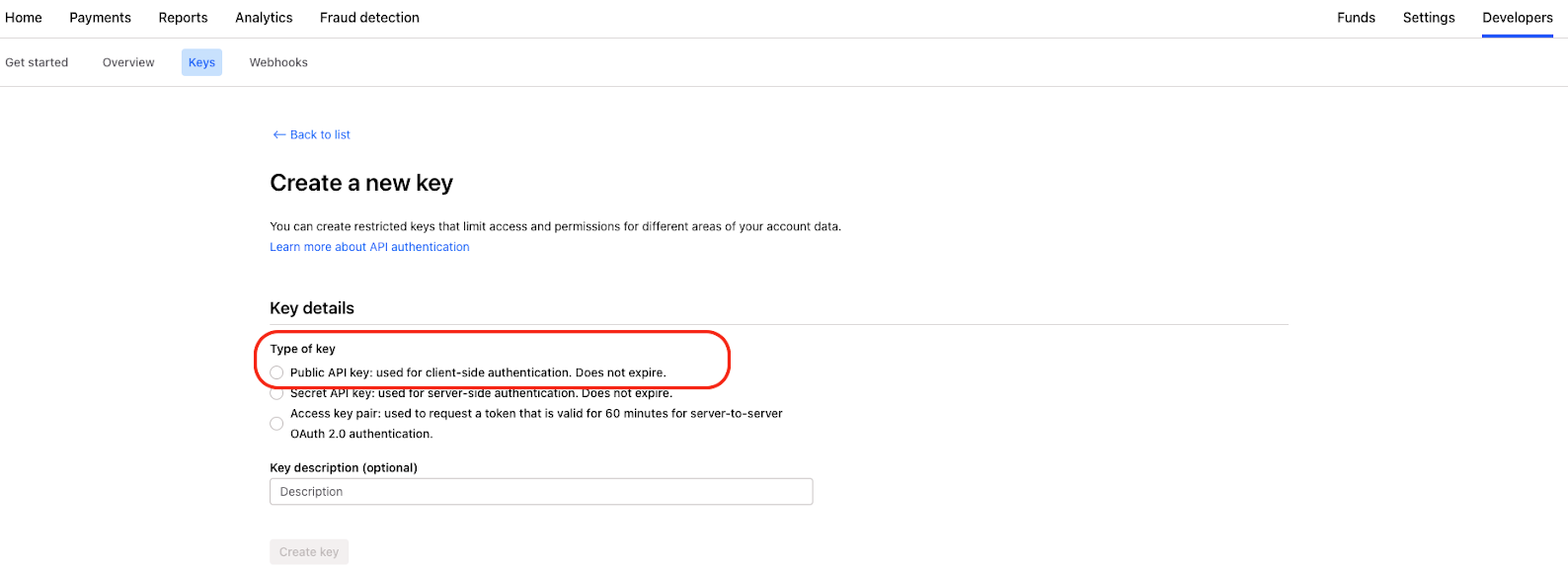
a) If you have several processing channels, you can select the one you want to use and then fill out the following field in your merchant account while adding/editing the Merchant Contract.
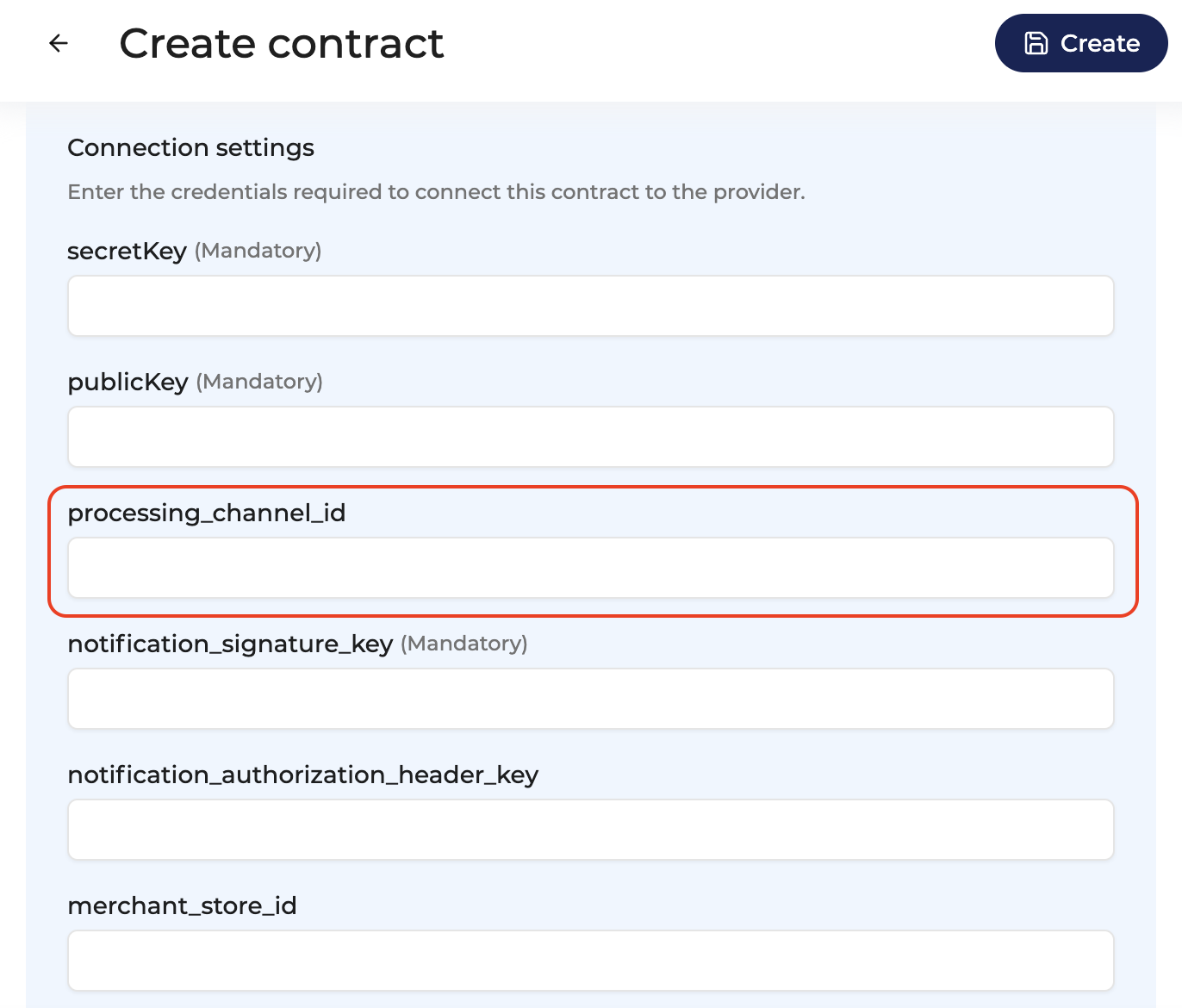
b) If you have only one processing channel: you do not have to fill the processing_channel_id as shown above out in your merchant account if you don’t select the “Allow any processing channel”, but select the channel id directly as follows:
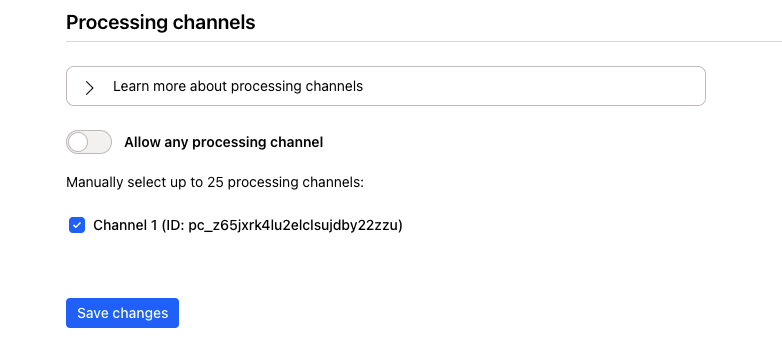
c) If you have several processing channels, you can select a group of channels in your checkout.com account but you will have to create as many Merchant Contracts as you have channels in your merchant interface.
-
Select the following scope on your API Keys
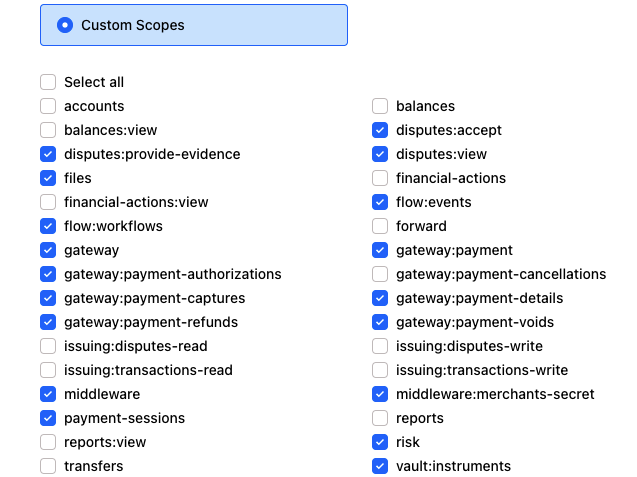
-
Follow the same steps to create a Private API Key
Step 3: Configure the webhooks
-
Go to the webhooks tab here and add a new webhook : https://dashboard.sandbox.checkout.com/developers/webhooks

- The URL to fill out for sandbox:
https://europe-west1-webhook-reverse-proxy.cloudfunctions.net/proxy/partner/checkout
- To get the URL to fill out for production, please refer to our Support.
-
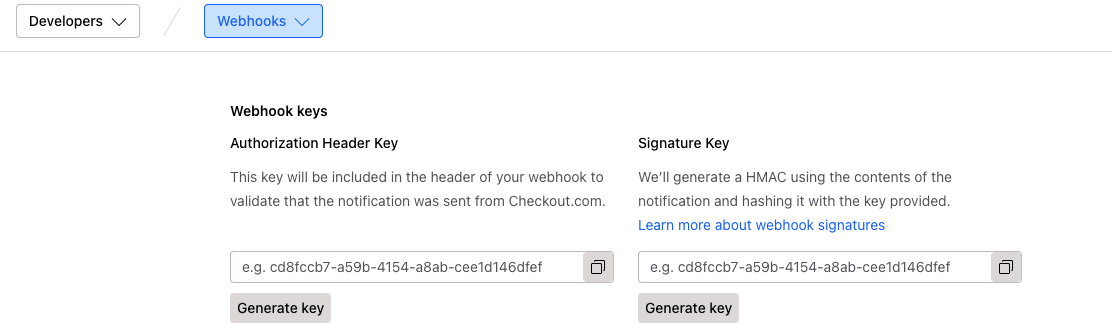
Generate an authorization header key and a signature key
-
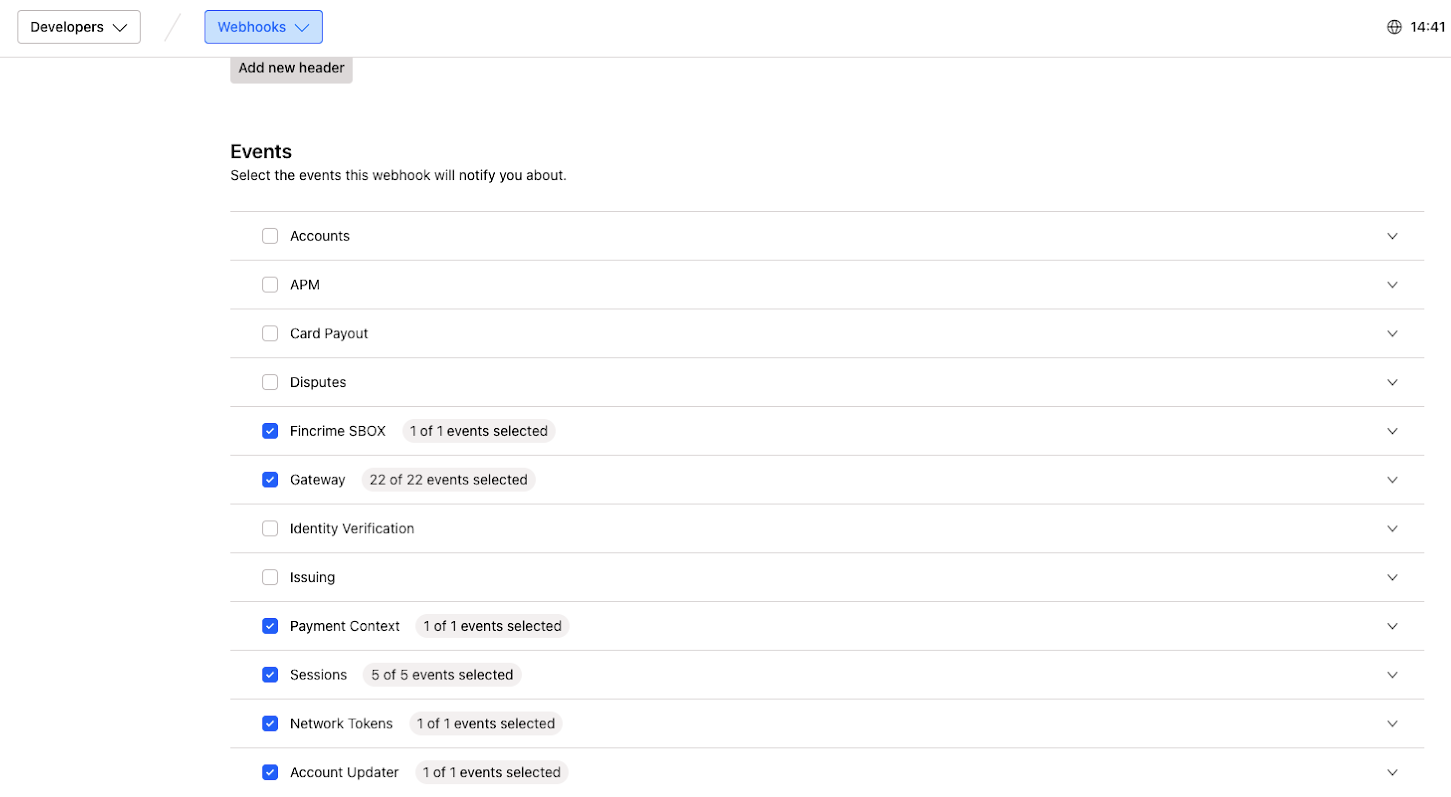
Select the following events :
-
Fincrime SBOX
-
Gateway
-
Payment Context
-
Sessions
-
Network Tokens
-
Account Updater
Step 4: Add a Contract to your Merchant Account
-
Log into your Merchant Account.
-
Navigate to Contracts in the left navigation. Select + Create to add a new contract.
-
Select the Merchant Account you want to link to the contract
-
From the provider drop-down list, select Checkout.
-
Settlement currency: select from the drop-down menu. You will only see the available ones.
-
Give your contract a name for easier identification: eg. PSP name.
-
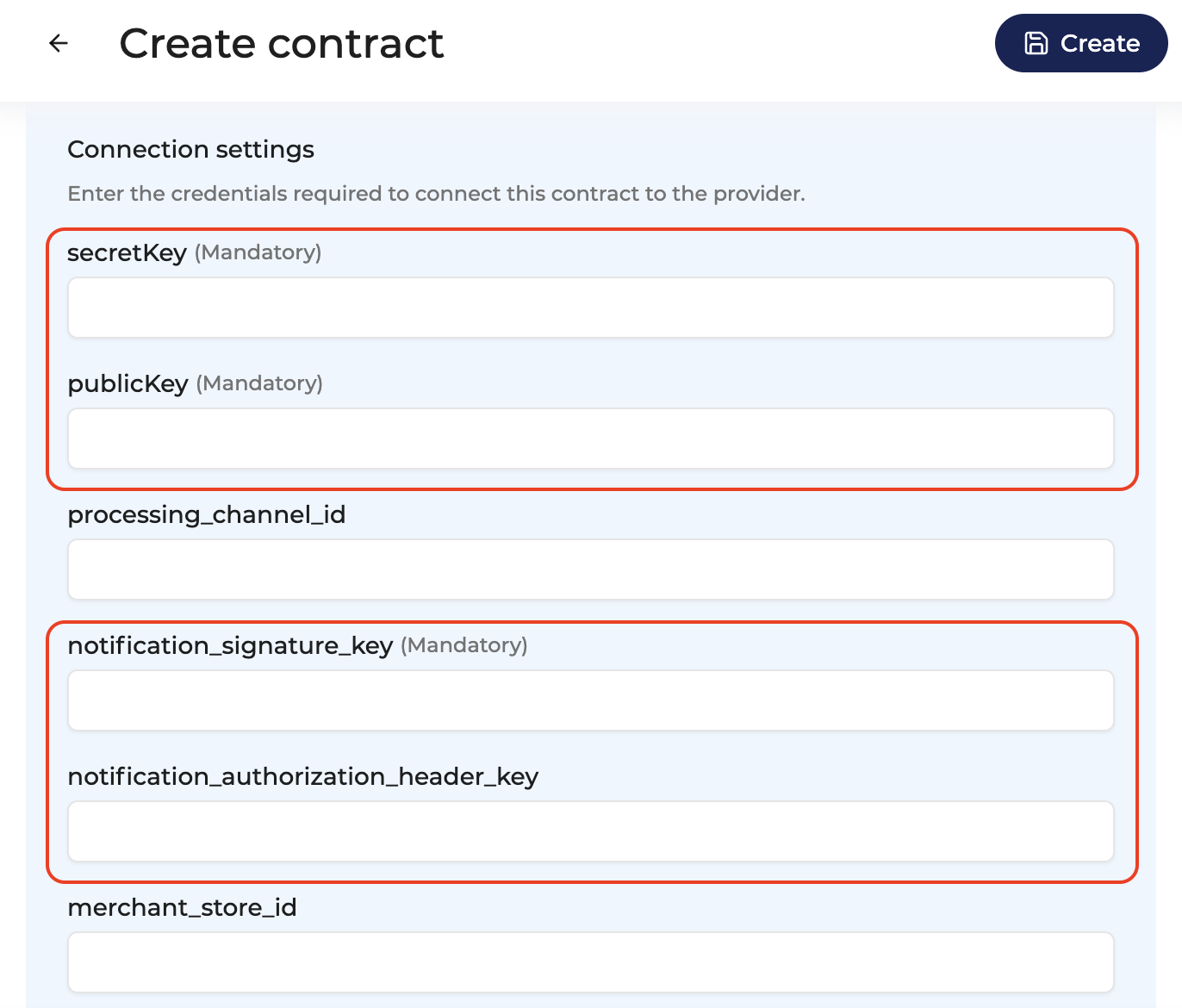
Setup provider settings and fill in the credentials you earlier retrieved.
-
Operational configuration (authentication, risk assessment, network tokenization) : leave without changes
-
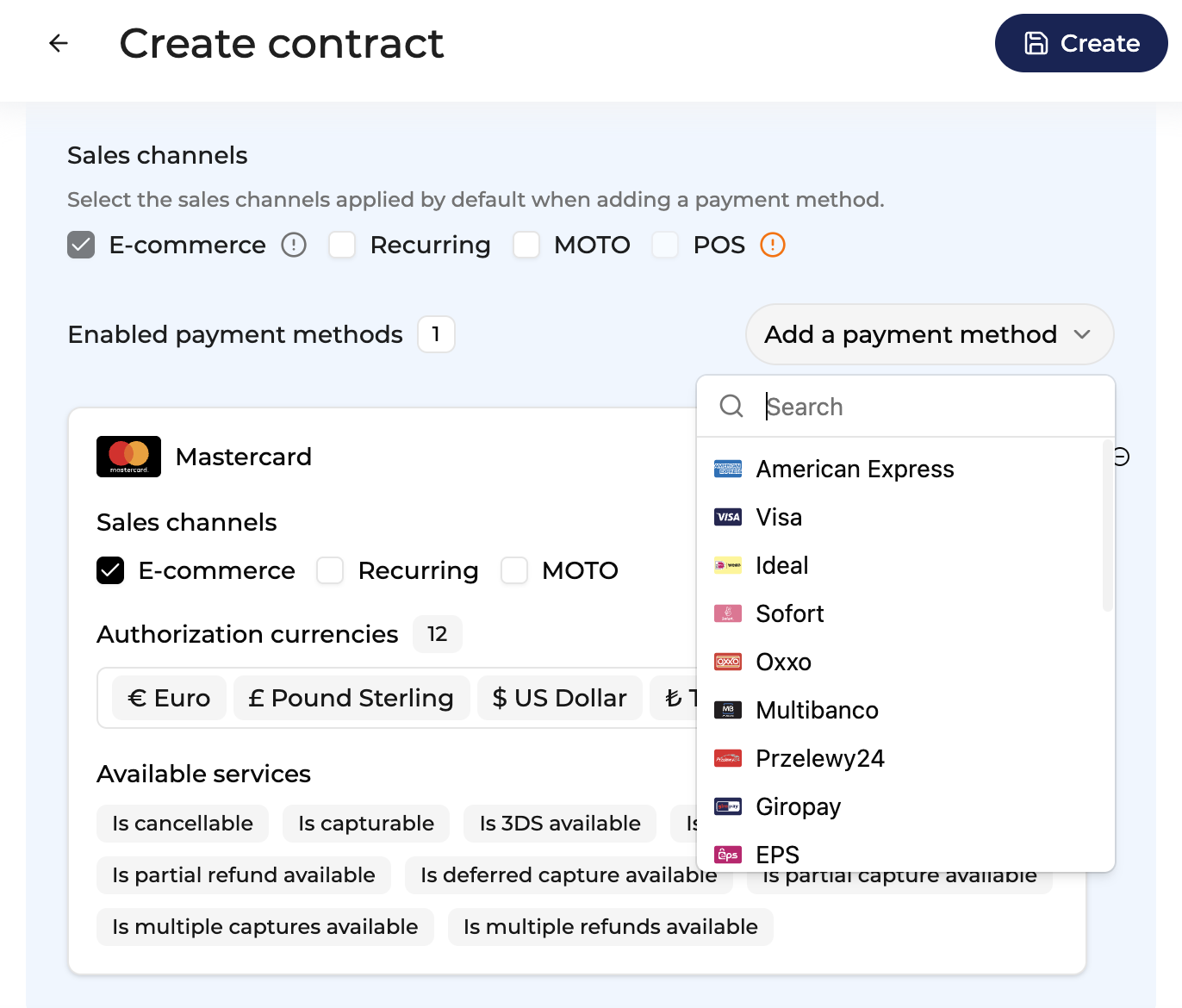
Select your sales channels and add payment methods. Once added, you can specify the authorization currency and the sales channels for each payment method.
-
Exclusion rule : Set up your exclusion rule if you have one. This section lets you define a condition under which this contract will not be used for routing.
-
Once you have filled in the credentials, select Save, then select Publish to make the contract operational.
Apple Pay and Google Pay configurationPlease note that some payment methods will require additional action before you can activate them: ApplePay - ApplePay Certificate, GooglePay - your Merchant ID
Depending on the integration type you use, there might be differences in activating ApplePay. Please reach out to get to know the steps in our use case. You will need to do one of the following:
- you will need to provide us with the Payment Processing Certificate from the Partner and we will follow up wit the setup.
- fully configure ApplePay yourself using your Apple Developer Account
Step 5: ApplePay reference for Checkout.com
Please visit ApplePay reference for Checkout here.
Step 6: Configure ApplePay fully yourself
To configure ApplePay on checkout.com, you will need an ApplePay account and a merchant ID.
Follow the steps from 1 to 5 on checkout documentation here
The next steps will need to be done in your Merchant Account as described below :
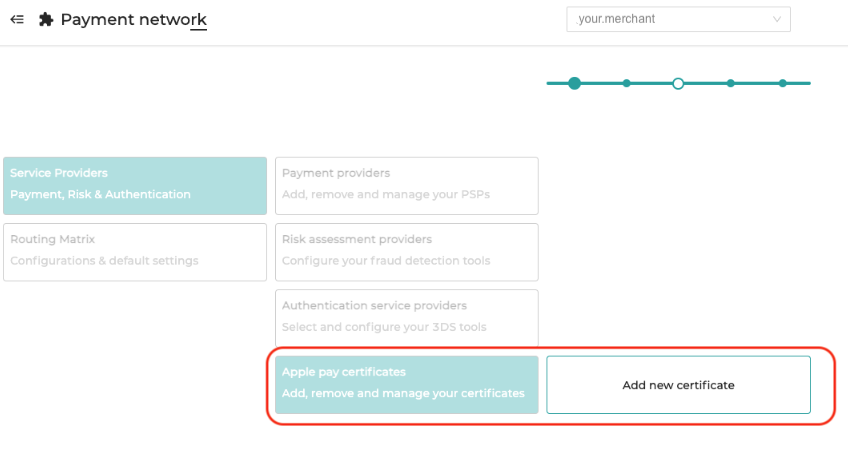
1- Create a new ApplePay certificate here:
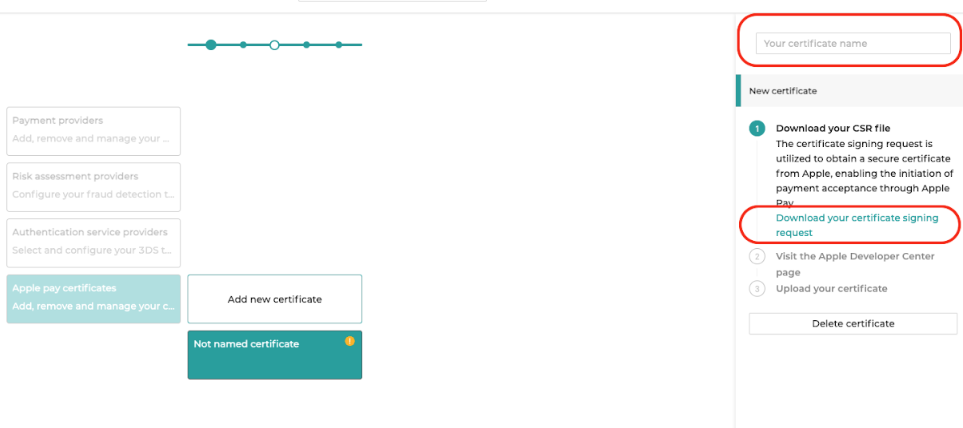
2- Name your certificate and download the CSR file
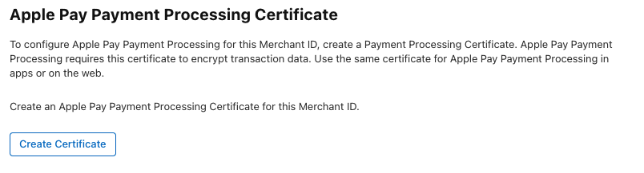
3- Sign into your ApplePay developer account, go to the Merchant IDs list here and select the merchant ID you created in step 1 of the checkout.com process
4 - In the ApplePay Merchant Identity Certificate section, select Create Certificate
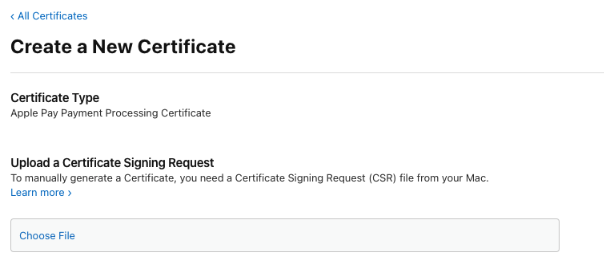
5 - Upload the CSR file from step 2. above. The file should be named uploadMe.csr
6- Select Continue and then select Download to get your CER file. It will probably be named merchant_id.cer
7 - Upload it to your merchant account on our side:
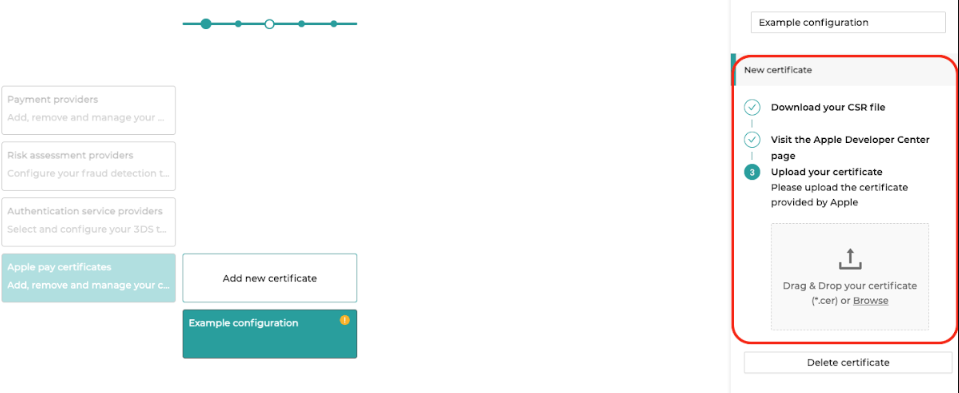
8 - Fill the form fields as follows:
- Expiry date : give on your ApplePay account
- Merchant Identifier : the one created in step 1
- Country code : the default country where the website operates
- Display name : the name that will appear on the ApplePay pop up on the customer’s ApplePay wallet
- InitiativeContext : the domain registered on your ApplePay Merchant ID
9- Go to your merchant contract in your merchant account and select the certificate created in the field apple_pay_certificate:
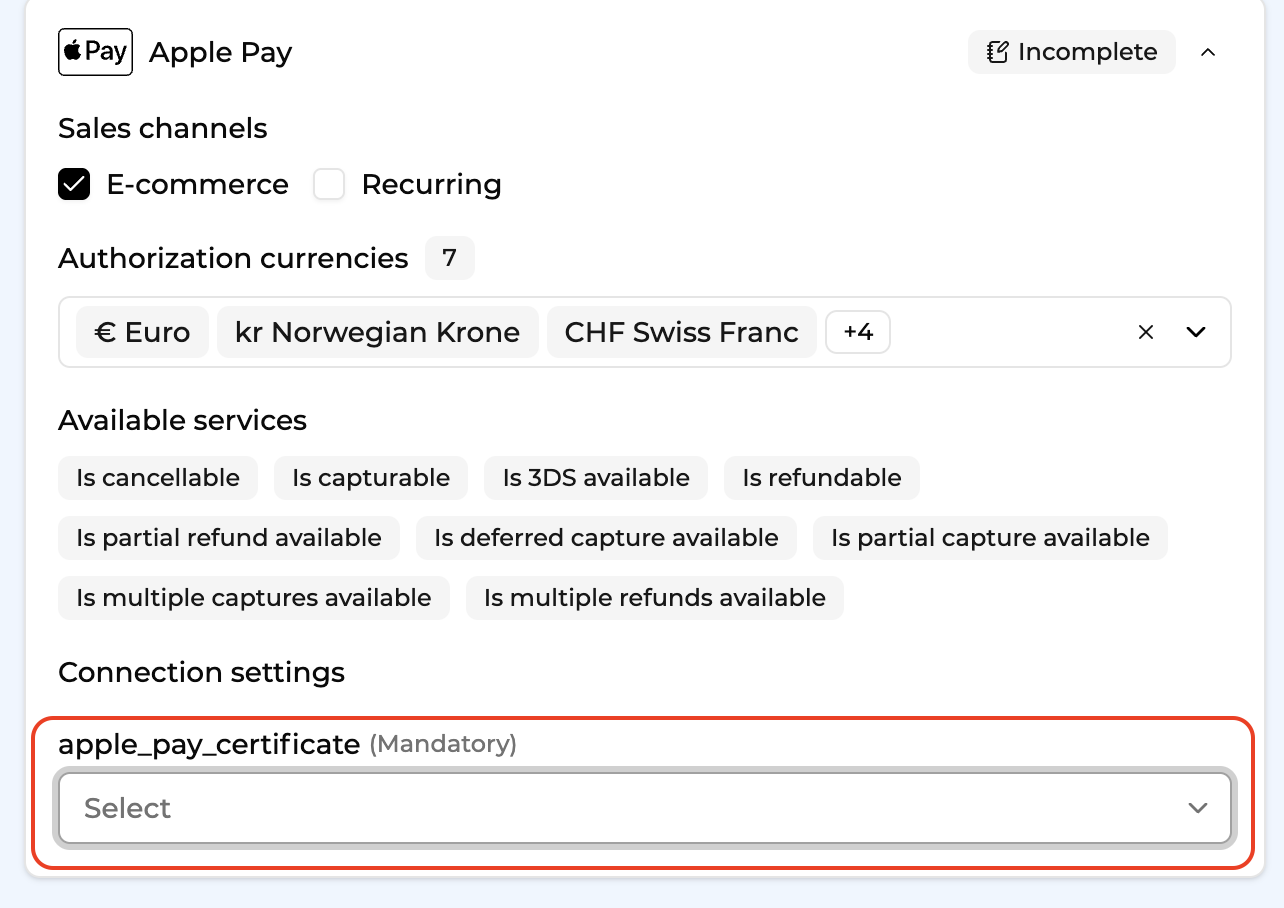
Step 7 : Configure GooglePay
1 - Onboard your website on GooglePay and get your merchant ID
2 - Fill out your credentials in your merchant contract as described below :
- googlepay_gatewayMerchantId = your checkout.com public Key
- googlepay_gateway = checkoutltd
- googlepay_merchantId = your GooglePay merchant account ID (step 1). For the sandbox environment, you can put a random string.
- googlepay_merchantName = the name display in the GooglePay pop up when the customer pays
Updated about 1 month ago