
CorePay (Netvalve)
This guide will walk you through the process of integrating Corepay with NORBr.

Step 1: Contract signature
Sign a contract with Corepay, and get access to the back office.
Step 2 : Retrieve your credentials from CorePay
Credentials are sent via email, you will receive MID, API key and ClientID. Keep them at hand for the next step
Step 3: Add a Contract to your Merchant Account
-
Log into your Merchant Account.
-
Navigate to Contracts in the left navigation. Select + Create to add a new contract.
-
Select the Merchant Account you want to link to the contract
-
From the provider drop-down list, select CorePay.
-
Settlement currency: select from the drop-down menu. You will only see the available ones.
-
Give your contract a name for easier identification: eg. PSP name.
-
Setup provider settings and fill in the credentials you earlier retrieved.
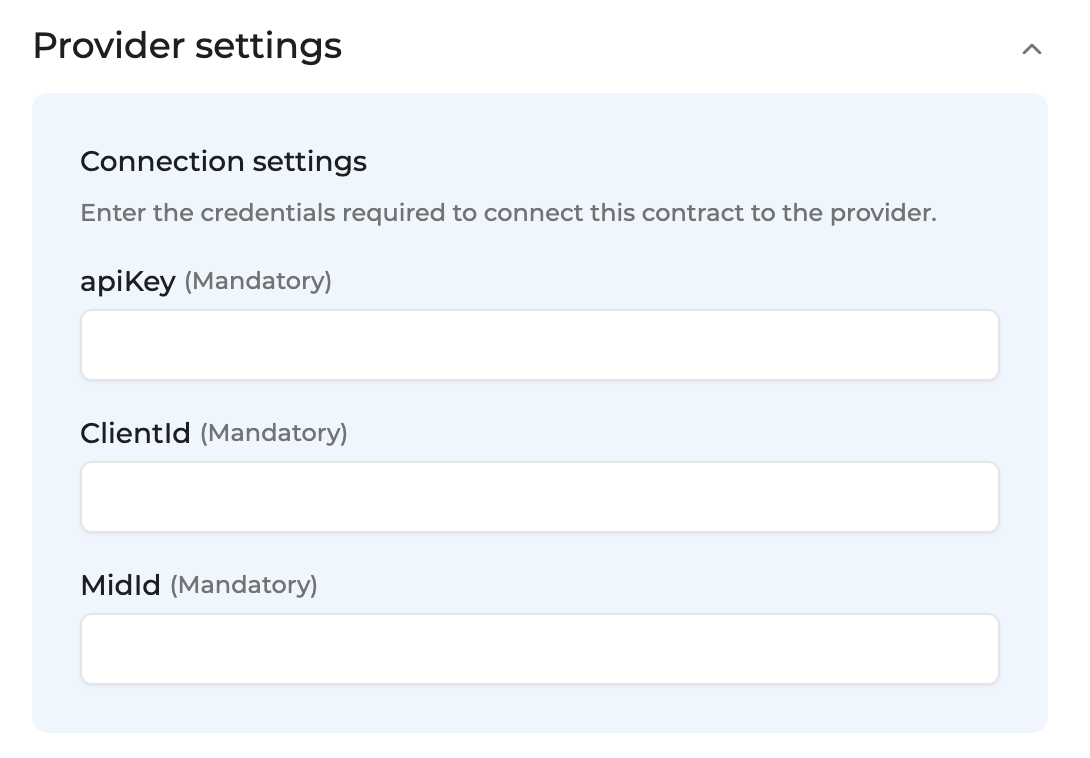
-
Operational configuration (authentication, risk assessment, network tokenization) : leave without changes
-
Select your sales channels and add payment methods. Once added, you can specify the authorization currency and the sales channels for each payment method.
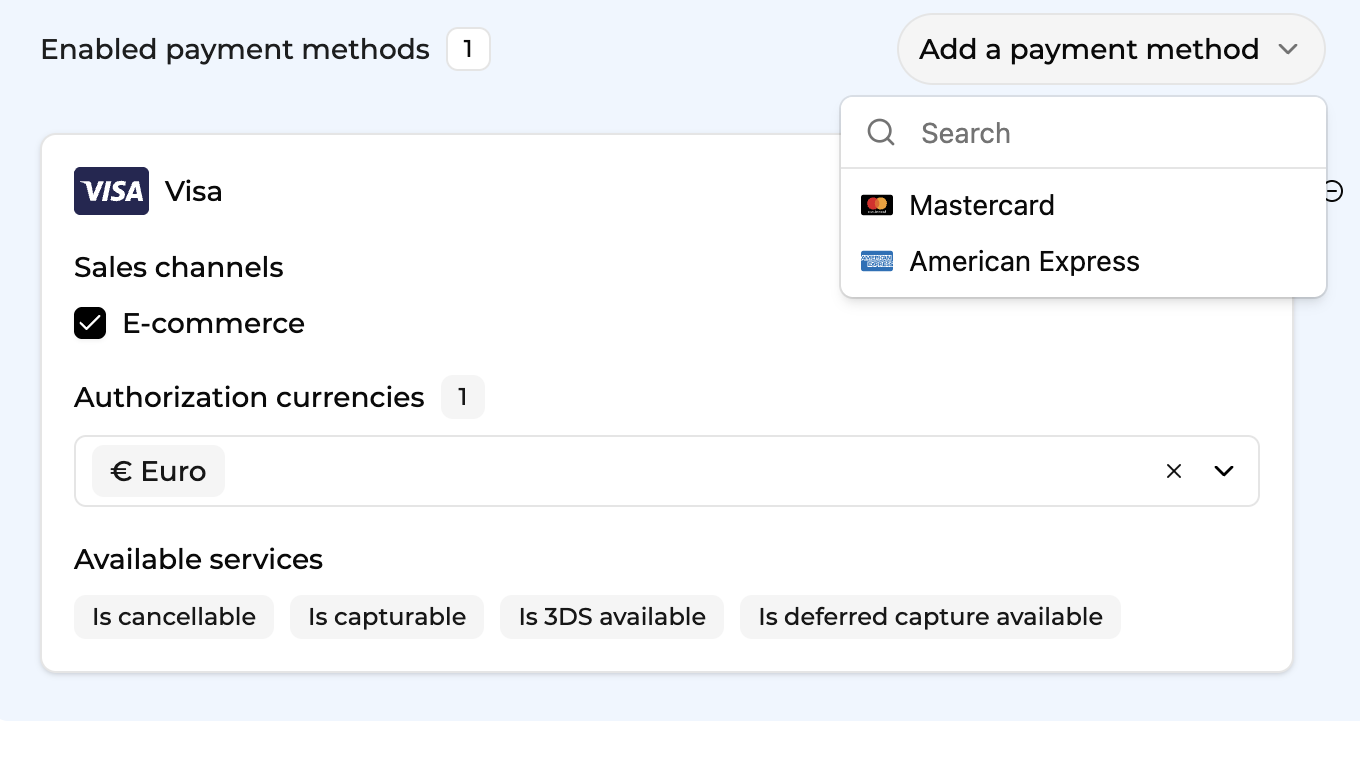
-
Exclusion rule : Set up your exclusion rule if you have one. This section lets you define a condition under which this contract will not be used for routing.
-
Once you have filled in the credentials, select Save, then select Publish to make the contract operational.
Test cards
Friction less flow
- Visa:
410000000000010008/2028 CVV 999 - Mastercard:
510000000000010708/2028 CVV 999
Challenge Flow (OTP code=123456)
- Visa:
400000000000109108/2025 CVV 999 - Mastercard:
520000000000109608/2025 CVV 999
Updated about 1 month ago