
PayPal
This guide will walk you through the process of activating PayPal on NORBr.

Step 1: Open your business PayPal account
Make sure you have created a PayPal application and credentials in the production environment : https://developer.paypal.com/dashboard
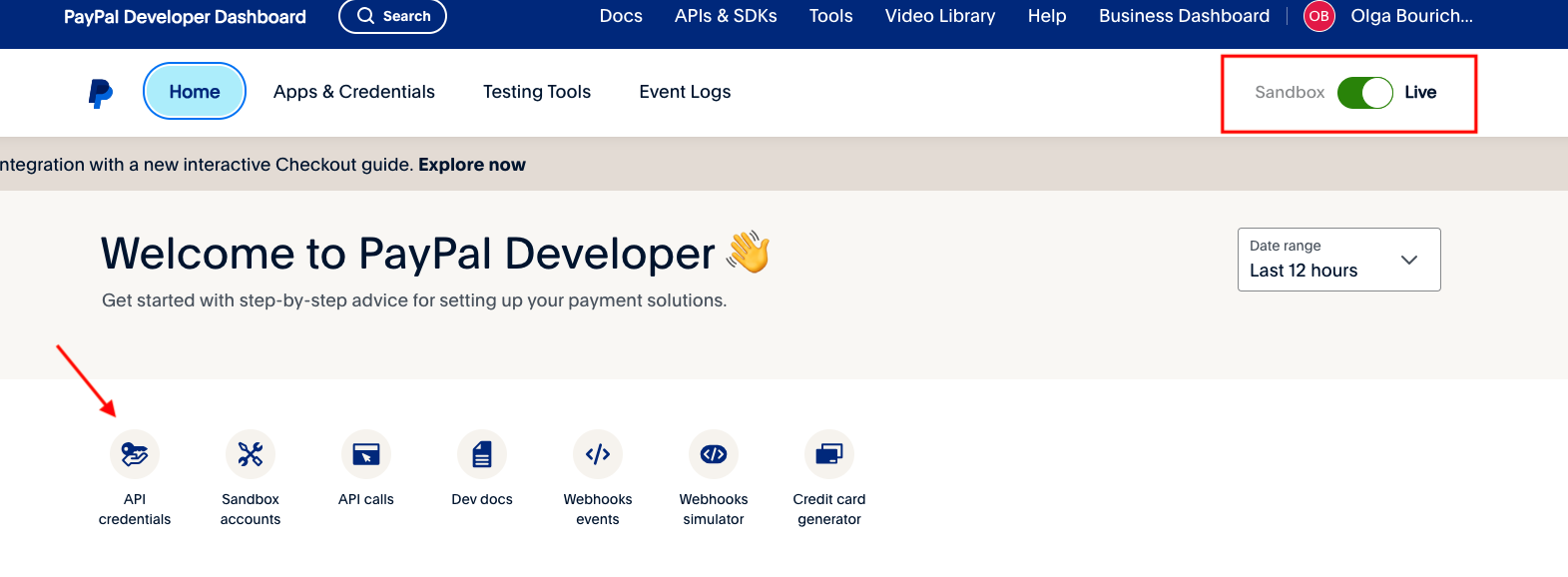
Step 2: Select the live application
Go to your list of applications here : https://developer.paypal.com/dashboard/applications/live
Step 3: Activate your NORBr merchant contract
Here are the necessary steps to activate your merchant contract:
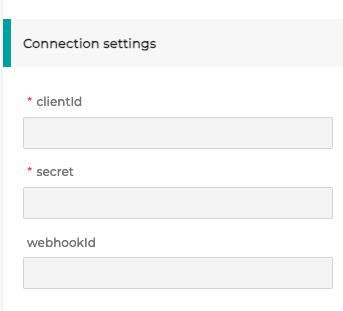
Client ID and client secret
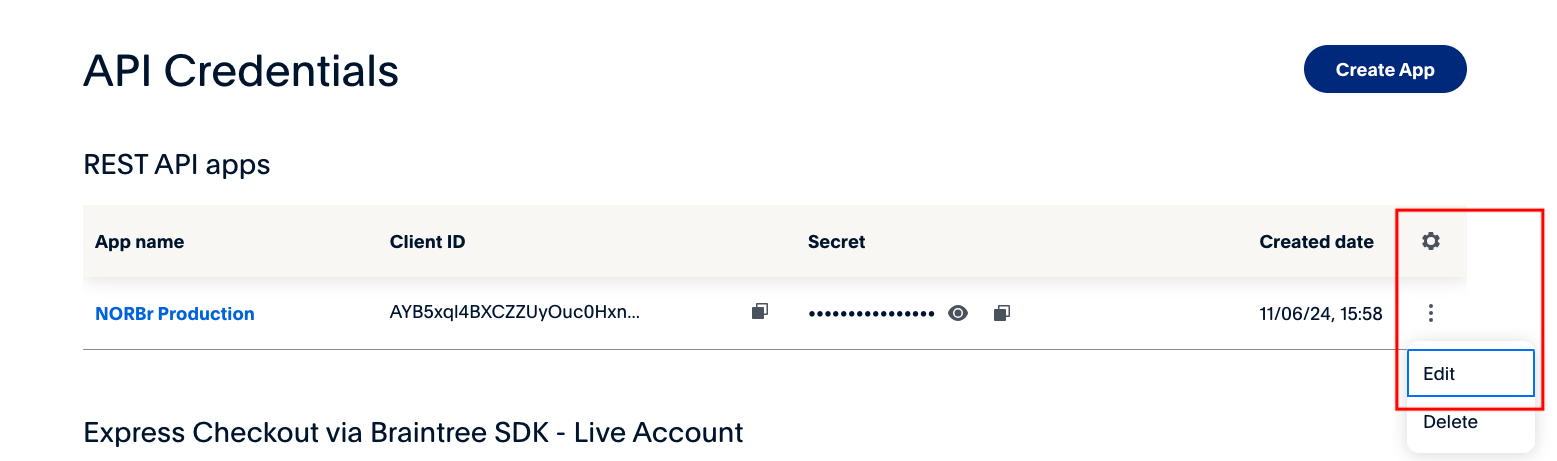
1 - Go to the Apps and Credentials tab
2 - On the production app you want to configure, go to the 3 dots at the end and click on Edit
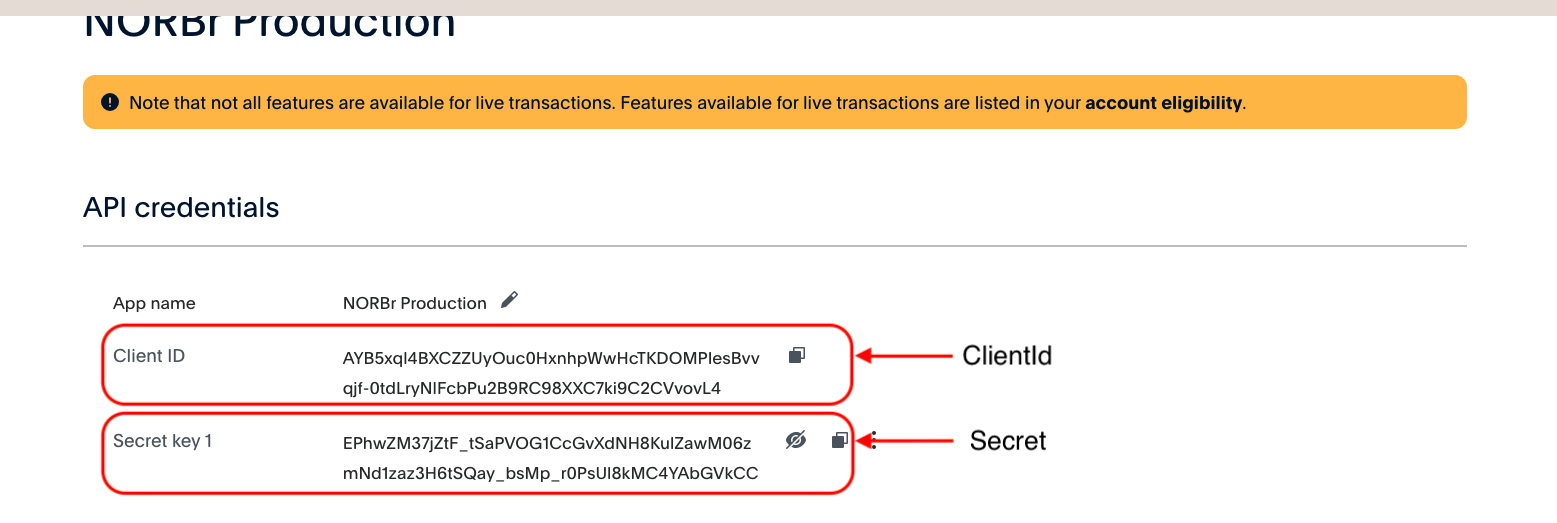
3 - Locate the Client ID and Secret
Step 4: Configure webhooks
1 - Navigate to Apps and Credentials
2 - Select the application you want to configure
3 - Click on the 3 dots and Edit like shown previously
4 - Go to the bottom of the page and click on Add webhook
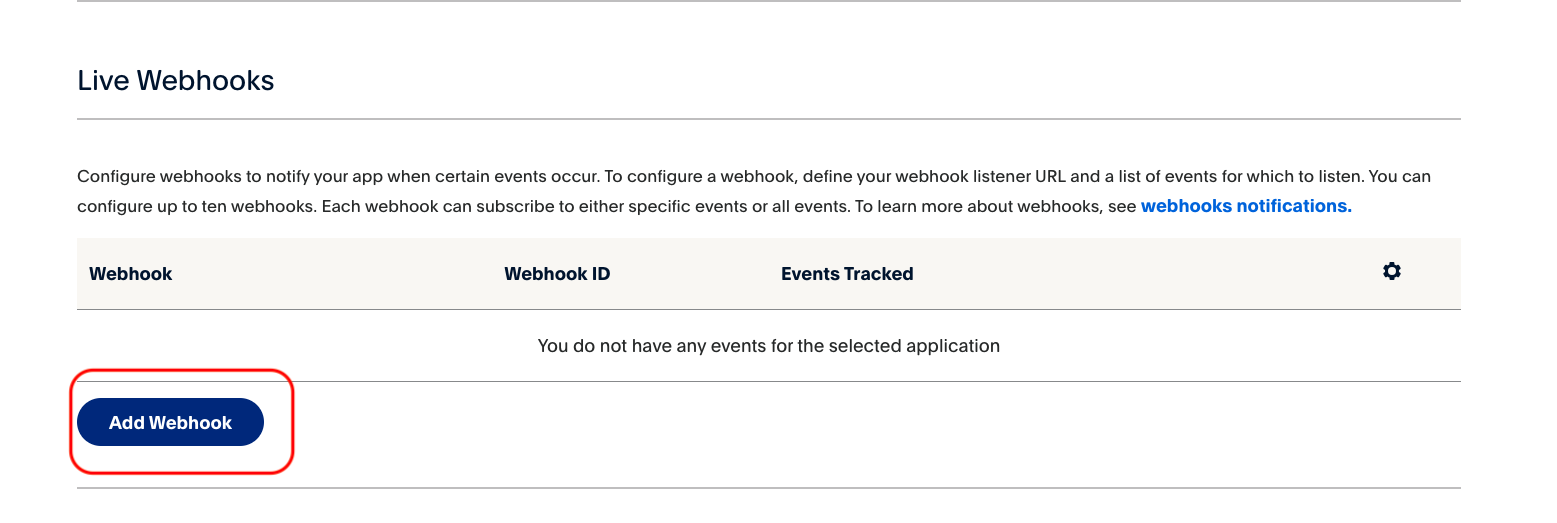
5 - Add the following webhook URL based on your environment:
- Sandbox: https://webhook-sandbox.norbr.io/partner/paypal
- Production: https://webhook.norbr.io/partner/paypal
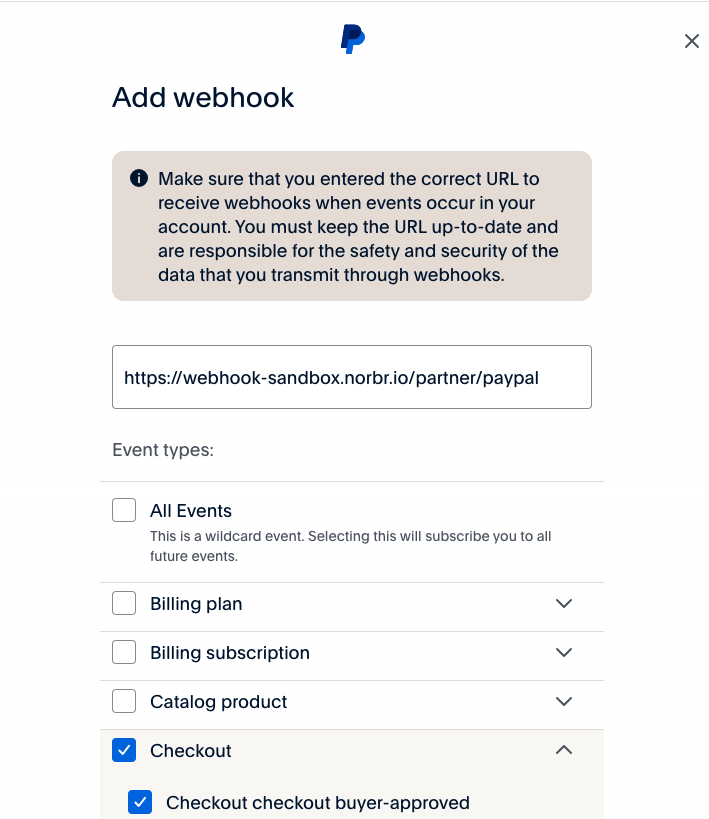
Select the following events : Checkout, Vault, Payments & Payouts
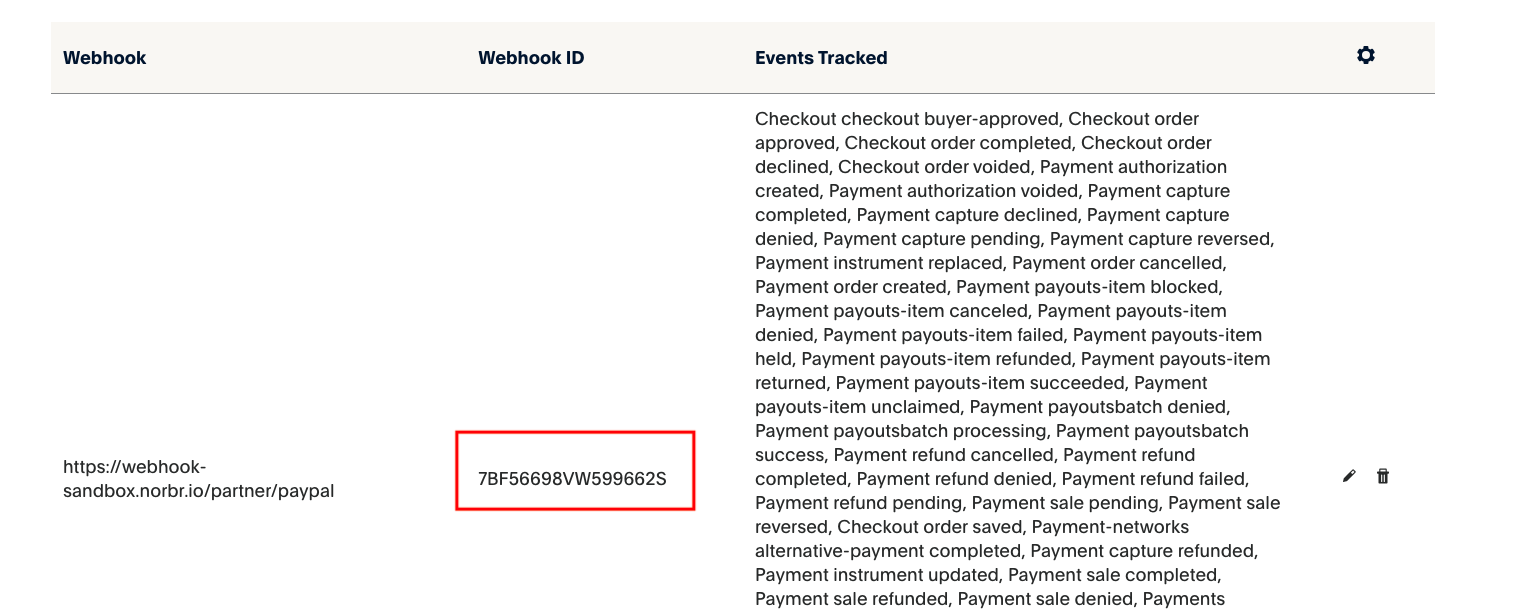
6 - Once created, retrieve the webhook ID to add it to your NORBr configuration :
Updated 8 months ago