
Webhooks Details Page (Read-Only)
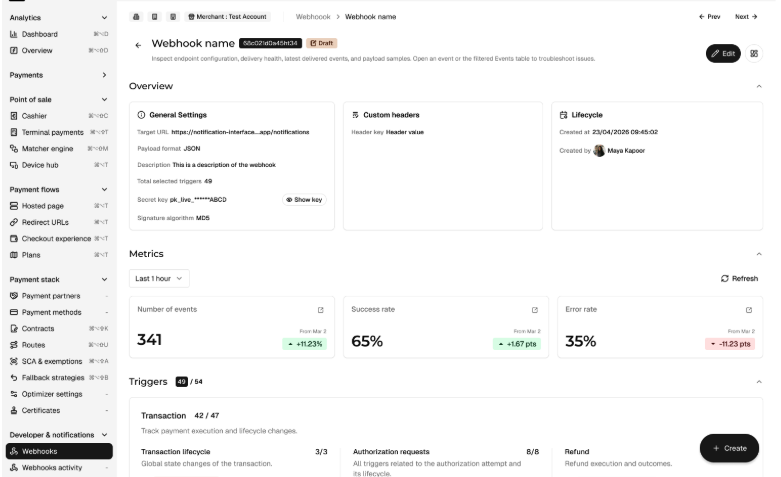
The webhook detail page provides a structured overview of the webhook configuration. This page is read-only by default. No configuration can be changed from the read-only page. Users can review the webhook setup safely before entering edit mode.
Header information

The header displays the webhook identity :
- webhook name
- webhook technical ID
- webhook status (possible values are : Draft, Published, Unpublished, Revoked)
Overview
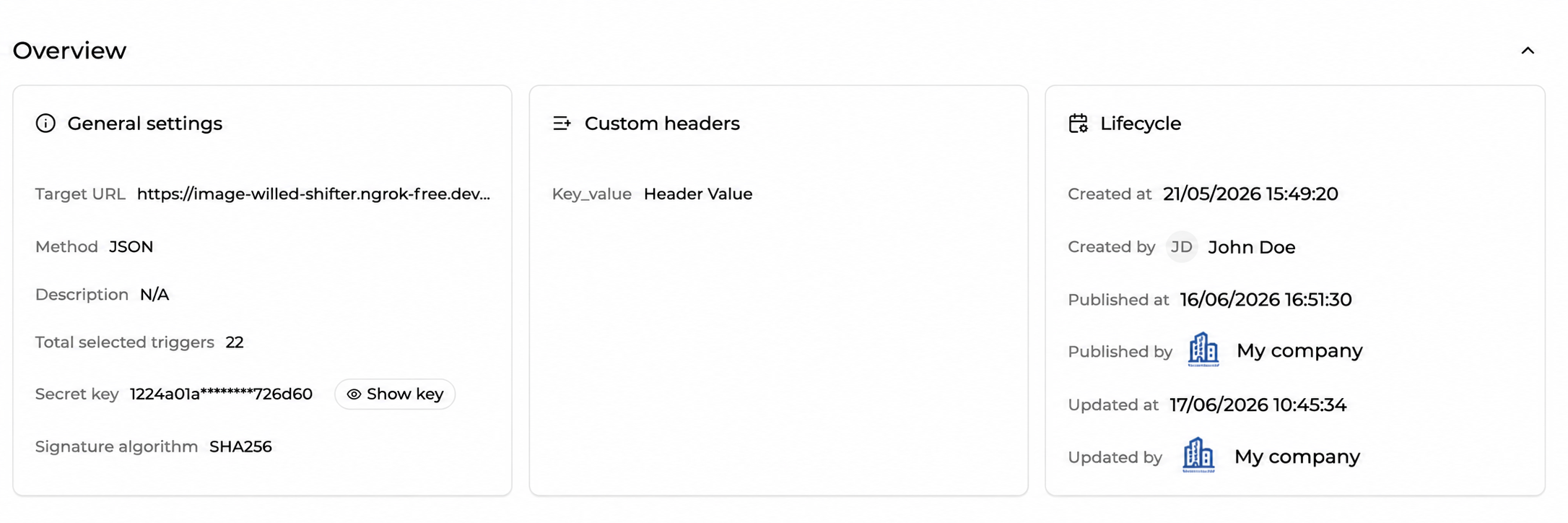
The Overview section displays the main webhook configuration.
It includes :
- target URL
- method
- total selected triggers
- description
- secret Key
- signature algorithm
- custom headers
- creation information
- update information
- publication information (Published at, Published by)
Secret key
Webhook requests are signed using the Merchant Account Secret Key.
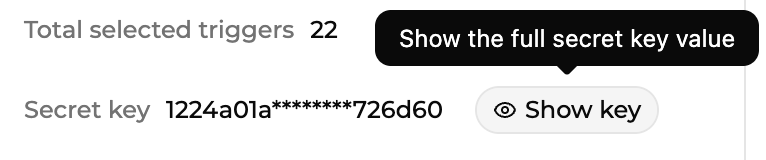
For security reasons, the full Secret Key is masked by default. Users with the required permissions can click Show key to reveal it in a secure modal.
The modal displays the full Secret Key, a copy action, and a security warning.
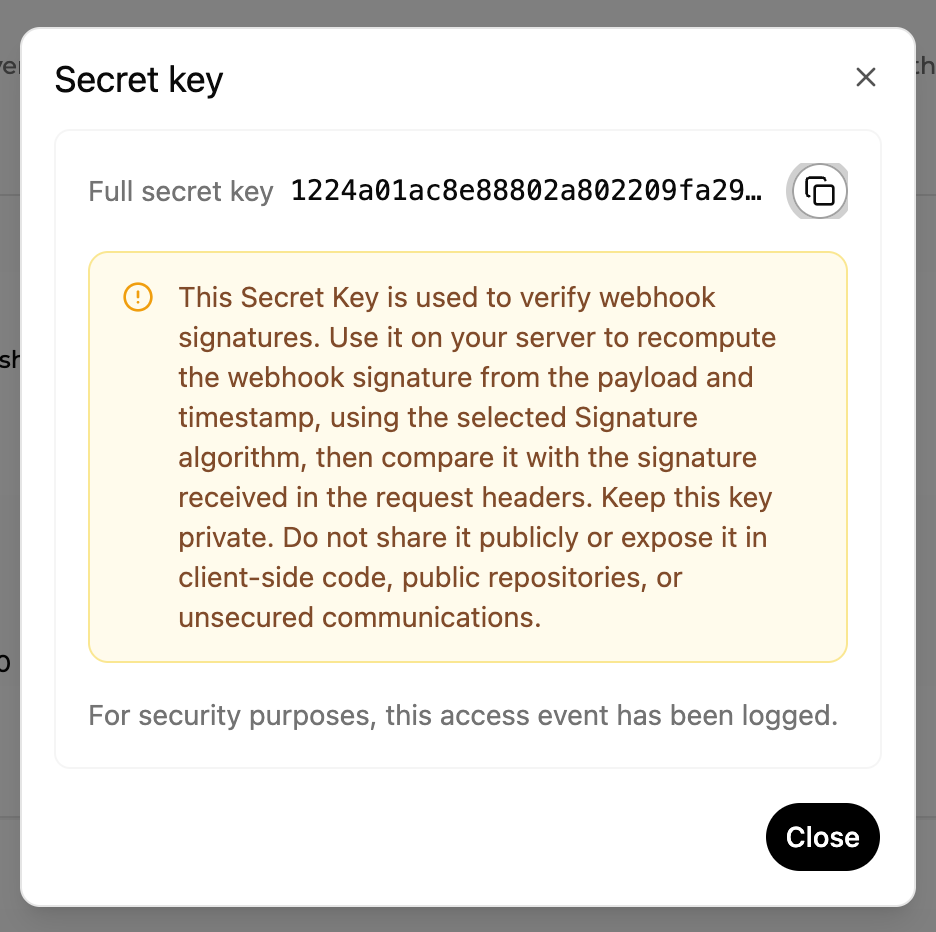
The Secret Key is used to verify webhook signatures. Use it on your server to recompute the HMAC-SHA256 signature from the webhook payload and timestamp, then compare it with the signature received in the request headers.
Keep this key private. Do not share it publicly or expose it in client-side code, public repositories, or unsecured communications.
The Secret Key cannot be reset, regenerated, or rotated from the Console in this version.
For more information, use the Learn how to verify webhook signatures link.
Signature algorithm
The Signature algorithm field shows the cryptographic algorithm used to generate webhook request signatures.
The receiving system must use the same algorithm to verify incoming webhook requests. Available algorithms are MD5, SHA-1, SHA-256, SHA-384, and SHA-512.
Custom headers
The Custom headers card displays the headers configured for the webhook.
Headers are sent with webhook requests and may be required by the receiving system.
Examples of common header usage include:
- identifying the source of the request
- applying internal processing rules
- supporting integration-specific requirements
Triggers
The page displays the total number of selected triggers.
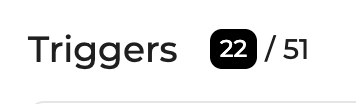
The Triggers section shows which events can generate webhook deliveries. They are grouped by event family:
- Transaction: Track payment execution and lifecycle changes.
- Checkout: Track checkout sessions and payment progression.
- Batch: Track transaction batch processing and batch-level outcomes.
Notify last transaction only

This option is displayed under the Transaction event family.
When enabled, the webhook sends only the latest Transaction event for each order. This helps avoid multiple notifications when several transaction attempts occur for the same order, such as retries or fallback routing.
Use this option when the receiving system only needs the latest payment outcome. Keep it disabled when every transaction attempt must be tracked individually for troubleshooting, audit, or reconciliation.
This option applies only to Transaction events.
Sample payload
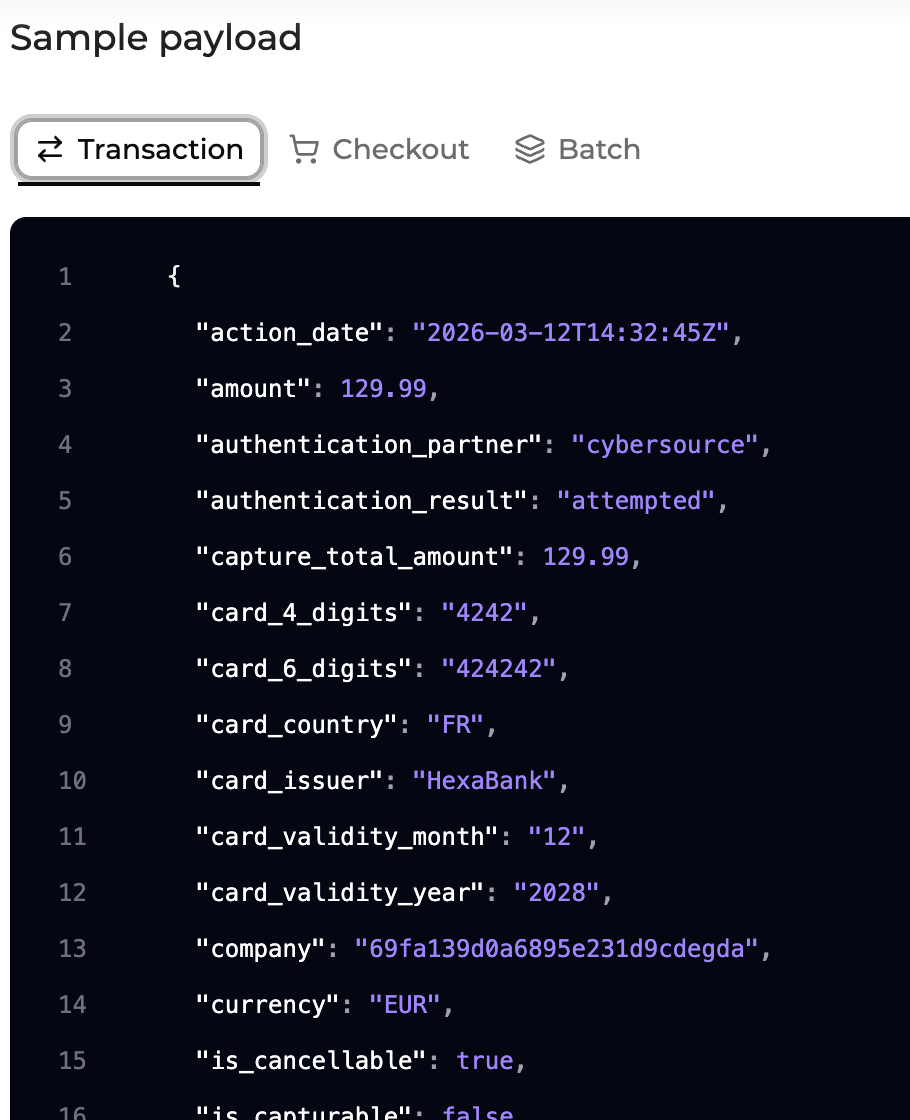
The Sample payload section shows examples of the payload structure used for webhook deliveries.
When several event families are relevant, the component may display tabs such as:
- Transaction
- Checkout
- Batch
These tabs exist only inside the Sample payload component.
They do not represent separate webhook pages or separate webhook types.
Payment Events delivered
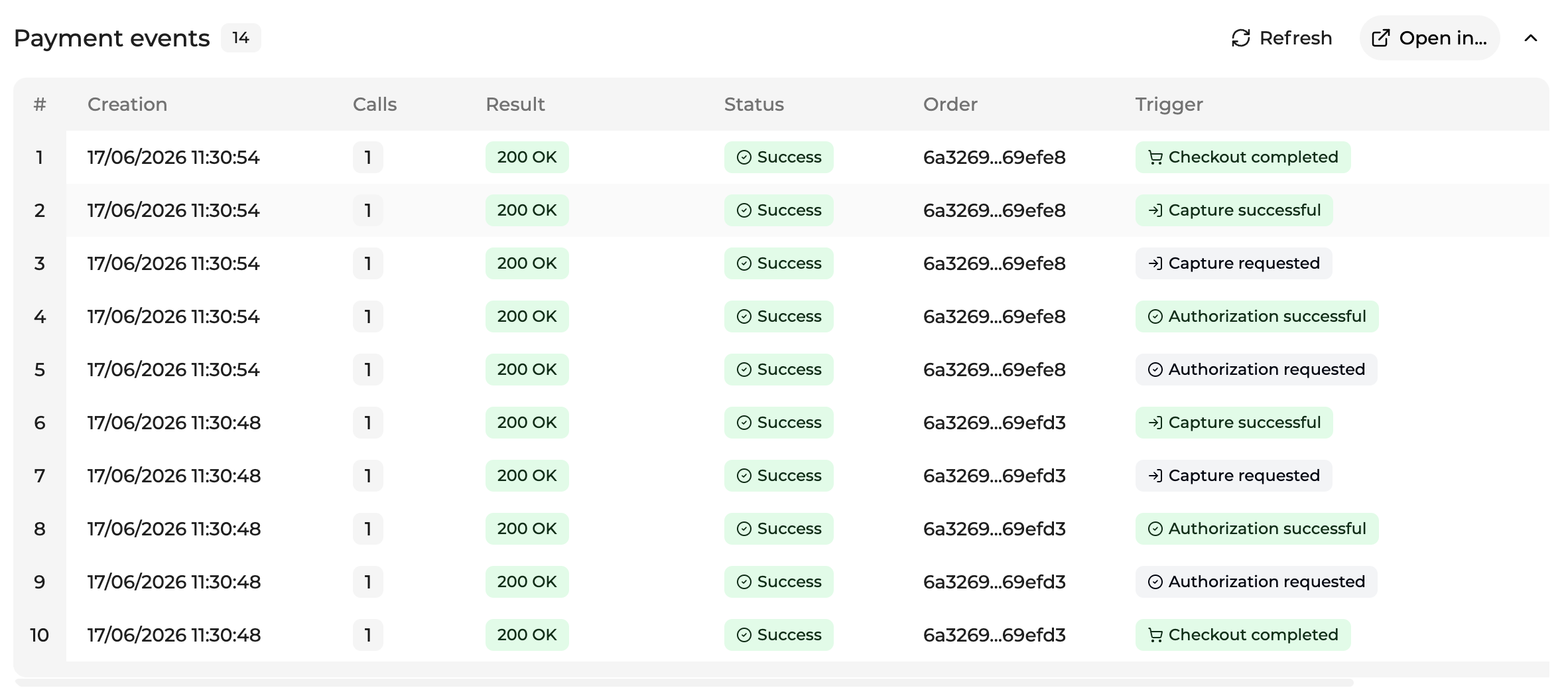
When a webhook is active, the Payment Events delivered section can display events delivered to the current webhook endpoint. By default, the section displays the 10 most recent Payment Events delivered to this webhook endpoint.
This section helps users review what was delivered, when it was delivered, and whether the receiving system responded successfully.
Each row represents one delivery notification related to this webhook.
Columns include :
| Column | Description |
|---|---|
| Merchant Account | Merchant Account associated with the notification. |
| Creation | Date and time when the notification was created. |
| Event family | Transaction, Checkout, or Batch family associated with the event. |
| Calls | Number of delivery calls performed for this notification. |
| Result | Last technical response received from the external endpoint. |
| Status | Current delivery status of the notification. |
| Order | Related order identifier, when available. |
| Trigger | Trigger that generated the notification. |
Opening notification details
Clicking a row opens the Payment Event detail page.
The Payment Event detail page allows users to review the event content, delivery attempts, request payload, response data, signature, timestamp, and troubleshooting information.
When opening a notification from a webhook detail page, the breadcrumb keeps the navigation context.
This allows users to return to the webhook detail page after reviewing the notification.
Open in
The Open in action opens the Payment Events table filtered on the current webhook endpoint.
Metric cards can also provide an icon-only Open in action.
For example, opening from the Error rate card opens Payment Events filtered on events in error for the current webhook and selected time range.
This allows users to continue the investigation in the full notifications view, with more table capabilities such as search, sorting, and column configuration.
Use Open in when you need to analyze several notifications linked to the same webhook endpoint.
Metrics

The Metrics section provides a high-level view of webhook delivery performance.
It includes :
- Number of events
- Success rate
- Error rate
The default time range is Last 1 hour.
Available time ranges are:
- Last 1 hour
- Last 24 hours
- Last 7 days
- Last 30 days
- Last 45 days
All time is not available in this version.
Each metric card may include an icon-only Open in action. This opens the Payment Events table filtered on the current webhook, the selected time range, and the selected metric.
Updated about 1 month ago