
WorldPay
This guide will walk you through the process of integrating WorldPay with NORBr.

Step 1: Contract signature
Sign a contract with WorldPay and make sure that the 3DSecure is enabled on your account then ask for the following IPs to be whitelisted :
For sandbox environment :
34.89.124.165
34.107.126.251
34.65.230.239
34.78.205.229
For production environment :
34.65.84.106
34.105.249.51
35.205.16.245
35.246.139.210
Step 2: Account setup and credentials
Here is the list of fields expected to configure your account :
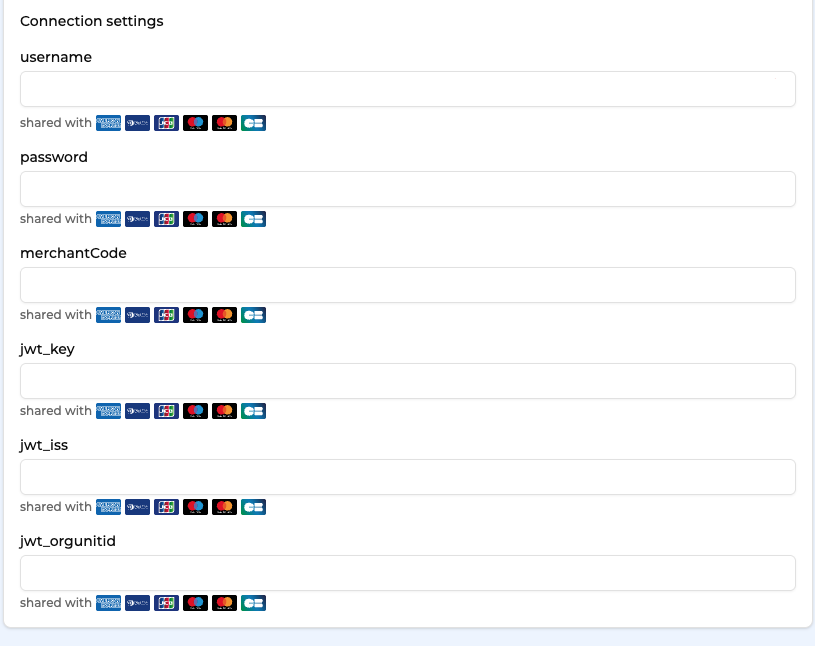
To retrieve them, you need to connect to : https://secure.worldpay.com/sso/public/auth/login.html
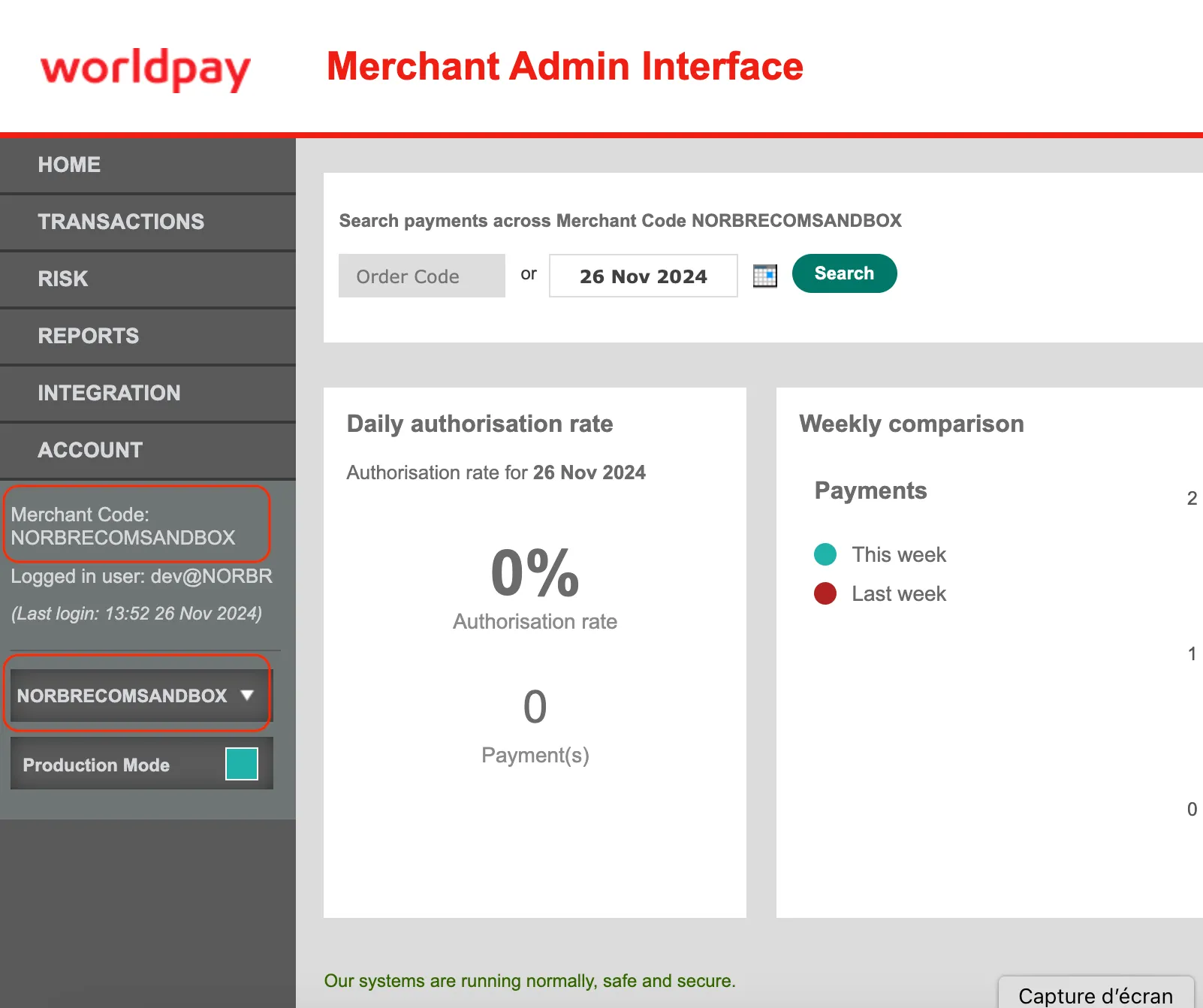
- Username and merchantCode are the same, you can find them here
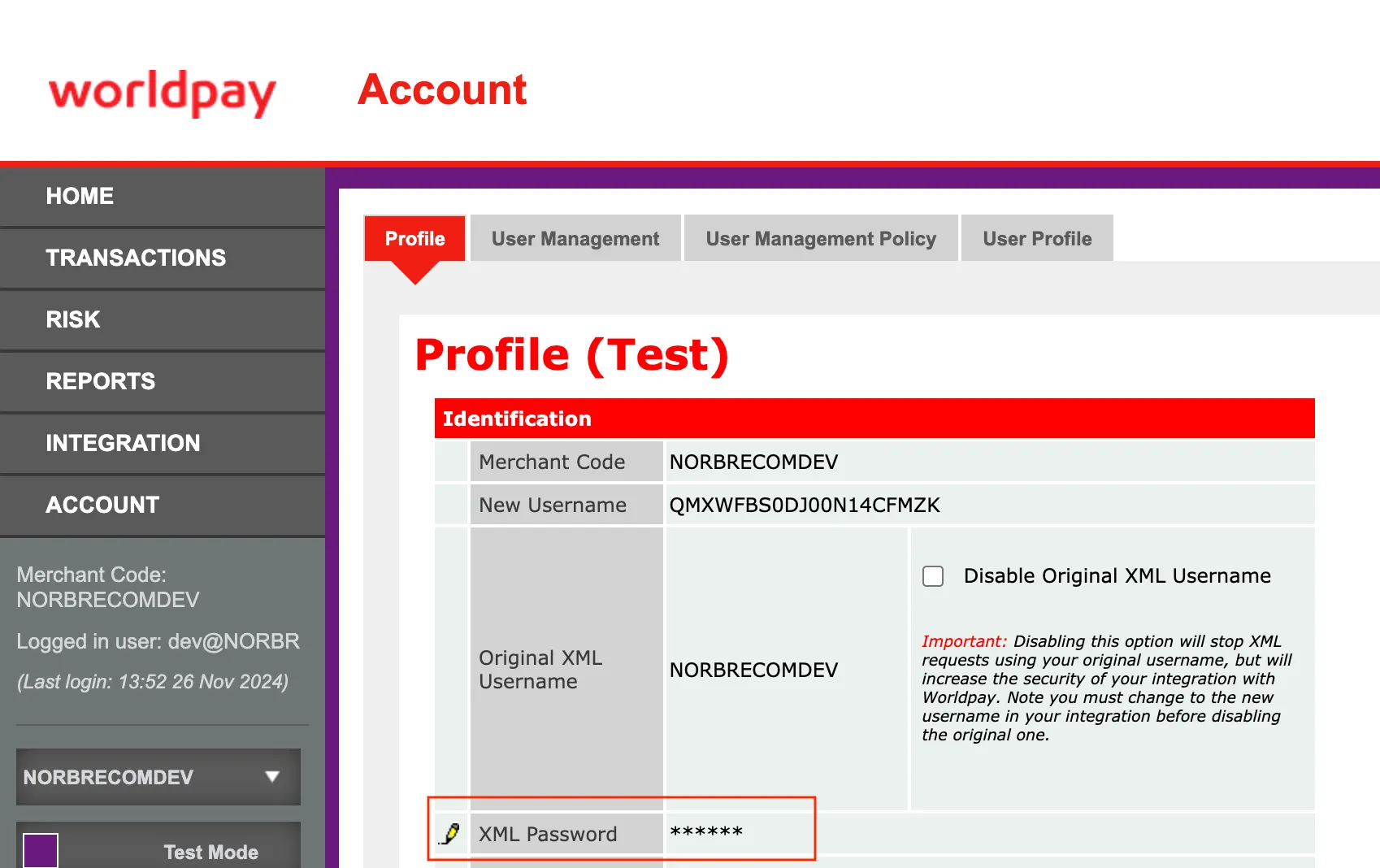
- For the password, go to Account → Profile
- Then go to integration → 3DS Flex
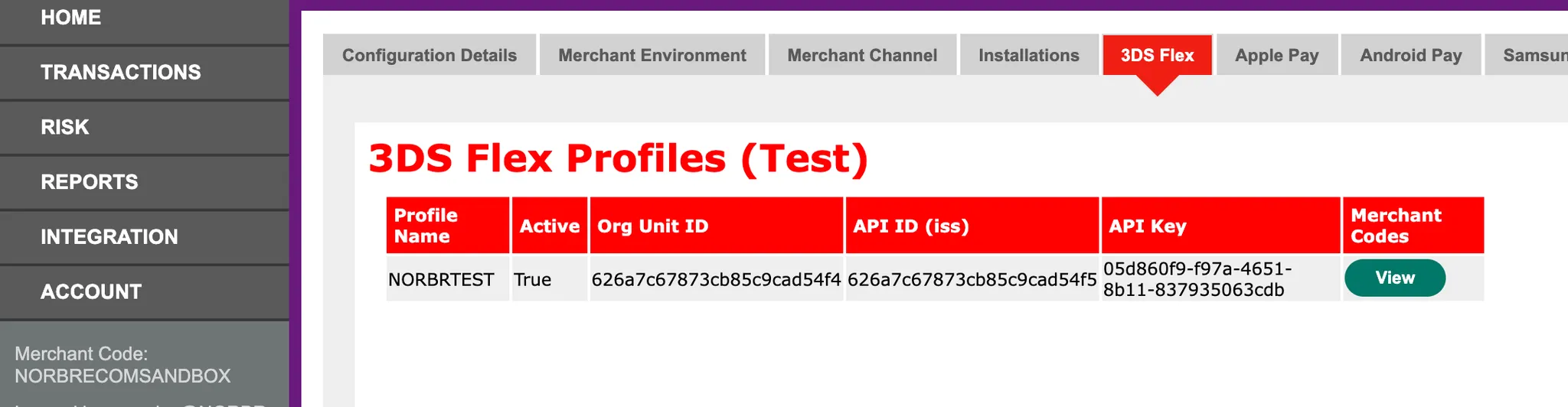
- Org Unit ID = jwt_orgunitid
- API ID = jwt_iss
- API Key = jwt_key
Step 3: Setup the webhooks
Go to integration and then Merchant Channel, and then configure the HTPP line with the following information :
Sandbox : https://webhook-sandbox.norbr.io/partner/worldpay
Production : https://webhook.norbr.io/partner/worldpay
Make sure to click on yes and select xml as content with the method POST
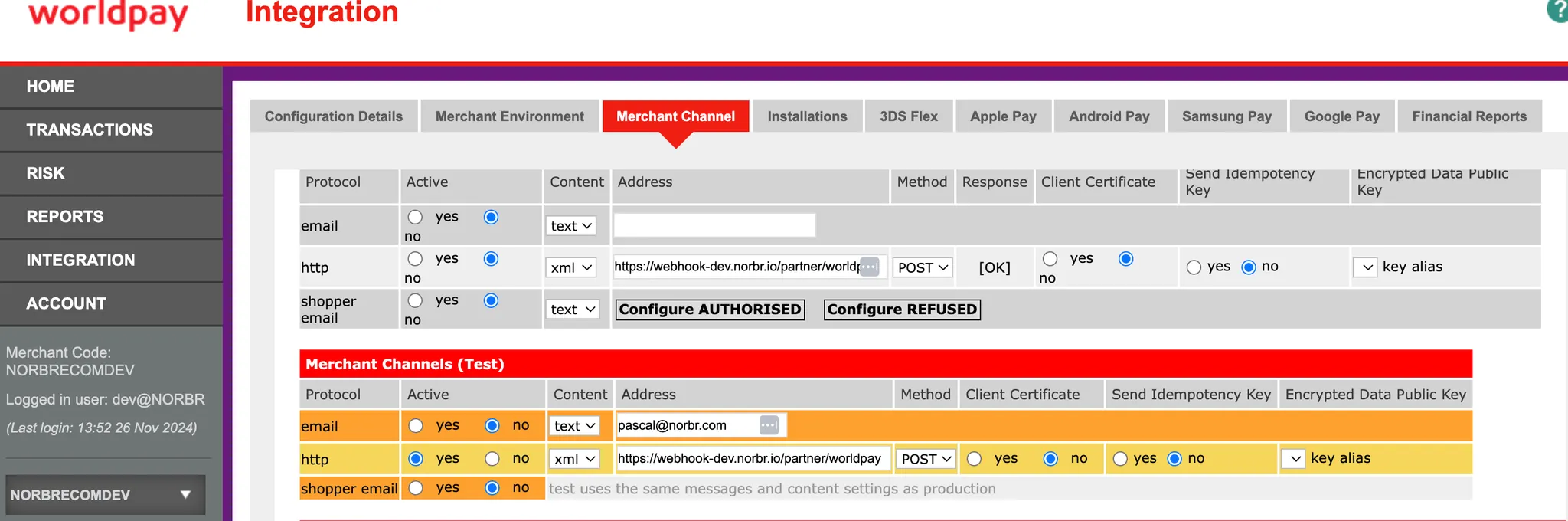
Then select all the available events in the table below in the HTTP line

Step 4 : Configure GooglePay
1 - Onboard your website on GooglePay and get your merchant ID
2 - Fill out your credentials in your merchant contract as described below :
- googlepay_gatewayMerchantId = Your "Merchant ID" at Worldpay. It can be seen in their back-office, in INTEGRATION> Google Pay.
- googlepay_gateway = worldpay
- googlepay_merchantId = your GooglePay merchant account ID (step 1). For the sandbox environment, you can put a random string.
- googlepay_merchantName = the name display in the GooglePay pop up when the customer pays
For Testing
Amex:340000000001007 - success frictionless flow
Visa: 4000000000001091 - 3DS success challenge
Mastercard: 5200000000001047 - Failed authentication
Updated about 1 month ago