
Cybersource
This guide will walk you through the process of integrating Cybersource with NORBr.

Step 1: Contract Signature
sign a contract with Cybersource and get access to their back office
Step 2: Collect your credentials
Collect your credentials from Cybersource. you will need your merchantId, merchantKeyId, and merchantSecretKey. Note them for the following step
Step 3: Add a contract to your Merchant Account
-
Log into your Merchant Account.
-
Navigate to Contracts in the left navigation. Select + Create to add a new contract.
-
Select the Merchant Account you want to link to the contract
-
From the provider drop-down list, select Cybersource.
-
Settlement currency: select from the drop-down menu. You will only see the available ones.
-
Give your contract a name for easier identification: eg. PSP name.
-
Setup provider settings and fill in the credentials you earlier retrieved.
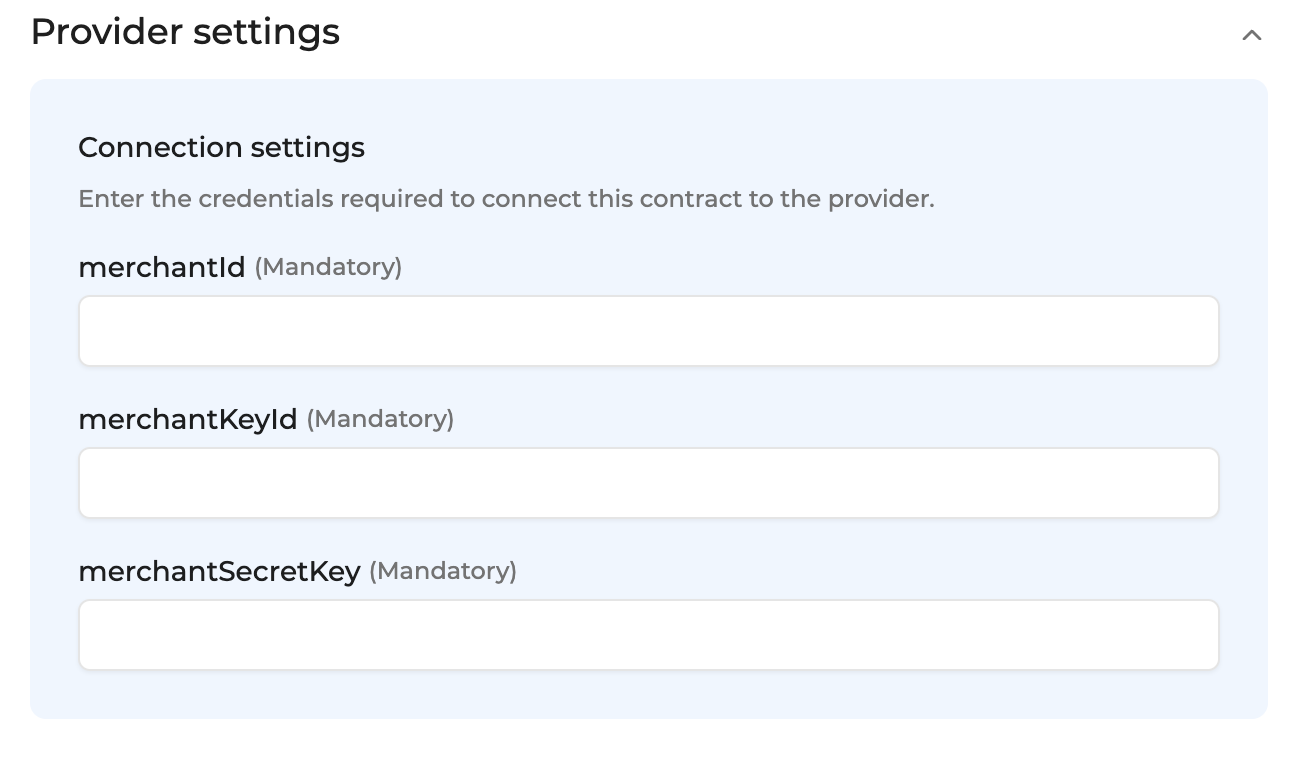
-
Operational configuration (authentication, risk assessment, network tokenization) : leave without changes
-
Select your sales channels and add payment methods. Once added, you can specify the authorization currency and the sales channels for each payment method.
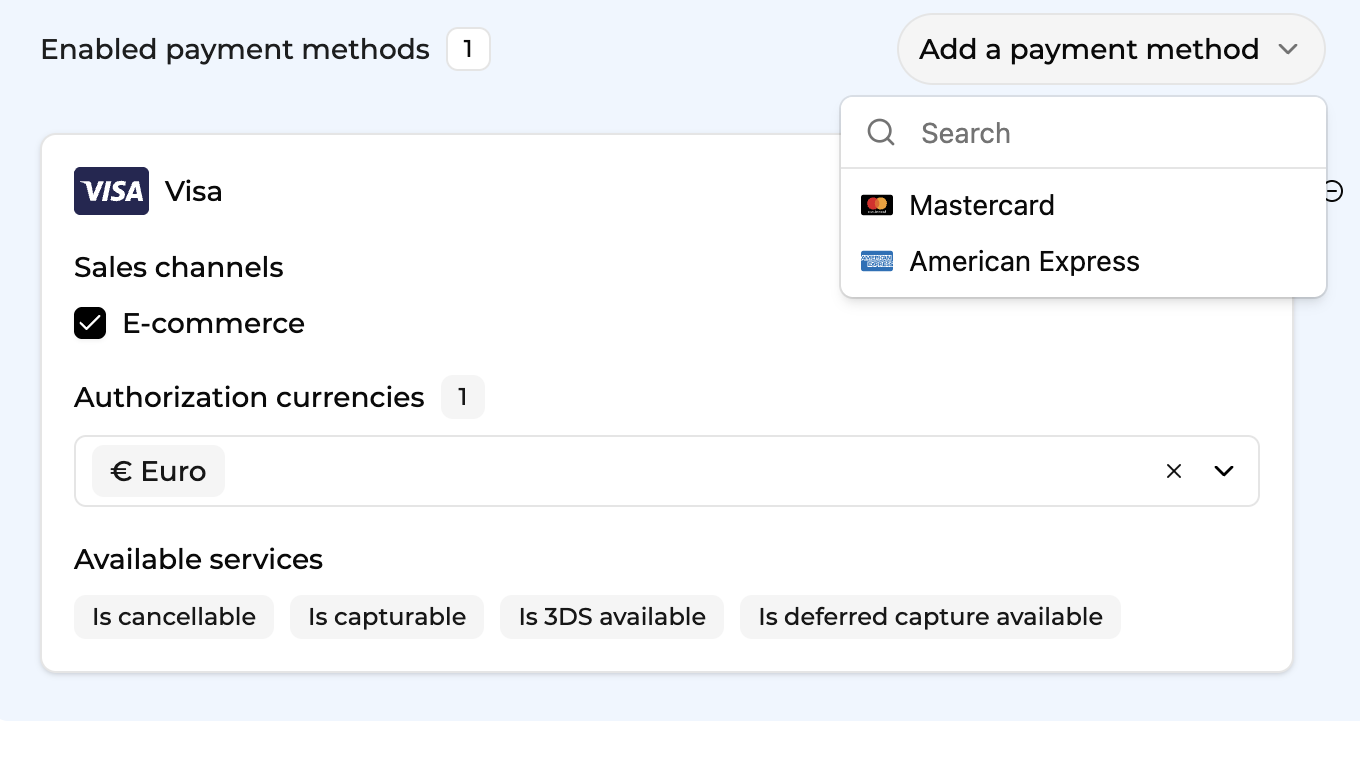
-
Exclusion rule : Set up your exclusion rule if you have one. This section lets you define a condition under which this contract will not be used for routing.
-
Once you have filled in the credentials, select Save, then select Publish to make the contract operational.
Updated about 1 month ago