
Zen
This guide will walk you through the process of activating Zen.com with NORBr.

Step 1: Contract signature
Sign a contract with Zen, and get access to the back office.
Step 2 : Whitelist the following IP addresses with the support
The list of IPs to be white-listed for payment processing:
35.187.87.157
104.155.105.192
34.142.100.23
34.107.34.143
34.65.142.211
34.89.124.165
34.107.126.251
34.65.230.239
34.78.205.229
Step 3 : Connect and retrieve your API credentials
- Connect to the following platform for production : https://my.zen.com/ui/auth/challenge
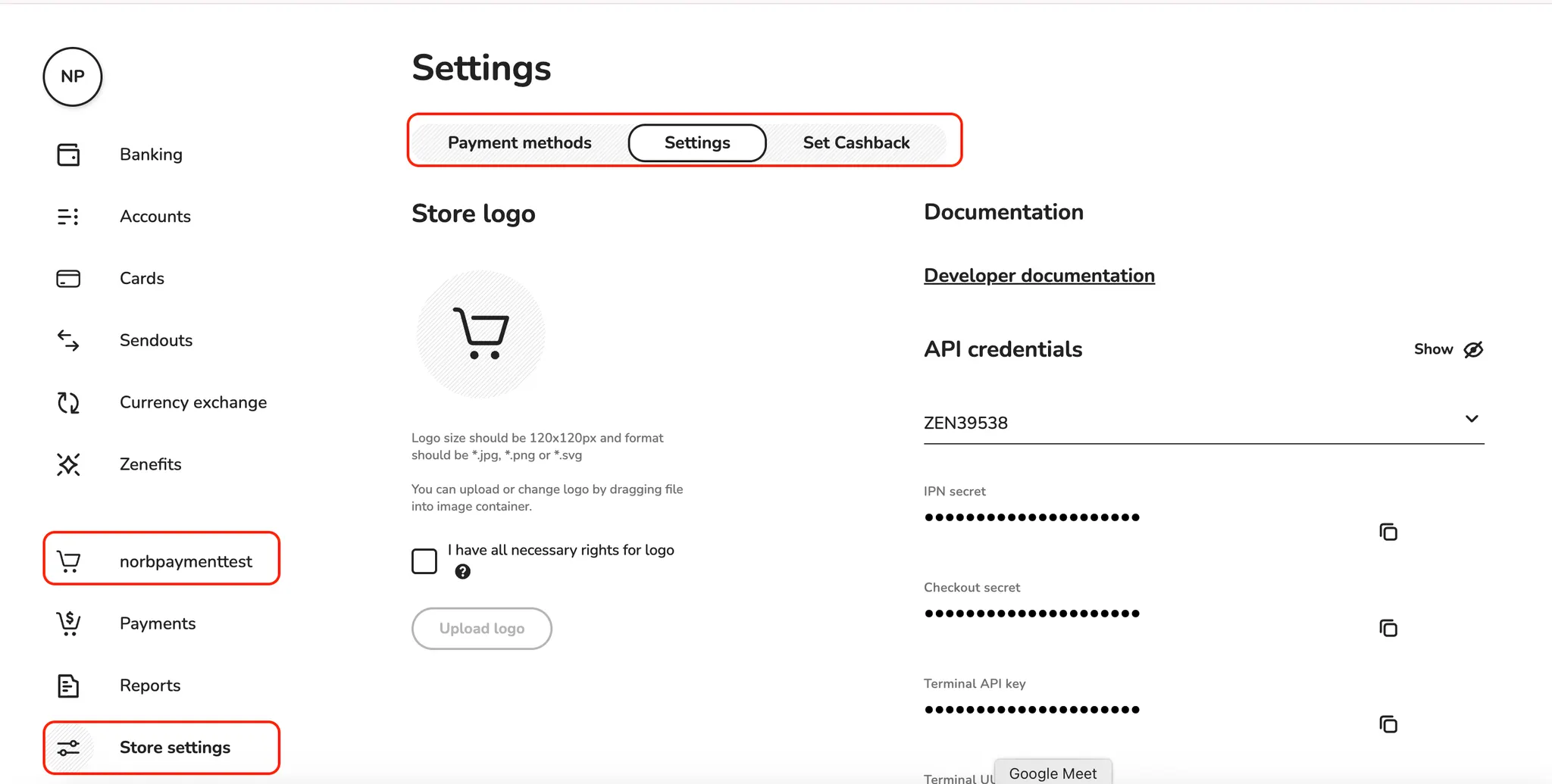
- Go to your store by clicking on the name next to the basket icon.
- Navigate to Settings tab as shown:
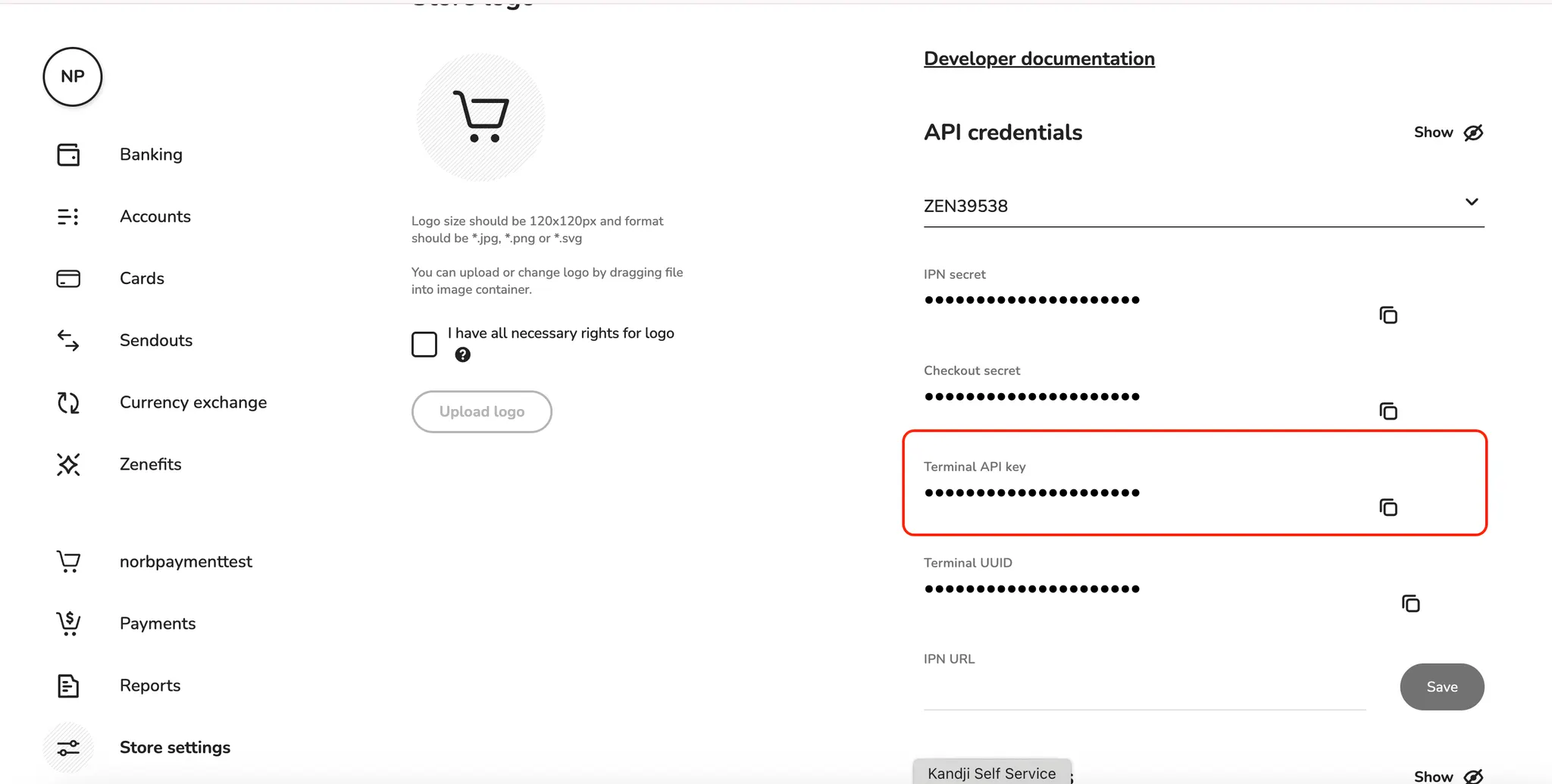
- Retrieve the Terminal Api Key.
Step 4: Add a Contract to your Merchant Account
-
Log into your Merchant Account.
-
Navigate to Contracts in the left navigation. Select + Create to add a new contract.
-
Select the Merchant Account you want to link to the contract
-
From the provider drop-down list, select Zen.
-
Settlement currency: select from the drop-down menu. You will only see the available ones.
-
Give your contract a name for easier identification: eg. PSP name.
-
Operational configuration (authentication, risk assessment, network tokenization) : leave without changes
-
Select your sales channels and add payment methods. Once added, you can specify the authorization currency and the sales channels for each payment method.
To activate a payment method with Zen, you will need your terminal_api_key and descriptor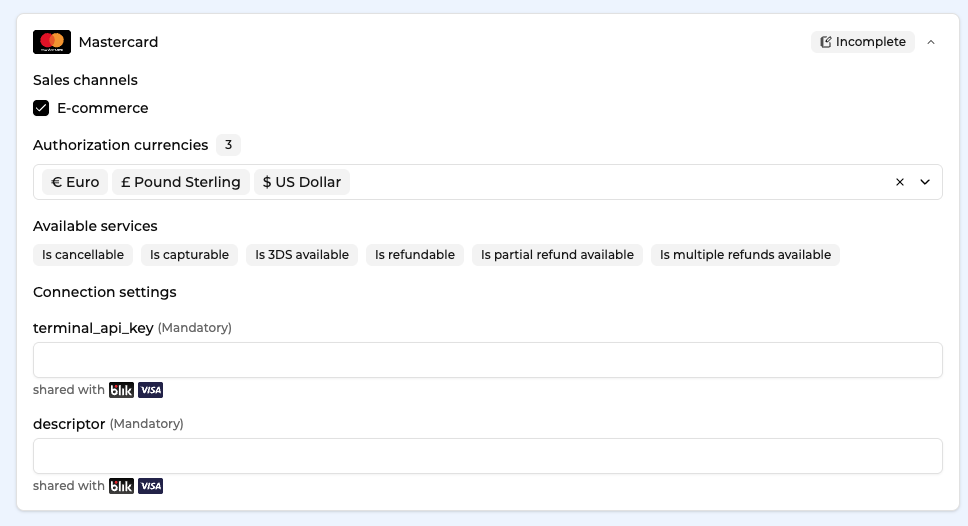
-
Exclusion rule : Set up your exclusion rule if you have one. This section lets you define a condition under which this contract will not be used for routing.
-
Once you have filled in the credentials, select Save, then select Publish to make the contract operational.
Please note that some payment methods will require additional action before you can activate them: ApplePay - ApplePay Certificate, GooglePay - your Merchant ID.
Depending on the integration type you use, there might be differences in activating ApplePay. Please reach out to get to know the steps in our use case. You will need to do one of the following:
- you will need to provide us with the Payment Processing Certificate from the Partner and we will follow up wit the setup.
- fully configure ApplePay yourself using your Apple Developer Account
Step 5: Apple Pay Reference for ZEN
Please visit ZEN reference for integrating ApplePay here.
Test cards
4111 1111 1111 1111
4242 4242 4242 4242
use these two numbers with any combination of cvc and a future date for expiry
Updated about 1 month ago