
Worldline Ogone
This guide will walk you through the process of integrating Ogone with NORBr.

Step 1: Contract signature
Sign a contract with Ogone and an acquirer of your choice (depending on their availability on Ogone platform) and get access to their back office : https://merchant-portal.preprod.worldline-solutions.com/
Step 2: Account setup and credentials
Retrieve your PSPID here on the portal and copy paste it on your merchant contract :
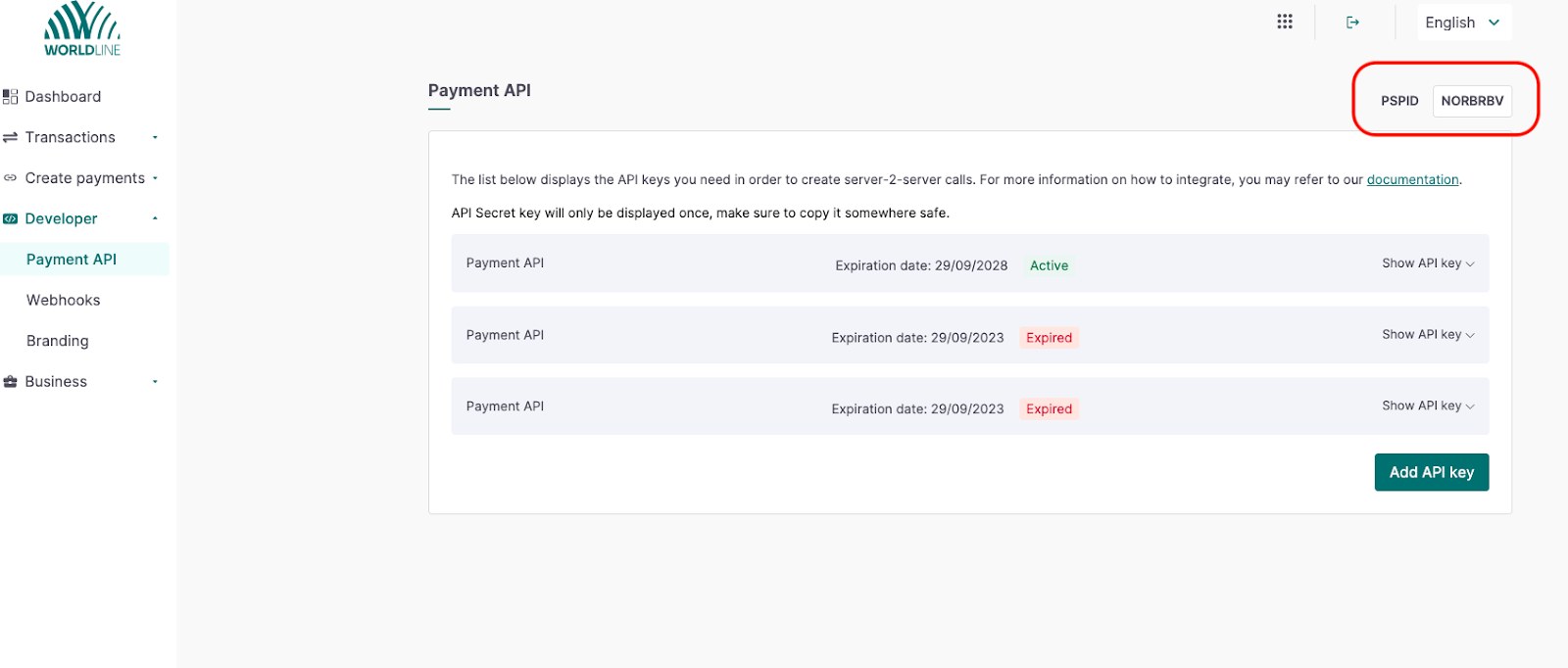
Go to the worldline portal and set up your API Key here
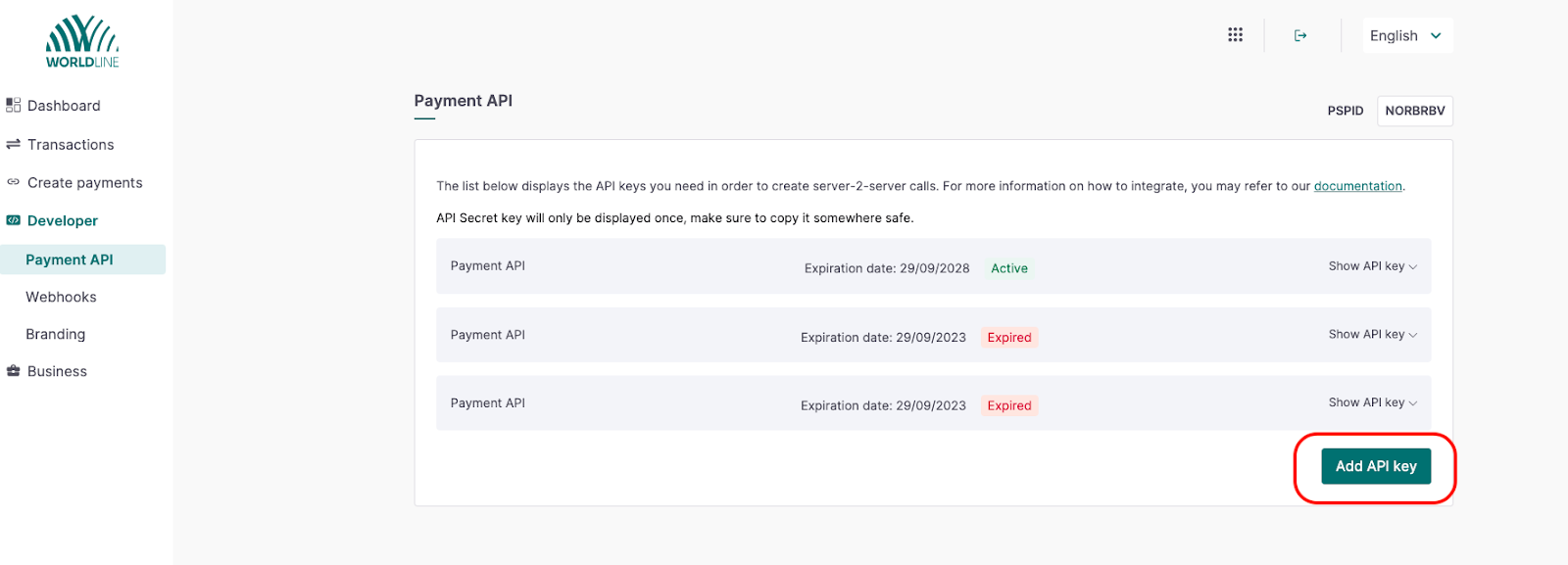
NB : the secret is shown only once when you click on Add API Key so make sure to store it right away, otherwise the key itself is shown here by clicking on “Show API Key” :
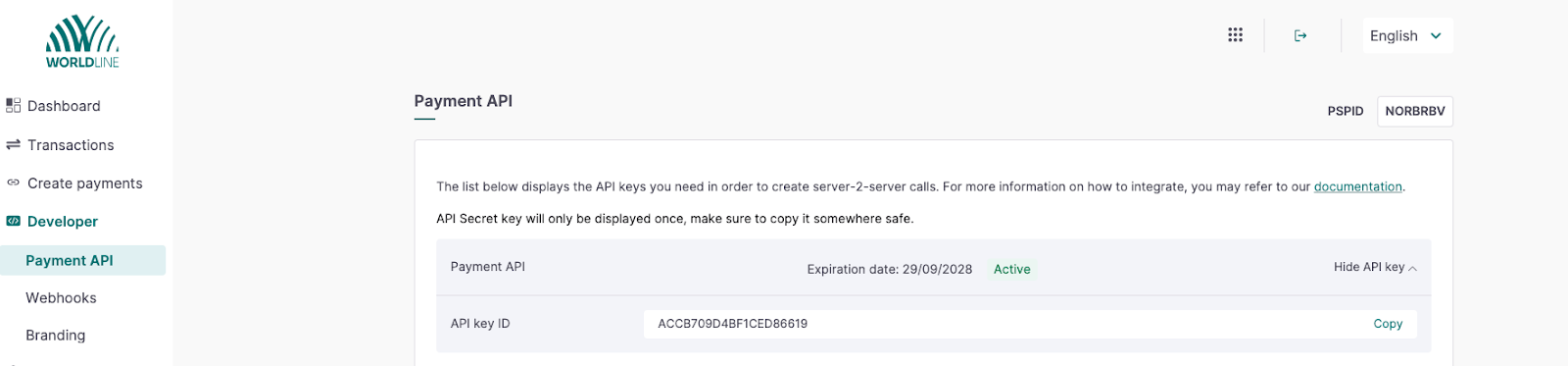
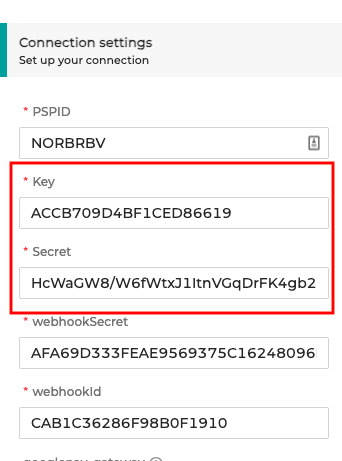
Store the key and configure your merchant contract by copy pasting the information here :
Step 3: Configure the webhooks
Go to the webhook tab, here :
https://merchant-portal.preprod.worldline-solutions.com/developer/webhooks
And click on add webhook endpoint :
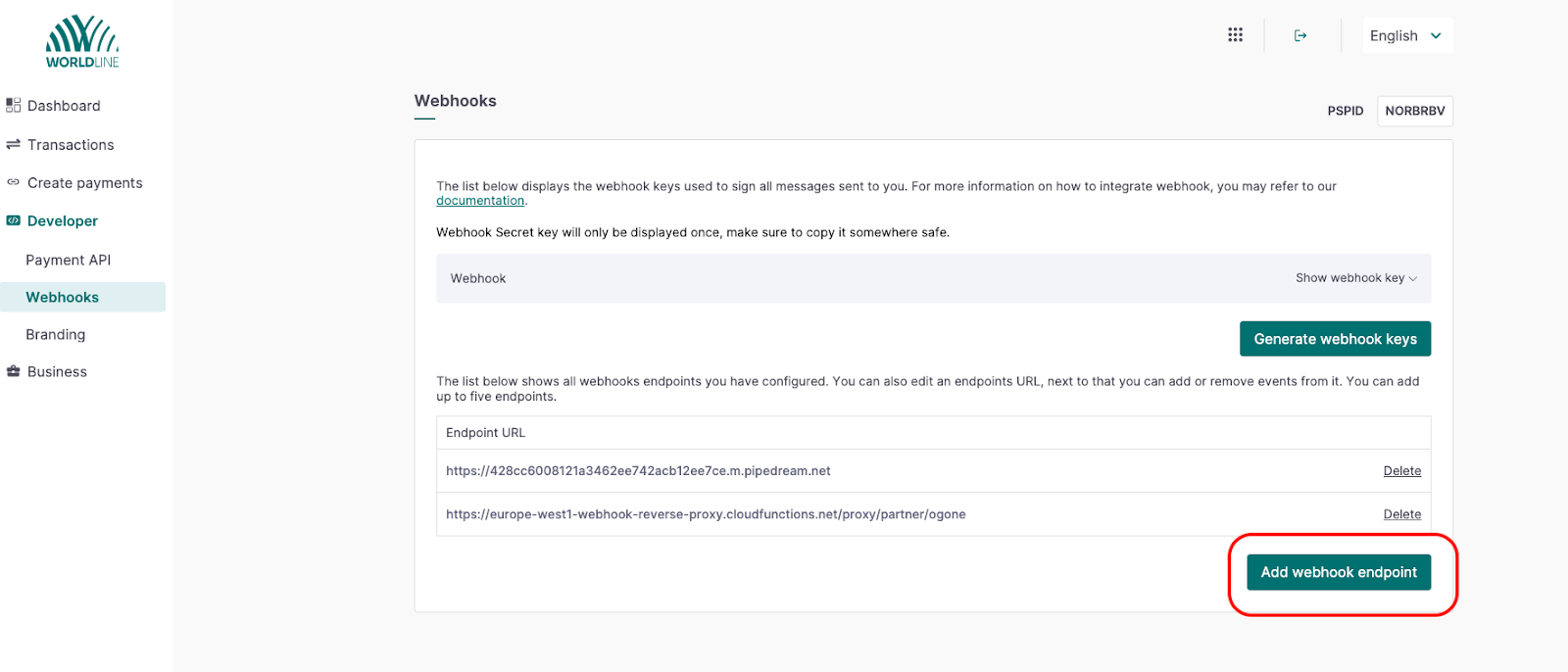
1 - Add the following URL depending of your environment :
- Sandbox : https://webhook-sandbox.norbr.io/partner/ogone
- Production : https://webhook.norbr.io/partner/ogone
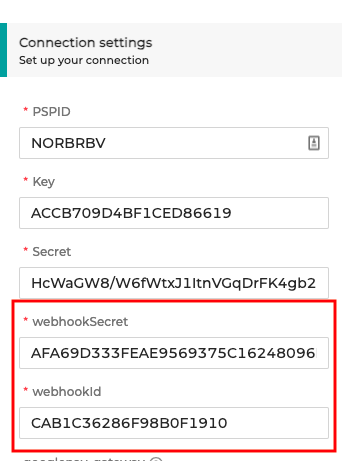
2 - Copy paste the webhook ID and webhook secret in your merchant contract
NB : the webhook secret is only display once, so make sure to store it on your side
Step 4 : Add GooglePay
To activate GooglePay on your account, first you need to have a GooglePay account approved by GooglePay
Then you can fill out the following information as described :
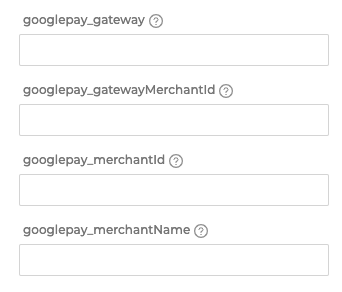
- Googlepay_gateway : worldlineingenicoogone
- googlepay_gatewayMerchandId : your PSPID
- googlepay_merchantId : ID of your GooglePay account
- googlepay_MerchantName : Descriptor you want to appear on the GooglePay pop up
For testing
375988000000003
370755100000034
4016000000000004 --> returns a try again response
Updated 10 months ago