
Finby (Trustpay)
This guide will walk you through the process of integrating Finby (TrustPay) with NORBr.

Step 1: Contract signature
Sign a contract with Finby (Trustpay) and receive access to their backend
Step 2: Retrieve the API credentials
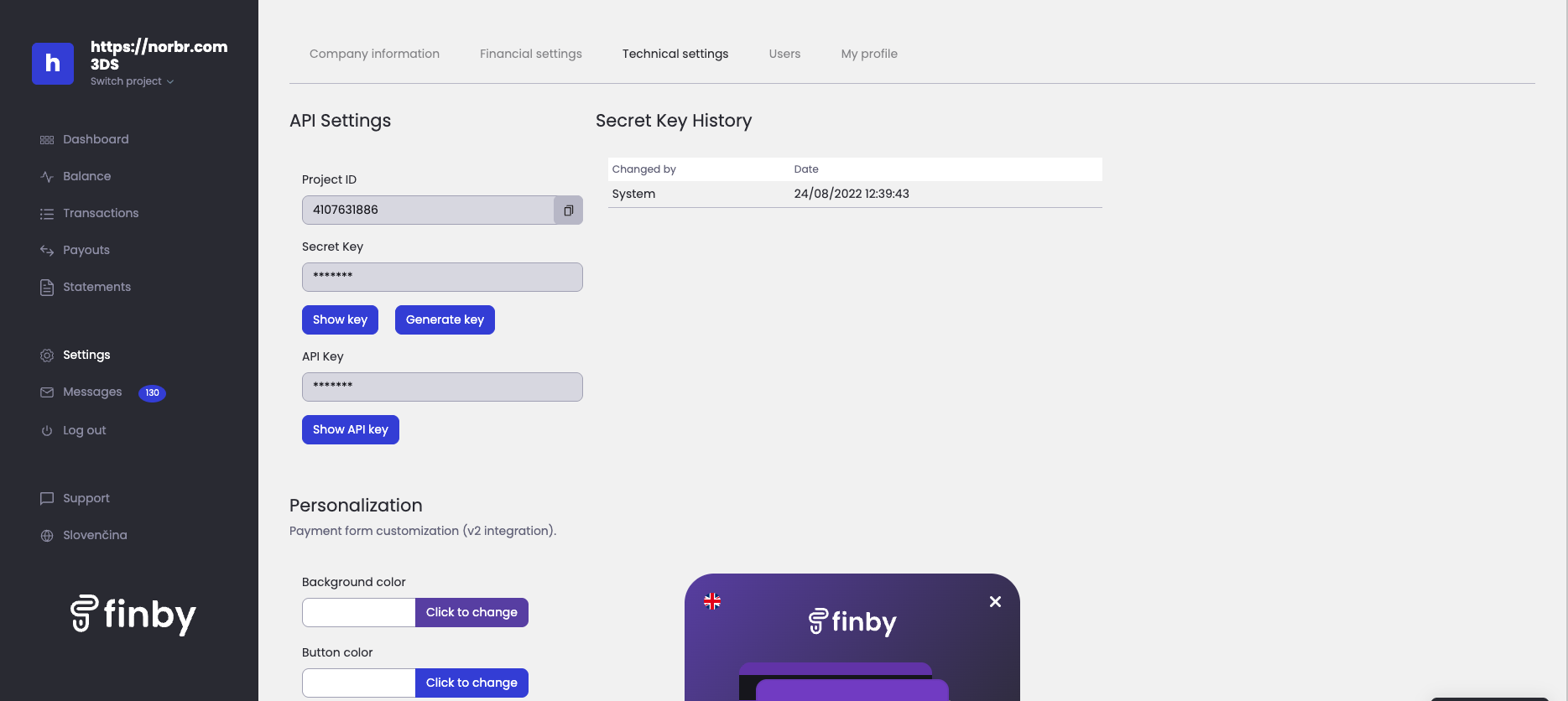
Once logged in - navigate to Settings from the left side menu and choose Technical settings from the top.
Find the API key and press show API Key. keep this value at hand for the next step.
Step 3: Add a Merchant Contract to your Payment Network
-
Log into your Merchant Account.
-
Navigate to: Payment Network → Service Providers → Payment Providers → Add a Partner
-
From the drop-down list, select Trustpay.
-
Give your contract a name for easier identification: eg. PSP name.
-
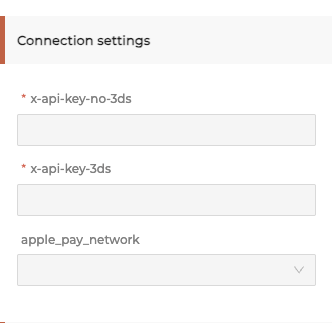
Setup general setting and fill in the credentials you earlier retrieved.
Fill in the api key in both x-api-key-no-3ds and x-api-key-3ds
- Merchant Contract ID will populate automatically.
- Settlement currency: select from the drop-down menu. You will only see the available ones.
- Select sales channel.
- Authentication and Risk Assessment: leave without changes.
- Connection settings: fill in the credentials you retrieved.
- To activate the contract set the status to active.
Step 4: Activate payment methods
Once you set up the connection by creating the Merchant Contract, you will be able to activate payment methods available for this Partner.
In the settings of your Merchant Contract where you earlier filled in the credentials and put other settings in place, you will see a section Payment Methods with two sub-sections: Active and Available.
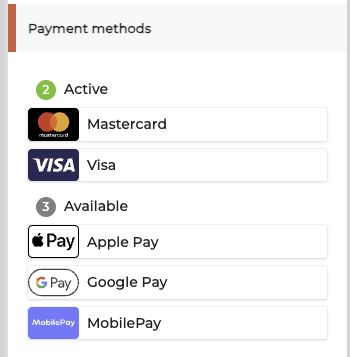
To activate a payment method, simply drag and drop it from Available to Active.
For testing:
You can test a successful flow by using one of the following cards
5454 5454 5454 5454
4111 1111 1111 1111
4200 0000 0000 0000
You can use any CVC value and any date in the future for expiry date
Updated 10 months ago