
Stripe
This guide will walk you through the process of integrating Stripe with NORBr.

Step 1: Contact Stripe to allow raw card data
1 - Fill out the following form here to request Stripe to allow us to use raw card data.
2 - Select your account
3 - Replace the text by the following :
I would like to request that Stripe enable raw card data APIs for my account.
We are using NORBr as a PCI Level 1 integrator. You will find attached their PCI certification.
4 - Attach our PCI Level 1 certificate to your request (please contact [email protected] if you do not have it)
Step 2: Account setup and activation
Open an account with Stripe and activate the production mode by accessing the Stripe dashboard. .

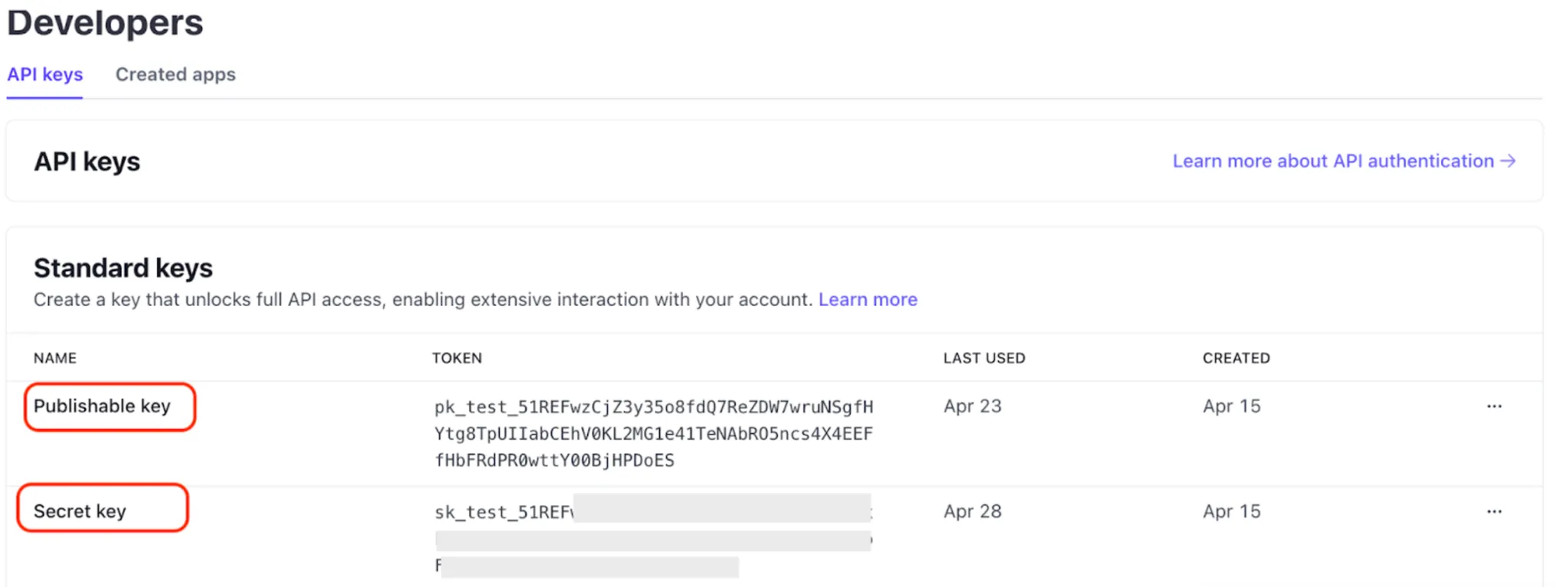
Step 3: Retrieve your API keys
Retrieve your API keys necessary for integration.
- Visit the following link: https://dashboard.stripe.com/apikeys or navigate do Developers → API keys.
The values you will need to fill in your Merchant Account are:
- Public key (starts with pk_ for Production; starts with pk_test for Sandbox)
- Private key (starts with sk_ for Production; starts with sk_test for Sandbox)
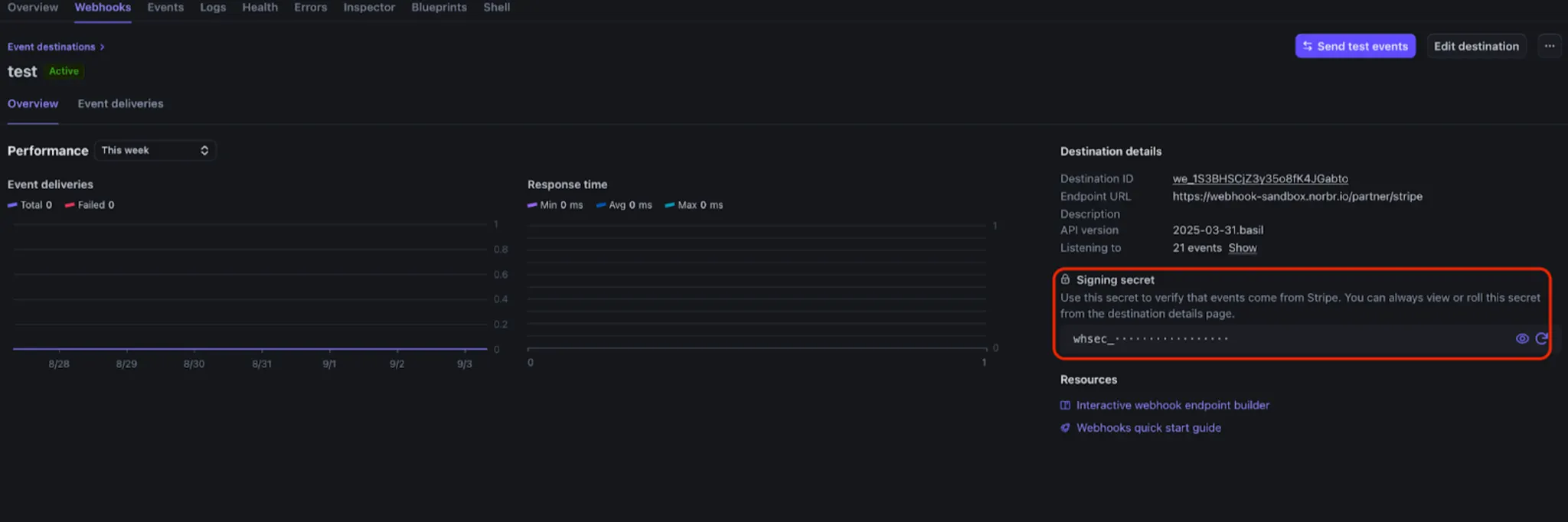
- Notification secret key - in the next steps.
Step 4: Configure Webhooks
To set up webhooks for event notifications:
-
Click on "Add destination".
-

Select all events for Charge and Payment Intent (21 Events in total)
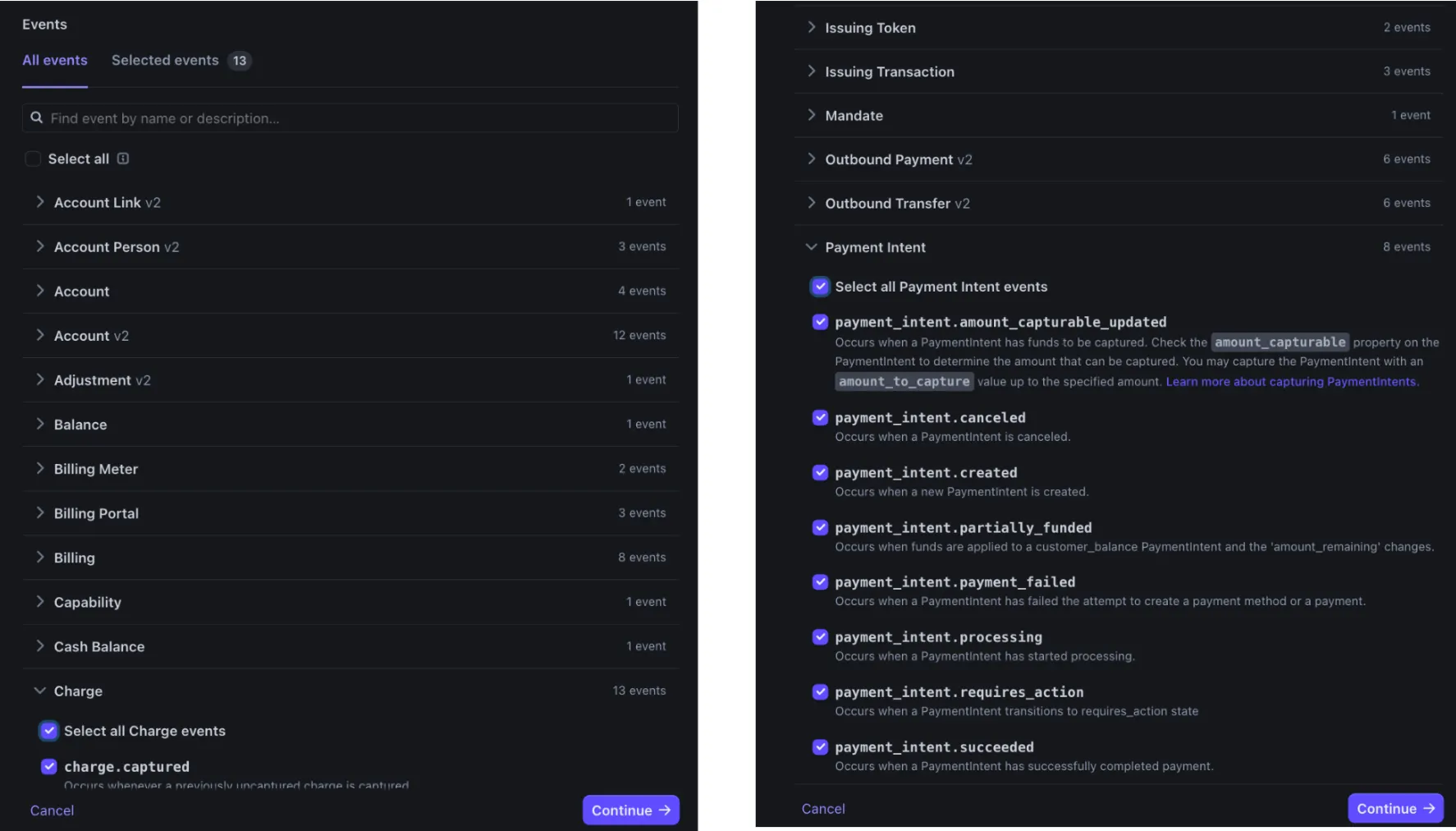
- Fill in the form
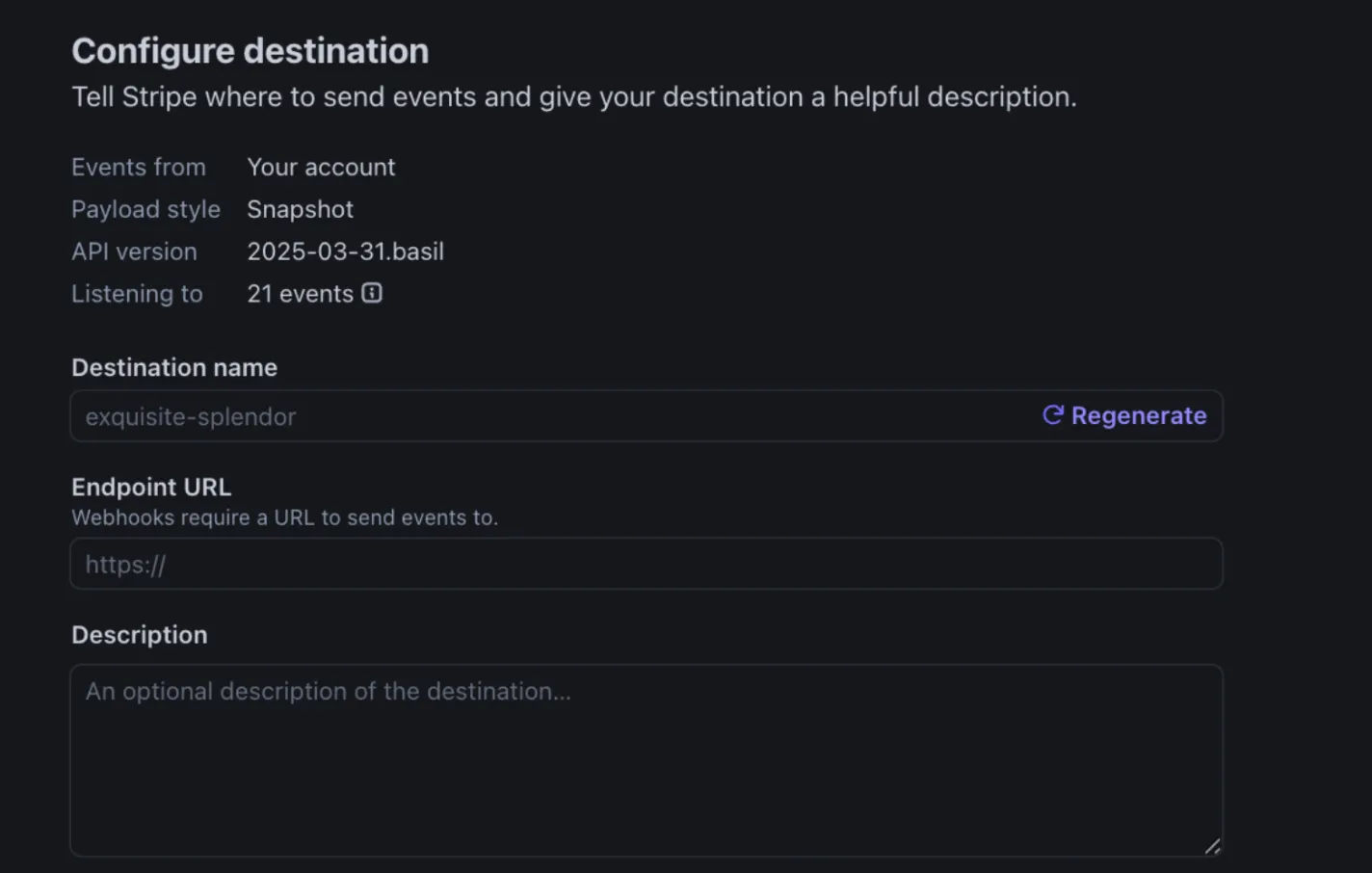
Endpoint URL:
Sandbox : https://webhook-sandbox.norbr.io/partner/stripe
Production : https://webhook.norbr.io/partner/stripe
- Obtain your webhook secret key from the same page once the endpoint is added.
Step 5: Add a Merchant Contract to your Payment Network
- Log into your Merchant Account.
- Navigate to: Payment Network → Service Providers → Payment Providers → Add a Partner
- From the drop-down list, select Zen.
- Give your contract a name for easier identification: eg. PSP name.
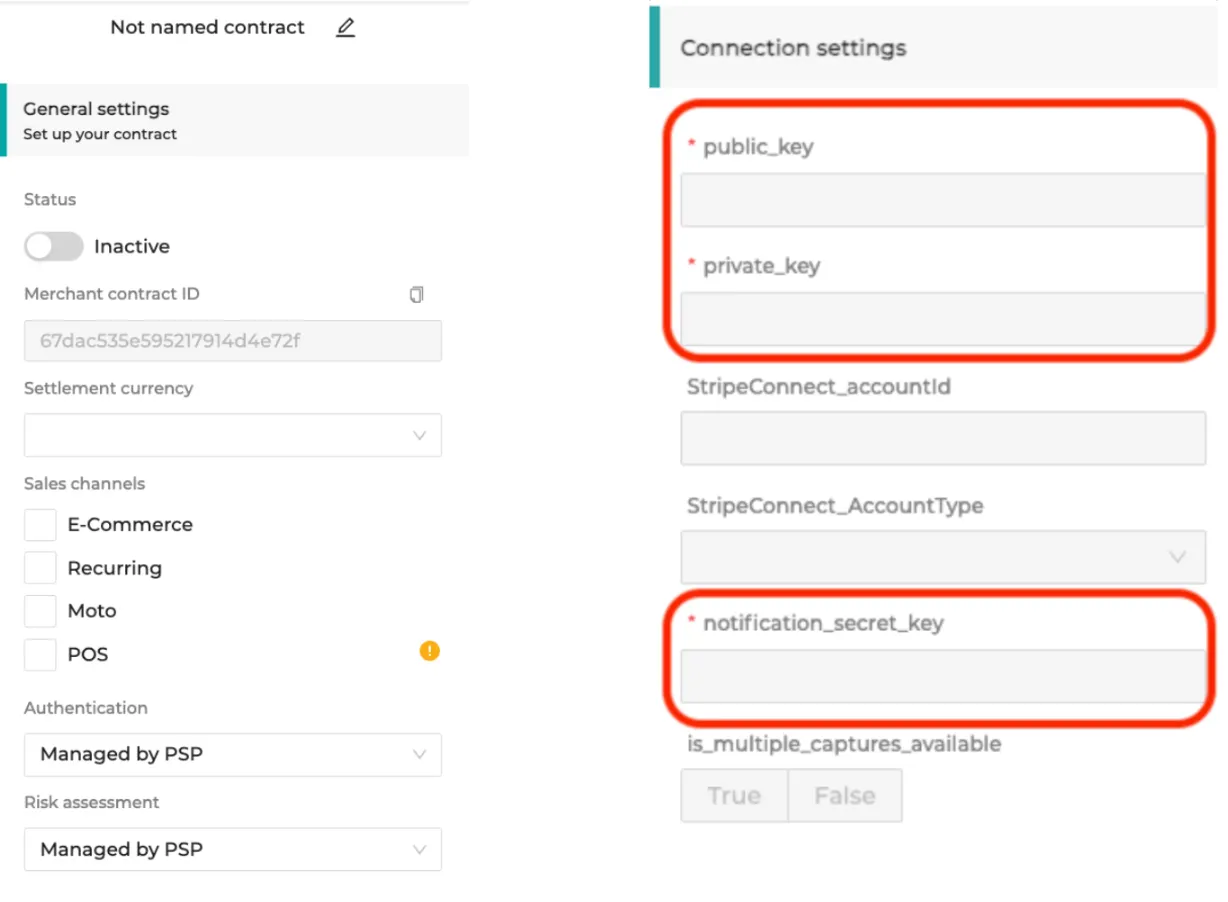
- Setup general setting and fill in the credentials you earlier retrieved.
- Merchant Contract ID will populate automatically.
- Settlement currency: select from the drop-down menu. You will only see the available ones.
- Select sales channel.
- Authentication and Risk Assessment: leave without changes.
- Connection settings: fill in the credentials you retrieved and fill in the descriptor.
- To activate the contract set the status to active.
Step 6: Activate payment methods
Once you set up the connection by creating the Merchant Contract, you will be able to activate payment methods available for this Partner.
In the settings of your Merchant Contract where you earlier filled in the credentials and put other settings in place, you will see a section Payment Methods with two sub-sections: Active and Available.
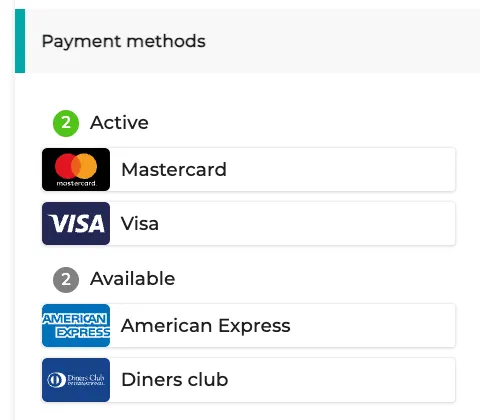
Please note that some payment methods will require additional action before you can activate them: ApplePay - ApplePay Certificate, GooglePay - your Merchant ID.
Depending on the integration type you use, there might be differences in activating ApplePay. Please reach out to get to know the steps in our use case. You will need to do one of the following:
- you will need to provide us with the Payment Processing Certificate from the Partner and we will follow up wit the setup.
- fully configure ApplePay yourself using your Apple Developer Account
Step 5: Apple Pay Reference for Stripe
Please visit Stripe reference for integrating ApplePay here.
Stripe Connect Configuration
If you are using Stripe Connect, follow these steps to configure it:
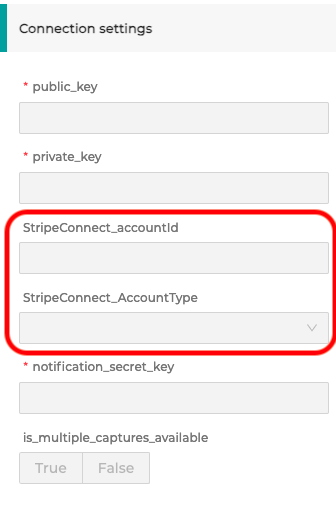
1 - Navigate to: https://dashboard.stripe.com/test/connect/accounts/overview
2 - Choose the account you wish to configure and retrieve the ‘StripeConnect_accountId’, which is the ID of your vendor’s account.

3 - Select one of the Account Type Options:
- Destination Charges:
- You create a charge on your platform’s account and transfer some or all funds to the connected account.
- Your account balance is debited for the cost of Stripe fees, refunds, and chargebacks.
- Direct Charges:
- The payment appears as a charge on the connected account, not your platform’s account.
- The connected account’s balance increases with every charge, and your account balance increases with application fees from every charge.
Step 7 : Activate ApplePay on your account
Stripe Connect :
Follow the following process, please keep in mind that you can only register your domain via the API if you use a direct charge account :
For Testing
Updated 9 months ago